Getting the transcript
Reading the captions from YouTube. A video nobody has opened here before takes 10 to 30 seconds; this page fills in on its own.
Getting the transcript
Reading the captions from YouTube. A video nobody has opened here before takes 10 to 30 seconds; this page fills in on its own.
Viktor Oddy · @ViktorOddy
This video has no Most replayed graph yet: YouTube shows one only once a video has enough views. These are the moments viewers replayed most in Viktor Oddy's most watched videos.
Most replayed moment at 3:11
4.5x that video's typical replay level
guessing. That's why I'm going to go to Motion Sites and just find some fonts that I like. So, one of the fonts that I like is this one. I'm just going to copy the uh the prompt here and I'm going to paste it here and I'm just going to delete a bunch of stuff. I'm going to create only the kind of the CSS styles.
Said at 3:04
The graph counts replays. It does not show where viewers stopped watching.
Words
2,509
Runtime
13:47
Speaking pace
182wpm
Reading time
10min
182 words per minute, just over the 181 median of 349 measured videos. That distribution comes from the 349-video hook study.
Opening (first 30 seconds)
In this video, you will learn how you can create this 3D animated website based on scroll. This is not just a video, this is actual 3D model built with Claude. I've been building websites for the past 10 years of this quality. So, websites that kind of have award-winning feel and design. I know how to design that and recently I've been doing all of that using AI and I'll show you the exact process that I've used to generate the assets to then animate that. I'll be sharing some
91 words, the words spoken in the first 30 seconds at 182 words per minute.
Free, no signup. See how the first 30 seconds hold attention, with rewrites.
Sentence shape
| Measure | This transcript |
|---|---|
| Sentences | 185 |
| Average words per sentence | 13.6 |
| Longest sentence | 54 words |
| Questions asked | 0 |
| Sentences containing a number | 22 |
Most used terms
Filler phrases
39 in total: like 23 · basically 5 · actually 4 · kind of 3 · uh 2 · literally 1 · you know 1.
A literal whole-word count of the same phrase list the Prepublish browser extension uses, so a phrase inside another word is not counted and a phrase used in its ordinary sense still is. It is a count and not a judgement.
What this transcript is
Every word below is the caption track YouTube publishes for this video, pulled from the video itself and reproduced unchanged. It is not Prepublish's writing, not a summary, and not a re-transcription: it is the video's own published captions. English captions, generated automatically by YouTube, in the video’s original language. Source: the video on YouTube. A channel that would rather this page did not exist can ask for its removal through the contact page, and it is removed.
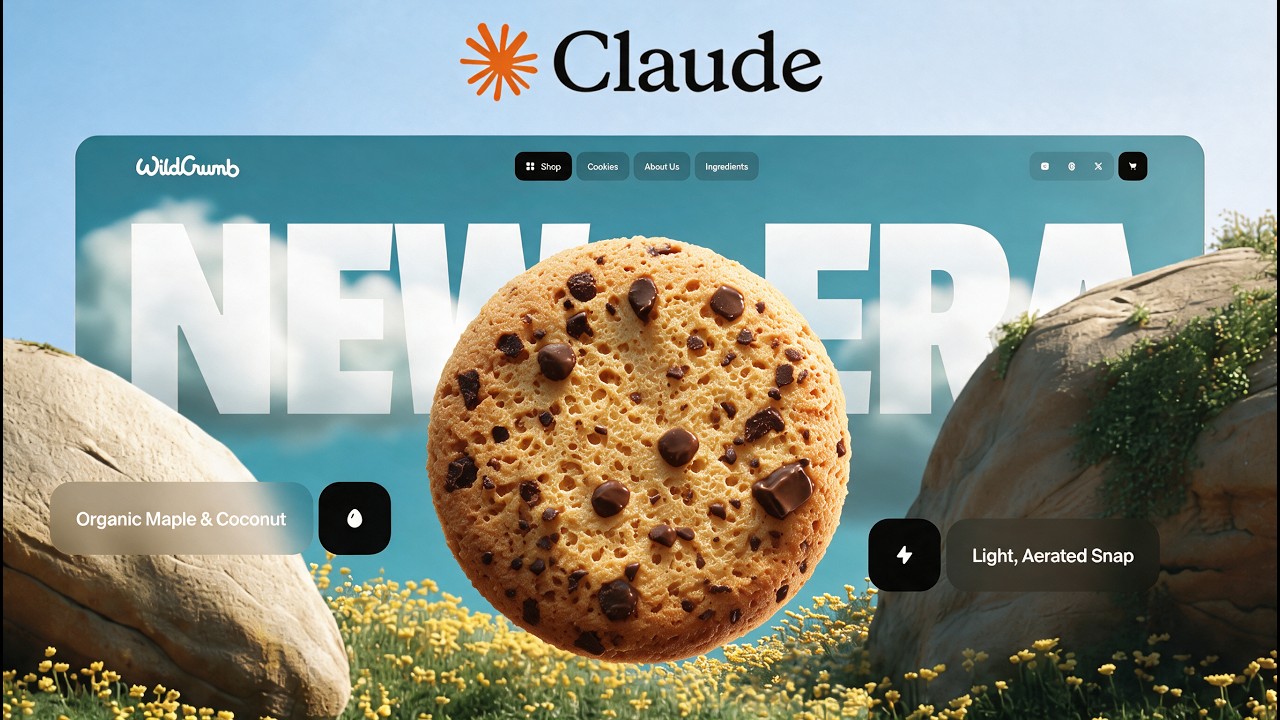
In this video, you will learn how you can create this 3D animated website based on scroll. This is not just a video, this is actual 3D model built with Claude. I've been building websites for the past 10 years of this quality. So, websites that kind of have award-winning feel and design. I know how to design that and recently I've been doing all of that using AI and I'll show you the exact process that I've used to generate the assets to then animate that.
I'll be sharing some tools which I'm not affiliated with. There is no affiliate links in the description, so feel free to use whatever you prefer. And if you want to get this prompt specifically, then you can go to Motion Sites. You can click on recent here and scrolling down there is this prompt. Special thank you for Chris for providing this design. And you can copy the prompt, you can copy the code and build that exact design.
But, I'll show you either way how to design that from scratch. Then, I'll show you how you can generate all of the assets and design that and then turn that design into an actual interactive website. Without further ado, let's get into the video. Let's generate our 3D model. So, basically what you want to do is be creative. Just find an idea of what you want to create your 3D model from. This can be a candy or anything at all.
Just find a one image and then I'll show you how you can turn that one image into a 3D model. So, let's say you've selected this one, then we just bring it to chat GPT or whatever image tool you prefer. I'm going to do one example of this cookie. Let's say that I just copied this from Pinterest. And then, I will just use GPT image tool. So, in Figma there is this thing added with prompt. Not advertising Figma. I think this is a pretty lame way to do that, but it's pretty convenient if you're a designer.
So, I'm just going to say, "Create me an image like this, but from front, back, left, and right view." This is for my 3D model. So, once I said that, I can just make sure that GPT 2 selected or you can use Nano Banana, Gemini, I AI video editor or image editor you have, you can use that. So, let's wait and see what it comes back with. And this is what we've got. Now, I can just duplicate it four times or do it just one time and crop it using holding my keys in my computer.
So, let's just do like this. Now, we can just make sure that it is center aligned. And now I just duplicate it four times and just move this image to the center. Let's make sure that it is well hidden. Like this. Do one more time to do the other side. Like this. You can do that either way. The only thing you need to do is like having four sides of this and either way you do that would work. Now, let's just export this.
Click on export. You can do PNG or JPEG, whatever you prefer. And then we're going to need to create a new folder. I'm going to say cookie 3D. And let's just upload it here. For the 3D thing itself, I'm going to go to this website, which I'm not affiliated with. I'm going to click on smart topology. And then I'm going to select the multi-view and there it says front and etc. Let's just find our cookie. This is it. Here we have the front.
Here we have the left side. I hope this is the left, the right. And there is the back side. Make sure the front is uploaded as well. And here we can just click on generate the model. And there we have it, our beautiful cookie that is interactive. We can do like stuff like this and it looks perfect. It did everything as in the images. Now, let's just export it. We're going to select 2K or even like 1K for better and for better speed.
Since we're doing this for a website, if you were doing this for like some other purposes, you could have done like 4K as well. So now we're just having it on the page and all we have to do is upload it to Claude. Literally just like drag and drop. If you're not going to watch any further from this video, you can just drag and drop and ask AI to implement it using 3js and it will do all the job, but I'll show you how to do that step-by-step and we're going to start with creating our UI first in the Claude.
So for this I'm going to go to Claude. If you don't have it yet, just install it. It's very quick to install and it's very easy to use. When you're here, you'll have this page whenever you first open Claude, you'll have this kind of design. You'll need to click on code here at the top, then click new and make sure that the new folder is selected since this is going to make sure that this is specific folder is for this website.
We're going to name the new folder Cookie site 3D. Let's start building. So I'm going to copy our image. I'm going to export this. Feel free to use whatever background you prefer. Let's make sure that it is JPEG since this would be make the quality smaller. I'm going to just export it in there and drag it into our Claude project that we just created and I'm going to say create me a website. Basically, it's just going to be empty for now.
I'm going to ask you to add content later, but make sure that the page doesn't actually scroll. Everything is pinned on the screen and scrolling just drives the animation from scene one to scene two. In a few words, scene one would be basically a giant bold headline taste the sky and then the scene two would be a headline the difference. So basically the two sections and then the transition would be let's say something like The transition between these two sections as you scroll the headline letters scatter and fly off upwards and the cookie we can say about that later.
And let's just send that. Let's make sure that the fable five selected. Although I don't think that's too necessary because we just gave it a very simple task. So let's just use Opus. Yeah, again. So if I just put it down here so I put it up here so I don't lose it. If we go to the original we can see that the letters are scattering and then there is the different section. So I'll try to explain that with words but we're going to see what it comes back with and then we can iterate on the specific fonts, the nav bar, the cookie itself and stuff like that.
Let's wait and see what it comes back with. And here's the first draft that we've got. As you can see it is good for a first draft but AI is very good at actually understanding the video. So if you have a video example of the animations that you want to have, you can just send that. In the past you could have just sent picture but now you actually can send a video. So that's what I'm going to do. I'm going to open this in a new tab.
Let's just find the video here. And let's just download this. Like this. Let's upload it to our cloud. And also let's upload our GBA whatever this is 3D thing that we just generated in the beginning of this video. So now that we have this GLB and the MP4 we can say something like Let me just find it in my copy button here. So I'll say use this GLB file to animate in the website as given in the reference video. And then we can just send that and also we can like say the the the name of the font.
So, the font is named Passion One. Let's take a look if it's on Google Fonts. If it is, then you don't need to send any links, anything at all. Google Fonts is like the biggest free library of very, very good fonts. So, you can use them on the web. Let's say replace the the font to be this one. And also for the secondary font, let's use Inter and add the same font and navbar items as we have in the in the video itself.
So, let's say for the secondary font we have I Inter would work fine. So, let's just make sure that this time Fable 5 selected and high is fine. Let's send that and see what it comes back with. We can see that the Claude is already watching the video. And by the way, if you don't want to upload the video, you can just use MCP. So, here you can just click on plus here and make sure that connectors connector of Motion Sites is connected.
You can install that at MCP. It is free to start. You get a few prompts today that you can absolutely for free import and there is a very easy setup if you know how to use that if you are developer. If you're a designer, you can just copy the prompts directly. This is what it created. So, as you can see, we already have the animation. The cookie the Claude is still working and we have the cookie that is a little bit darker than the reference and that the GBL file, but otherwise the animation is perfect.
It kind of fixed the image being sticky. Then it added these all of the text elements and the text at the bottom, which is just from one video that we attached. You can build the whole website that in the past took like months to build using agency. Right now, you can just upload one simple prompt and you can have this whole website for free or whatever you pay for Claude tokens, but we'll still need to fix a few things.
So, let's just wait while it finishes. Let's say also that apply tone mapping required without it the cookies renders dark and muddy. Let's make sure that the Sonnet 5 or Opus selected to not waste too much credits on this, and let's wait and see what it comes back with. Looks much better now, but there is another problem that you can just take a screenshot and send to the AI. It will basically give more instructions on the color.
So, again, just take a screenshot if I forget to add into the description, you'll have that because this is a common thing with Claude being that 3D images being darker. So, feel free to save that. But, let's just wait and see what it comes back with. And here we have our animation and the cookies in a good quality. Now, about the main thing, you would need to post it on social media cuz building is great, but if you're not marketing it, there is no point too much in that.
Now, I'm showing you how you can actually grow your Twitter account. I found Twitter to be one of the best way lead gen or client searching engines for me and for all the designers that I know. I grew my account to 68,000 followers in just 1,500 posts. This is extremely quick on Twitter. And I'll show you how you can do exactly that. So, my post gone super viral with 3.3 million views, which is way bigger than the biggest video in my YouTube channel that has just 200,000 views.
So, I think Twitter is one of the best ways to do that. And all that you have to do is just record screens of whatever you're doing. As you can see here, I'm just recording screen showing that Motion Sites is built on Lovable, and then I got an email from Lovable team from this post that I will be working on on some partnerships. Just recording some stuff about the stuff that happening on Twitter. Any designs that you're posting in this way, I'm just going to click on screen recording.
I'm going to use CleanShot for this. Feel free to use whatever you prefer. Because I'm using two screen recordings right now, that's why the thing is lagging. But you can just scroll through it and interact with your mouse, so people can see that this is an actual website. You can then just click on edit it. Make sure that the quality is whatever you like it to be. Go to Twitter. And if you tag me on Twitter, I every day just search Victor Odin.
If I see something that someone has made a design using my prompts or using my workflows, I will very often like contact you. I will add your prompts to the to the Motion Sites. You can see in this case, there is a this prompt that is already on Motion Sites and the people already use it. Like this person that tagged me. And now there are two prompts in the website. So if you can do that, if I like the prompt, we can also add it to Motion Sites and you'll get a free access to lifetime subscription on Motion Sites if your prompt is accepted to Motion Sites.
But it it is not for developers per se. This is mostly for designers. We're looking for quality designs. So if you're a designer, you can also click on submit design here. And then we can work to that. And yeah, so other than that, you can just click on post here. Upload the thing here. And for the prompt, you can very simply say uh build this with Cloud Fable 5 and 3D. Keep it simple and that's it. You don't You don't need to put anything else.
If you put more stuff, it will not go viral. It will not get anything. Just make it simple. You can tag maximum one person. So whether it's me, uh whether it's Claude, just make sure that you just pick one. Of course, if you pick Claude, there is a little chance that they will see this and repost it. If you pick me, that there is a very high chance that I will repost it if I like the design. So, yeah, this was this was it for this video.
I hope you've learned a thing or two, and I'll see you in the next one.
The words are the caption track's own and nothing is reworded or re-transcribed. Paragraph breaks are placed between sentences so the text reads as prose.
Free tools for your own script. No signup, no login.
Paste your draft and see where viewers are likely to drop off, with a rewrite for each weak line.
Paste the first 30 seconds of your own draft for a hook score and rewrites.
Check your draft against YouTube's advertiser-friendly guidelines before you record it.
Read this channel's public videos and transcripts, and download a writing brief for it.