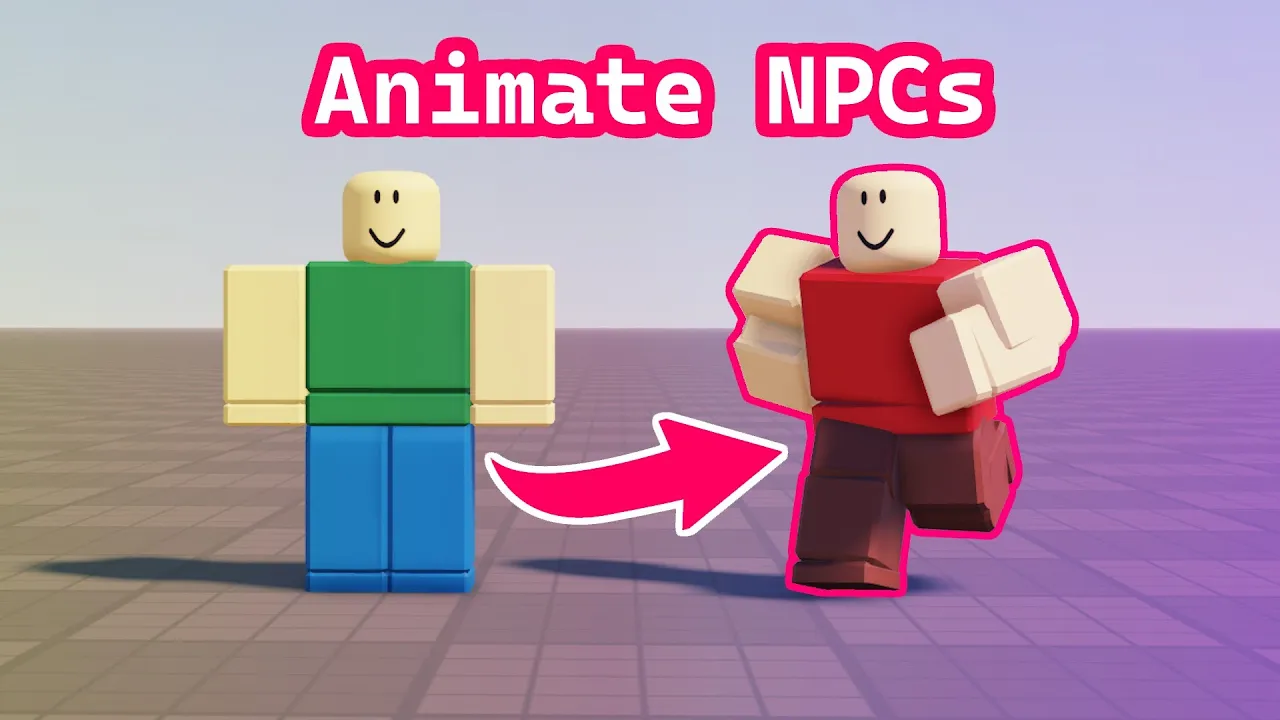
How to Animate NPCs in Roblox Studio transcript
GnomeCode · @GnomeCode
Words
1,340
Runtime
7:47
Speaking pace
172wpm
Reading time
6min
172 words per minute, between the 160 25th percentile and the 181 median of 349 measured videos. That distribution comes from the 349-video hook study.
Opening (first 30 seconds)
hello my fellow gnomes quick video today and we're just going over how to animate an NPCs now inside of both of these I have a little move script we can click open it up not really important but we can see we're just moving them around the map and if I then click play we can see they're moving all around the place but they're not animated like my actual player character is here so if we want to animate them or one thing we
86 words, the words spoken in the first 30 seconds at 172 words per minute.
Sentence shape
| Measure | This transcript |
|---|---|
| Sentences | 1 |
| Average words per sentence | 1340.0 |
| Longest sentence | 1,340 words |
| Questions asked | 0 |
| Sentences containing a number | 1 |
Most used terms
- script30
- local13
- run11
- local script9
- server9
- animate8
- play8
- swim8
- animation7
- animations7
- npcs7
- actually6
Filler phrases
29 in total: like 9 · actually 6 · uh 6 · um 5 · basically 1 · kind of 1 · sort of 1.
A literal whole-word count of the same phrase list the Prepublish browser extension uses, so a phrase inside another word is not counted and a phrase used in its ordinary sense still is. It is a count and not a judgement.
What this transcript is
Every word below is the caption track YouTube publishes for this video, pulled from the video itself and reproduced unchanged. It is not Prepublish's writing, not a summary, and not a re-transcription: it is the video's own published captions. English captions, generated automatically by YouTube, in the video’s original language. Source: the video on YouTube. A channel that would rather this page did not exist can ask for its removal through the contact page, and it is removed.
Transcript
hello my fellow gnomes quick video today and we're just going over how to animate an NPCs now inside of both of these I have a little move script we can click open it up not really important but we can see we're just moving them around the map and if I then click play we can see they're moving all around the place but they're not animated like my actual player character is here so if we want to animate them or one thing we could do is we could just copy our gnomes animations so if I go into workspace and I can find gnome code that's my player and I can see I've got this animate script and these are all the animations that my character is using when I move around or if I do a a dance right I do one of these emotes is using this animation set so I could just copy this entire script I'll right click select copy and then I'm going to hit stop and I can paste that animation script into the workspace we can have a look at it this is all the logic that controls the animations at the moment all 800 100 lines of it uh now this is actually the same script that we get if we go to the Avatar Tab and you create an NPC with the rig Builder option and if you add in an avatar like so and we look inside this rig we'll notice it actually already comes with this local script uh called animate and that's actually how I added in these two NPCs here because both of these also contain an animate script but it is a local script which means it can't run inside of the workspace it can only run inside of certain containers such as a player character and these are just NPCs so how do we get it to work well one thing we can do is we can add in a script and let's name the script animate and if we go into the local script and we select all of those objects and drag them into our new server script and then we go into the local script crl a select everything crl X to cut it add it to our clipboard go back into that new serice script we just created delete that and paste in the contents so we've just moved all the contents from our blue local script into our white server script once we've done that we can go ahead and delete the local script and if I then hit uh run we should see this guy is now animated he's playing the idle one and he's playing the the Run as he moves this guy we didn't B to set up um now this is okay we're now running the animations on the server um but this is not ideal for one thing we've actually got an error down the output because this script refers to the local player so it's meant for a local script there is no such thing as a local player on the server and the other problem is that if we did have lots and lots of these then it's going to cause performance issues for our game because really we want want sort of local effects and UI changes and animations to all be happening on the client rather than waste server memory so what we can actually do is we can select this script and we'll notice that server scripts have this property under Behavior called run context at the moment it's set to Legacy but there's a new feature of Studio where we can choose whether you want to it to be a client or a server and if we change the run count text to client it operates it's like a local script we can see it's now turned blue um but it's a special kind of local script that can be ran inside the workspace so if I hit run again it's going to look like neither of these are animated now because the animations are not happening on the server but if I hit play we will see he is animated again so we could copy this for both NPCs um if we wanted this guy to be using exact same anim set and that'll be fine um but sometimes you want to do something a bit custom right so if we're wanting to edit this animate script right it's 800 is lines worth it's quite a lot of bulk and a lot of this stuff at NPCs you probably don't care about right we've got stuff to do with holding tools and swimming and jumping and various States and then different emotes for the chatting an NPC can't do chatting emotes so a lot of this stuff might be Surplus the requirements so we can just create a really simple script as well so I'm going to go into my second rig and I'm going to create a new script and we could just call this like custom animation now in order to play any animation we need to access the animator which is a property of the rig's humanoid so we'll just grab them in our script and then we need to grab some animations you could add anything in but I'm actually going to take some on the default one and just to be a bit different why don't we take the swim one so we're going to take swim and swim idle move those into our custom animation script and delete this old local animate script we need to load both of these into our animator so they're ready to use so we call the load animation function and then we pass in script wait for child swim and then we're going to do the same thing for swim idle now once these tracks are loaded at any time we can tell them to play so if I just went ahead and run this we should now see he is swimming as he moves about pretty funky but it's not a sync to his movement or anything if we want to tie it into the movement we can use an event from the humanoid so there's a humanoid do running event connect that into a function and that gives us the speed that he's moving at whenever he's moving so if the speed let's say is greater than 0.5 studs a second then we're going to want him to be doing a movement uh animation in this case the swim so we play that and then we're going to want to stop the idol so stop and if they're not going faster than 0.5 they're basically stationary so we're going to want to play the idol and stop the swim so just the inverse of this calling stop and play like so so now if we run it we see swimming as he moved and then he stops and he goes to the swim idle like so now again I'm still using it on the server so I probably want to select the script and change the Run context to client and so now if I hit run neither of them will be animated but if I hit play we're going to see two there we go he got a little stuck there but we see two animated NPCs uh one that's using the exact same scripts as my character and then another rather funky one doing some swimming so hopefully that helps you guys in animating your NPCs if you found this video helpful then leave a like uh tell me in the comments what you're going to use this for and be sure to subscribe for more helpful tips like this so thank you very much for watching and I'll see you in the next video goodbye [Music] he [Music]
The words are the caption track's own and nothing is reworded or re-transcribed. Paragraph breaks are placed between sentences so the text reads as prose.
Use this transcript
Three free tools that work on the material around a video like this one. No signup, no login.
Hook Analyzer
Paste the first 30 seconds of your own draft for a hook score and rewrites.
Policy Pre-Flight
Check your draft against YouTube's advertiser-friendly guidelines before you record it.
Channel Skill Generator
Read this channel's public videos and transcripts, and download a writing brief for it.