Getting the transcript
Reading the captions from YouTube. A video nobody has opened here before takes 10 to 30 seconds; this page fills in on its own.
Getting the transcript
Reading the captions from YouTube. A video nobody has opened here before takes 10 to 30 seconds; this page fills in on its own.
Charting Made Easy · @easy_charting
Words
1,121
Runtime
8:00
Speaking pace
140wpm
Reading time
5min
140 words per minute, below the 160 25th percentile of 349 measured videos. That distribution comes from the 349-video hook study.
Opening (first 30 seconds)
Hi. In this video, I'll show you how to admit, transfer, and discharge residents in PointClickCare. Also called ADT, which is essentially admit, discharge, and transfer. So, here's how to do the ADT. First of all, you need to go to your clinical dashboard with residents. We've been there a couple of time already, but I never really explained this part. So, here are the residents in the facility, and
70 words, the words spoken in the first 30 seconds at 140 words per minute.
Free, no signup. See how the first 30 seconds hold attention, with rewrites.
Sentence shape
| Measure | This transcript |
|---|---|
| Sentences | 122 |
| Average words per sentence | 9.2 |
| Longest sentence | 30 words |
| Questions asked | 12 |
| Sentences containing a number | 1 |
Most used terms
Filler phrases
32 in total: right? 12 · uh 10 · actually 4 · kind of 3 · you know 2 · like 1.
A literal whole-word count of the same phrase list the Prepublish browser extension uses, so a phrase inside another word is not counted and a phrase used in its ordinary sense still is. It is a count and not a judgement.
What this transcript is
Every word below is the caption track YouTube publishes for this video, pulled from the video itself and reproduced unchanged. It is not Prepublish's writing, not a summary, and not a re-transcription: it is the video's own published captions. English captions, generated automatically by YouTube, in the video’s original language. Source: the video on YouTube. A channel that would rather this page did not exist can ask for its removal through the contact page, and it is removed.
No Script X-ray for this video: YouTube shows a Most replayed graph only once a video has enough views.
Hi. In this video, I'll show you how to admit, transfer, and discharge residents in PointClickCare. Also called ADT, which is essentially admit, discharge, and transfer. So, here's how to do the ADT. First of all, you need to go to your clinical dashboard with residents. We've been there a couple of time already, but I never really explained this part. So, here are the residents in the facility, and here are the very basic kind of lists of these residents.
So, current residents are the residents who admitted in the facility and who have a bed. New residents are not admitted residents, but the ones who were who are already in the system. So, someone put them in. Discharged residents are the residents who left the facility. And waiting list are the waiting list, but you don't really need that too much. It's usually kind of extension of the new. Uh so, here when you are in the current residents, you can narrow down narrow them down by these filters.
Let's go, for example, to new residents. So, here you can select the residents you can filter the residents by the unit, by the floor, or by the primary physician. Uh you can also filter them by the by the first letter of the name, right? Uh say, you can go P and you have people uh who start with P. So, new tab is for residents who were entered, but not admitted. The all residents tab is useful when you know the resident's name, for example, but you don't really know their status, because here is like the status could be different.
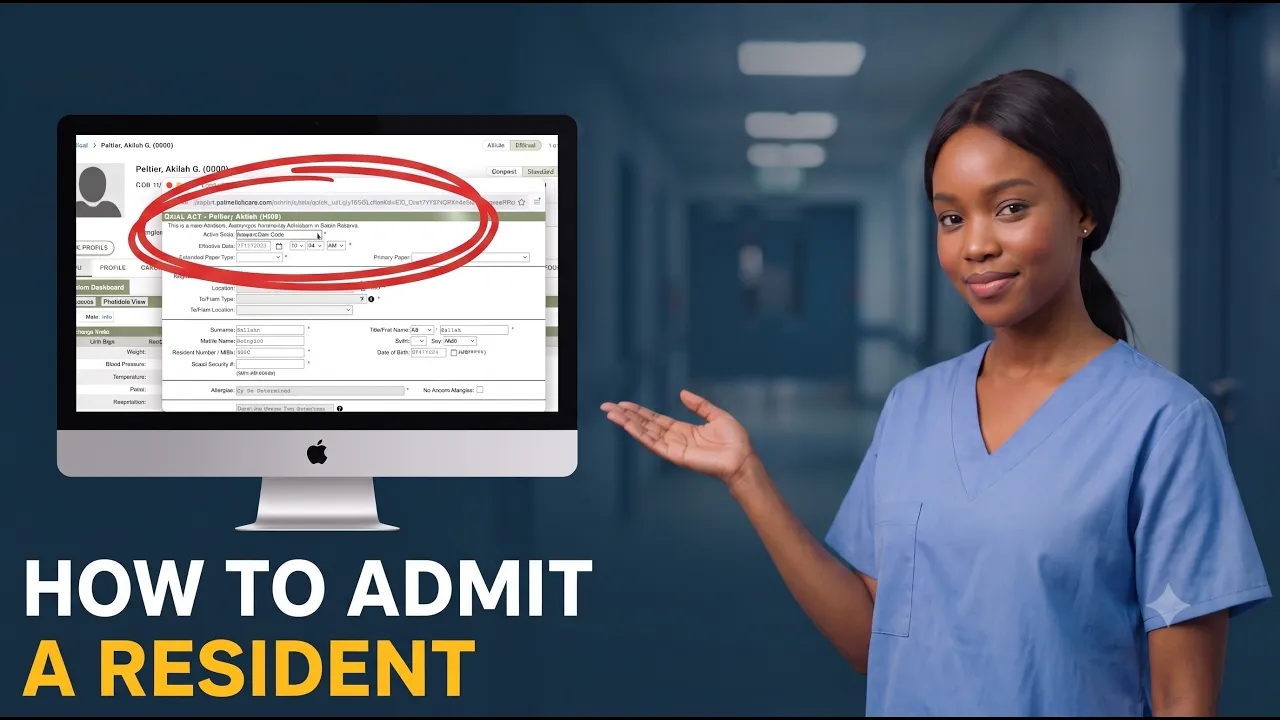
Uh let's let's try to admit someone. You can find them in this new list, right? So, for example, we want to find Aquila, right? We can find them there. You can also find them here. If you put Aquila and press enter, here you got it. We found it, that person. Let's click on them. Okay, so here in this resident tab, we can see first of all the status. It's new, right? So, they entered but not admitted. So, now we will before we admit them, one thing that I always recommend to do is press these three dots and press the edit demographics button.
Here in this demographic screen, you can see if all the details are there. So, for example, this demographics is missing a social security number, but it should have it. This screen is specifically for you to check whether the data of the resident is entered correctly. But, we won't change anything. Okay. So, we check the demographics, everything is okay. We want to proceed with admit with admitting them. We hover on clinical and we press quick ADT.
The important things in the ADT in the admitting. So, the first one is you need to select a action code and this is very important, right? Whether they're first admitted or they are returning, right? Let's say it's initial admission. And the most important thing in the admission is actually to get the time correctly, right? So, the time should be correct. That's the most important thing. The payer type, if you don't know, maybe you could put other because this could be changed later.
You need to select the location where you want to put them. Here you can see for each room, you can see whether they have a whether they have roommates. So, let's put them in a room without a roommate. From to type, you can you can tell us from where they're coming from. Let's say they're coming from from acute care division in hospital. Yeah, and when we put them to a killer location. Yeah, and here we need to input a number.
Because we missed it in the demographics, all right, but let's put this in. And let's take that and allergies. If you if you know if there is none, then you click here. And you also need to input their primary physician. Let's put Genie here. Yes. Okay, we're ready to save them. Saving. Good. Now they Now they are Now they should be admitted, right? If we go to clinical residence, current. So, they're the residents who were admitted.
Let's go P. And here they are, Pelzer Aquila, right? So, we admitted them on 7th 17th of July, so today. Good. Once we admitted them, the other thing we can do, let's go again to them. Let's say we need to transfer them. So, we can do it the same way we did the admission. We go to We hover over clinical and we press the quick ADT. But what we want to do with them, we want to transfer to transfer them out, for example.
Here in transfer, you select the uh you select again all this information that you where you transfer them. Select the location. Right? But let's actually discharge them. So, everything about discharge and transfer are kind of done on the same screen, right? Let's say let's actually let's actually discharge them. Uh it will be today to from type. So, unfortunately, I have to put them in in-patient hospital hospice. All right.
Here the information don't need to. You press save. And then they're all being discharged. So, let's go to residents. Let's go to discharged. P. So, here they are. Bill Tier Aquila, right? So, they're discharged from our from our facility. Let me also show you a example of a transfer. Let's take a current resident. Let's do the quick ADT. Let's say we want to transfer them to ER. We want to to transfer them to hospital to acute care.
We're ordered by. So, here uh an important thing about transfers, if there's emergency transfer, the you don't need a doctor, but otherwise, you need to select a doctor who ordered this transfer. All right. So, that'll be this one. Reason for transfer. Abdominal pain, for example. Many many reasons you see you can see here. Uh it's unplanned. An outcome of transfer. They're admitted. And they're in-patient. And yes, so you press here.
Right. So, now they're transferred, so they won't appear in the current residents. But you can put them back when you need to. This is pretty much about ADT or admit, discharge, and transfer. In our other videos, we'll go through other things you could do with the residents from the residence screen, but that's how you admit them or discharge or transfer them. So, good luck admitting your patients. Good luck using PointClickCare.
Uh leave a comment if you have a question. Have a look at my other videos on PointClickCare. Peace. Have a good day.
The words are the caption track's own and nothing is reworded or re-transcribed. Paragraph breaks are placed between sentences so the text reads as prose.
Free tools for your own script. No signup, no login.
Paste your draft and see where viewers are likely to drop off, with a rewrite for each weak line.
Paste the first 30 seconds of your own draft for a hook score and rewrites.
Check your draft against YouTube's advertiser-friendly guidelines before you record it.
Read this channel's public videos and transcripts, and download a writing brief for it.