Getting the transcript
Reading the captions from YouTube. A video nobody has opened here before takes 10 to 30 seconds; this page fills in on its own.
Getting the transcript
Reading the captions from YouTube. A video nobody has opened here before takes 10 to 30 seconds; this page fills in on its own.
Suno Zone · @SunoZoneAI
This video has no Most replayed graph yet: YouTube shows one only once a video has enough views. These are the moments viewers replayed most in Suno Zone's most watched videos.
Most replayed moment at 5:12
3.1x that video's typical replay level
work. It is owned jointly and equally by you and the remixer, but only to the extent that copyright actually exists in that remix. And then comes the really restrictive part. No matter if you are on the free plan, Pro, or Premier, if you are a joint
Said at 5:05
Most replayed moment at 7:53
3.4x that video's typical replay level
and attitude. Cling on. Elvish
Said at 7:46
The graph counts replays. It does not show where viewers stopped watching.
Words
1,373
Runtime
9:30
Speaking pace
145wpm
Reading time
6min
145 words per minute, below the 160 25th percentile of 349 measured videos. That distribution comes from the 349-video hook study.
Opening (first 30 seconds)
Stop regenerating an entire song just to fix one line or one verse. Sunno's editor can save your track in minutes, and most people don't even use it. Today, I'll show you the exact workflow that actually works step by step with real examples. Replace a verse, pick the song you want to edit, hover over it, click remix/edit, and then hit open in editor. Now you'll see the song split into color-coded
73 words, the words spoken in the first 30 seconds at 145 words per minute.
Free, no signup. See how the first 30 seconds hold attention, with rewrites.
Sentence shape
| Measure | This transcript |
|---|---|
| Sentences | 127 |
| Average words per sentence | 10.8 |
| Longest sentence | 31 words |
| Questions asked | 2 |
| Sentences containing a number | 3 |
Most used terms
Filler phrases
12 in total: like 7 · you know 3 · actually 1 · literally 1.
A literal whole-word count of the same phrase list the Prepublish browser extension uses, so a phrase inside another word is not counted and a phrase used in its ordinary sense still is. It is a count and not a judgement.
What this transcript is
Every word below is the caption track YouTube publishes for this video, pulled from the video itself and reproduced unchanged. It is not Prepublish's writing, not a summary, and not a re-transcription: it is the video's own published captions. English captions, generated automatically by YouTube, in the video’s original language. Source: the video on YouTube. A channel that would rather this page did not exist can ask for its removal through the contact page, and it is removed.
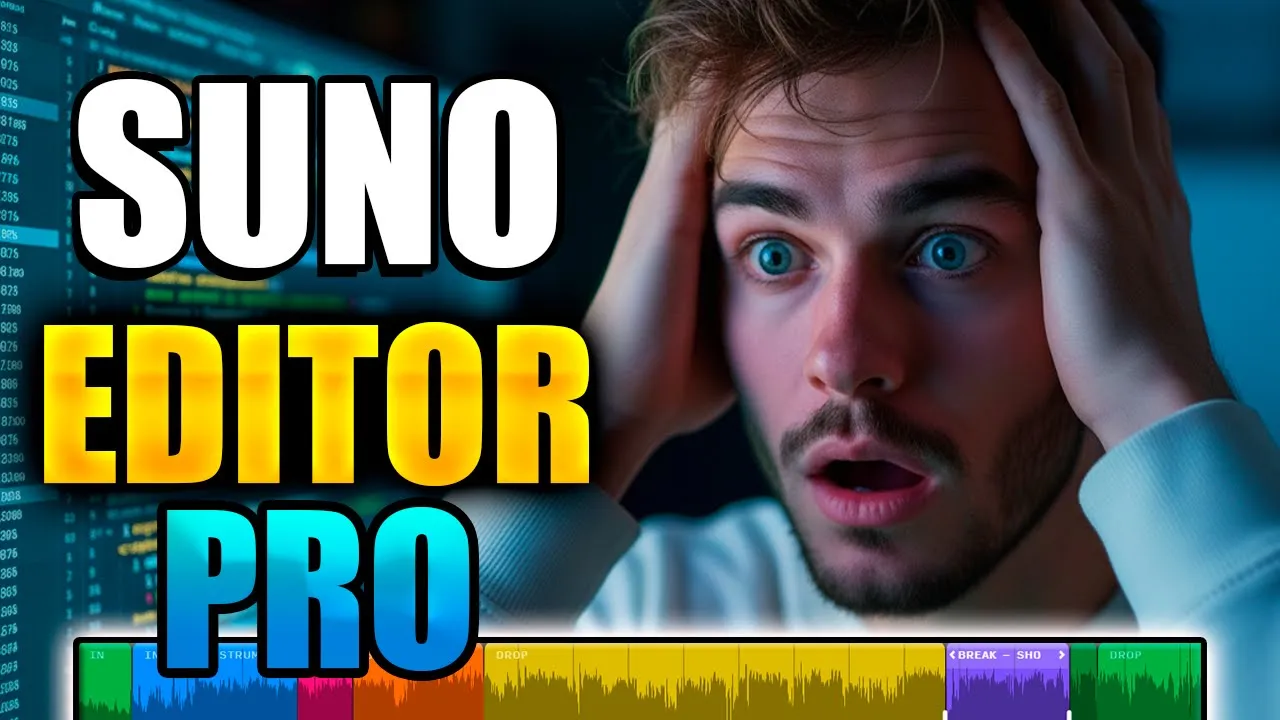
Stop regenerating an entire song just to fix one line or one verse. Sunno's editor can save your track in minutes, and most people don't even use it. Today, I'll show you the exact workflow that actually works step by step with real examples. Replace a verse, pick the song you want to edit, hover over it, click remix/edit, and then hit open in editor. Now you'll see the song split into color-coded sections on the timeline, which makes editing way easier.
In this example, we're replacing the entire verse one. I click verse one to select it. And notice this, as soon as you select the lyrics, automatically highlights the exact matching section on the right panel, so you know you're editing the correct part. Now, click replace lyrics. In this window, don't touch the style or any settings. Just delete the text and paste your new verse one lyrics. Click replace. This costs four credits and Sunna will generate two versions for you to choose from.
Listen to version A and version B. If you don't like either one, regenerate one more time. Once you've got the one you like, click save as a new song. that applies the change while keeping the original vibe, rhythm, and voice. And it saves the full updated track to your library. Now, let's listen for a few seconds. You'll hear it keeps the original vibe, but with your new verse in place. >> If you're broken, stand [music] with me.
If you're lonely, you'll be seen with a heartbeat. When we throw up our hands to the sky, [music] no shame, no doubt. If you're broken, stand with me. If you're lonely, you'll be seen. >> Replace a word or line. By the way, yes, you can replace just a single word or a short line, but I don't recommend it. Small edits are where Sunno gets unpredictable. It can mess up the pronunciation, change the flow, or rewrite more than you asked for.
The most reliable method is to treat it like a full verse rewrite. Replace the entire verse, [music] paste the same verse back in, and only change the one word or line you wanted. It sounds silly, but [music] it keeps the rhythm and delivery way more consistent. Extend. Pick the song you want to extend. Click the three dots. Go to remix/edit and then choose extend. That opens the editing panel. Here's the key part. You need to choose where the extension starts.
Move the marker on the waveform and preview that exact spot. Pro tip. Don't place it on the very last second. Put it a little earlier so has context and the transition sounds natural. Once that's set, type the new lyrics you want or tell it to be instrumental. And remember, the more lyrics you add, the longer the extension usually is. We're not touching the style prompt, so it keeps the original vibe. Now, scroll down to the sliders.
Set rarity between 20 and 30 so it doesn't get too experimental, and push audio influence and style influence to at least 80% to keep the same vibe, rhythm, and sound. Then click create. [music] Sunna will generate two options. Listen to both. Pick the best one and finish by clicking get full song. Now you'll have the complete extended track saved in your library. Drop any questions in the comments and we'll figure it out.
Add a new section. You can do this in two ways. [music] Option one, in the timeline, look between two sections and click the little plus button that appears at the intersection. Option two, click anywhere on the track, open the three dot menu at the bottom and choose create section. Once you open it using either method, the first step is to create the empty space. Click create section. This costs four credits and this part matters.
Let finish the job. If you rush it, the next steps can fail. When Sunno is done, it will start playing an instrumental automatically without you touching anything. That's how you know the new section slot is ready and you can move on. Now click replace lyrics. Paste the lyrics for your new section and click create. Two things can happen. It works on the first try and you'll get two new versions right away or it doesn't.
Which is more common? If it doesn't, turn on fix alignment and click create again. Most of the time, that second try gives you the correct results. Listen to both versions, pick the one you like, and finish with save as a new song. Now, your full updated track is saved in your library. This step is a bit tedious, but if you follow it, you'll get your track updated while keeping the same voice and vibe. Quick actions you need to know inside the Sunno editor.
First, a quick orientation. Down here, you've got the basic playback controls like any music player. And this bar lets you scroll left or right through the track. Number one, you can move sections around. Hover near the top of a block until you see the hand icon. Then, just drag it wherever you want. This is perfect for testing different song structures without spending credits. Number two, if you select a section, you'll see the three dot menu underneath.
Click that and you can duplicate a block, delete it, or even change its color in one tap. Number three, before you do any cutting, use the zoom controls down here. [music] More zoom means more precision. Number four, to cut out a specific part, click where you want the cut to start, then hit split. Move to where you want the cut to end, hit split again. Select the middle piece, and click delete. that removes only that exact fragment.
Number five, if you mess something up, use undo and redo right here. And if you want to go all the way back to the original version of the song, just click reset all. And number six, Sunno also detects the BPM for your song. You can raise it or lower it to change the feel, then hit save as a new song to store that version in your library. Oh, [music] [music] >> velocity plus keep pitch. Listen to this. muted. >> Now listen to this.
[music] free underrated feature that can literally save a song without recreating it and without editing outside Sunno. Go to your song, click remix/edit and adjust speed. You can push it up to four times faster or slow it down all the way to 0.25. But there's a catch. If you change the speed without anything else, this happens. >> This dude box chops kick muted. It makes the vocals sound cartoonish like a chipmunk. To keep the same vocal tone while making the song faster or slower, turn on keep pitch now.
Set the speed you want. Click remix and soona will generate your new version and you'll find it saved in your library ready to use. Fade in and fade out. Fixing weird endings or a rough intro is really easy inside the editor. Just go to the very start of the song for a fade in or the very end for a fade out. You'll see it right on the timeline. Click the fade handle and drag it to make the fade shorter or longer. Then play it back to check the transition.
When it sounds right, hit save as a new song and you're done. Stems. Click get stems and the panel will open. Sooner will ask what you want. You can split just vocals and instrumental for 10 credits or generate the full set of stems for 50 credits. I'm only mentioning this here so you know it exists because learning to work with stems properly is a whole skill on its own. In upcoming videos, I'll show you the professional workflow, how to use stems inside and how to take them into real editing and DAWs outside to get studio level results.
That's it. Now you can edit songs like a producer. If this was useful, subscribe. More and better is coming. Questions?
The words are the caption track's own and nothing is reworded or re-transcribed. Paragraph breaks are placed between sentences so the text reads as prose.
Free tools for your own script. No signup, no login.
Paste your draft and see where viewers are likely to drop off, with a rewrite for each weak line.
Paste the first 30 seconds of your own draft for a hook score and rewrites.
Check your draft against YouTube's advertiser-friendly guidelines before you record it.
Read this channel's public videos and transcripts, and download a writing brief for it.