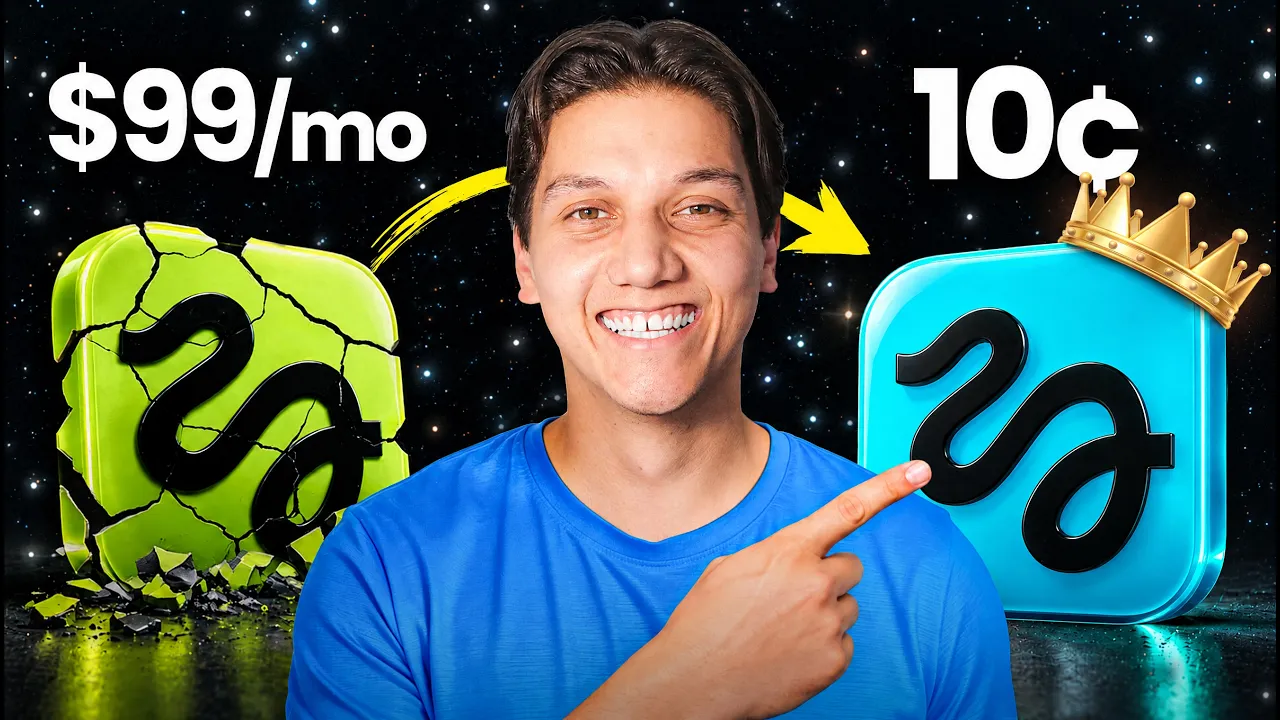
I Let ChatGPT-6 Astra Build My Own Higgsfield AI (Copy This) transcript
Zinho Automates · @zinhoautomates
Words
2,952
Runtime
16:49
Speaking pace
176wpm
Reading time
12min
176 words per minute, between the 160 25th percentile and the 181 median of 349 measured videos. That distribution comes from the 349-video hook study.
Opening (first 30 seconds)
Now, you've probably seen Higsfield everywhere lately. It's so powerful, but [music] it can get just a little bit expensive. And here's what nobody tells you about subscriptions. If you don't use all of your credits each month, then you are basically just wasting your own money. But [music] what if I told you that building your own Higsfield is way easier than you think? Because in the end, Hicksfield is mostly a nice interface on top of AI models and you can plug into those models yourself
88 words, the words spoken in the first 30 seconds at 176 words per minute.
Sentence shape
| Measure | This transcript |
|---|---|
| Sentences | 222 |
| Average words per sentence | 13.3 |
| Longest sentence | 38 words |
| Questions asked | 10 |
| Sentences containing a number | 18 |
Most used terms
- okay28
- video17
- model16
- actually13
- app12
- generate12
- higsfield12
- basically11
- models11
- api10
- image9
- price9
Filler phrases
43 in total: actually 13 · like 12 · basically 11 · I mean 3 · literally 2 · you know 2.
A literal whole-word count of the same phrase list the Prepublish browser extension uses, so a phrase inside another word is not counted and a phrase used in its ordinary sense still is. It is a count and not a judgement.
What this transcript is
Every word below is the caption track YouTube publishes for this video, pulled from the video itself and reproduced unchanged. It is not Prepublish's writing, not a summary, and not a re-transcription: it is the video's own published captions. English captions, generated automatically by YouTube, in the video’s original language. Source: the video on YouTube. A channel that would rather this page did not exist can ask for its removal through the contact page, and it is removed.
Transcript
Now, you've probably seen Higsfield everywhere lately. It's so powerful, but [music] it can get just a little bit expensive. And here's what nobody tells you about subscriptions. If you don't use all of your credits each month, then you are basically just wasting your own money. But [music] what if I told you that building your own Higsfield is way easier than you think? Because in the end, Hicksfield is mostly a nice interface on top of AI models and you can plug into those models yourself through what's called an API, paying per use instead of a monthly fee.
So, you only basically pay [music] for what you actually generate. And the best part about all of this is that we are not doing this in some complicated headbreaking coding setup. We are building it with the newest Chat GPT6 Aster. And to be honest with you, it's never been this easy. So, in today's video, I'm going to be showing you how to build your own Higsfield. Actually, you know what? I'm going to be giving you my own customuilt Higsfield app for completely free.
You can grab it from our free school community. The link is down in the description below with a bunch of other free stuff. And all you have to do is simply just add in your own API key. Now, that sounds exciting, but I guarantee you what's coming up in today's video is going to be even more exciting. So, let's get into it. So, now you may be asking, where does this key actually come from? So, Hicksfield just landed its API console, okay?
And it puts all the latest and the best AI image and video models under one simple roof. and it's basically behind a single key. So, you can simply just pick whatever model you need whenever you need it. And then since every single model is priced separately, you only ever actually pay for the exact thing that you generate. And on top of that, you can also sign up right now and you can get 15% off all of the models, okay?
Plus another $15 [music] in three credits. And here's the crazy part about all of this. For your first 7 days, you can actually get up to 50% off of selected models. And that sounds like a super insane deal. There's more information about that down in the description below. Okay, so now let's set this up. Okay, so the first thing that we need to do is download the zip file from our free school community. So the link is down in the description below.
And then we're going to drop that zip into chatbt work. Okay. And then you're going to select the astera model. And that's basically because it's the smartest and it basically does everything in one go. Then what you're going to do, you're just going to ask AA to deploy the app to local host and it basically handles all of the rest from there. And then within a couple of minutes, your app is ready to open. Now, what you're going to need is your keys.
So, right on the home screen, there's a banner that says, "Grab your API keys from here." Now, what you're going to do is you're going to click on it and then it takes you straight to the Higsfield API console and then the sign up link also that's also down in the description. Now, whichever is easier, just basically go with that. Then you are going to sign up. You're going to create a new API key. And now you'll notice that it comes in two parts.
So, a key ID and a key secret. Okay. So, what you want to do over there is you want to keep both. Now, you're going to head back to the app. You're going to open up settings and then you're going to paste them into the two fields. Now, your key is stored in a local database on your machine, PC, laptop, whatever you are using, and it's never sent to the browser. So it stays completely under your control. Now what you're going to do is you're going to hit save and that's basically it.
You are now connected. Now you only have to do this once. So from now on you can just open up the app and then you can simply just start creating. Now this is the part where all of this is going to get really fun. So what you're going to want to do is you're going to want to stick with me. Now let's start with just a quick tour. Okay? Super quick tour. out everything beginning with the home screen. So, take a look at the top here.
You've got four cards that's showing how much you spent today, this month, and all time along with how much storage your generations are taking up on your computer or laptop. Now, the moment you open the app, you know exactly where your money is going. Below that, you've got shortcuts to generate an image or a video. and underneath those your most recent generations. Now, from that, let's jump into the video page because this is where the savings really start to add up.
Down at the bottom, you've got a prompt bar and the model selector gives you 38 video models including Sea Dance, Miniax, Higsfield, Cling, Grock, and one. Okay. And if I open up provider, then take a look at this. You can see every individual model with its maximum resolution. I can see how long a clip it can make, whether it supports audio and also its starting price. Some models are marked as metered, which means that they are build based on usage.
So, the cool part is about this. You'll actually know that up front. Now, in the same palm, you can set the length of your clip and there's an optimized toggle that defines your prompt for video. You can also attach an image to animate it. And that's basically it rather than starting from text alone. So you can see how it makes things easier. Now here's the best part. Take a look at that generate button. It shows you the price of the generation before you even click it.
And the price actually updates live as you change the model or even the length of your clip. So let's generate some videos right now. and I'm going to run through four of them super quickly so that you could see the range that we are playing with. So, first up is Mailmax Halo 0.2 which is one of the cheapest options available with a slow cinematic shot of a city at sunset. And guys, just take a look at that motion. Like literally look at that.
Now, second, what I'm going to do is I'm going to attach a photo of a man walking. Okay? Then I'm going to switch over to cling. And now I'm going to have him keep walking towards the camera while the leaves blow across the path. And just like that. Okay, now there it is. Our photo is now a video. And that alone is already so cool. So now let's go on to number three. And that is Sea Dance 2.5. Okay, with a closeup of one of my favorite things, coffee being poured in slow motion.
Okay, I mean just take a look at that. Look at how smooth that is. And finally, we have 1 3.0 with audio turned on for a shot of waves crashing on a beach. Okay. And now, guys, just take a listen to that. The sounds is generated right along with the video. And just notice that for every single one of these, the generate button showed me the price before I even clicked. And that means that you only pay for exactly what you make.
Now, here's the thing that I really want you to understand about all of this. There's no difference between generating on Higsfield and generating through this app. It's exactly the same model running behind the scenes. So, the quality is exactly the same. The only thing that actually changes is how you pay for it. And now it's time for us to move over to the image page. Okay, so down at the bottom you've got the prompt bar.
And if I click on the model selector, then I want you to take a look at this. There are 16 image models available. And all of them are grouped by provider, including Higsfield's own sole models along with Zimage, Recraft, Grock, and Ideog. And guys, every provider shows you its starting price right there in the list. So, you can compare costs if you want to before you've even picked a model. Now, right next to the model selector, you can set the aspect ratio, the quality, and the seed.
And there's an enhanced toggle right over here that automatically improves your prompt before it's even been sent. You can also generate anywhere from one to four images at a time. You can already see how useful this is. >> [music] >> So, let's generate some images and I'm going to run through four of them really quickly so that you can see the range once again. Now, first up, we have Higsfield Soul with a cinematic portrait of a woman against a brick wall in a soft evening light.
Okay, there we typed it in. Okay, now there it is. Take a look at that. And that's number one. Now, number two, let's go over to Recraft with a clean product shot of a perfume bottle on a marble surface. Okay, [music] I mean, just take a look at that. Now, we have idiogram. Okay, let's see. Okay, now we know that idiogram is really good with awesome text. So, what I'm going to do is I'm going to ask for a bold poster that says summer sale.
Okay, let's see how it does. And there we go. As expected, the text is spoton. And finally, we have Gro. Okay, so let's really test this out. Let's do a candid phone photo of a man walking down a treelined sidewalk in autumn. Okay, so let's be super specific about it. And guys, like that honestly looks like a real photo. And just like with the videos, the generate button showed me the price for every single one of these before I even clicked.
Now, next up, the thing I want to show you is library, which is where every single image and every video that you've generated lives. And I mean, just take a look at mine. You can see that I've been using and I've been testing this app a lot over the past 24 hours. And every single one of those generations is saved right here. You can search through your old prompts. You can filter by images or videos and even filter by the model if you want to.
And when you hover over any generation, you can see the prompt, the model that was used, and exactly what the cost was. So you've got a full cost history for everything that you've ever made. Now, finally, let's head back to the settings page because there are two features here that I really want you to know about. Okay, so the first is the spend cap. And I think this is going to be so important to many of you. You can set a maximum amount that you are willing to spend every 30 days.
And once you hit that, the app then blocks any new generations so you can never accidentally overspend. And the second is storage. So Hicksfield deletes your generated files after roughly about seven days. So the app automatically downloads every image and video to a folder on your computer. Now what that means is that you'll never lose anything that you've made. And you can see exactly how many files you've saved and how much space they are taking up.
Now there's also a concurrent request setting which cues extra jobs on your machine instead of letting them fail when you generate a lot at once. This is the part that literally sells all of it for me. You can see the price before every generation. You see the cost of everything that you've made and you can set a hard limit on your spending. That means that you are not simply just wondering whether you are getting your money's worth out of a subscription anymore.
You can actually pay for what you create and the whole game is right there. So, if you haven't signed up for Higsfield API yet, then what I need you to do right now is take a moment, go into the link in the description below and go and do it. Okay. Now, I do want to be extremely fair here because pay as you go isn't the best choice for absolutely everyone. If you are generating a huge volume every single day, like let's say you are running an agency or a high output content operation, there's a point where a subscription could still work out cheaper.
It's worth looking at your typical monthly usage and comparing it against what the API would cost you. And the price estimates in the app make that really easy for you. But for most creators, freelancers, and small teams, usage goes up and down. So, you'll have busy weeks where you need a burst of generations. Then what you're going to experience is quiet weeks where you barely even touch it. If that sounds like you, then pay as you go keeps your costs in line with what you actually create.
And you'll never actually feel that sting of a subscription renewing for something that you barely even used. And on some of the most popular models, Hicksfield actually comes out even cheaper. Take Clin 3.0. On Fell, it's [laughter] about 13 cents per second. On Hicksfield, it's around 11 cents. And if you pick it as one of your discounted models in that first week, then it even drops to 6 cents. That's less than half of what FAL charges.
And what about Cedance 2.5? It's an even bigger gap. At 720p, FAL charges around 47 cents per second, while Higsfield comes in at 40. And with the first week discount 33. It's the same model, the same quality, but it's just cheaper. Now that you're paying per generation, getting a great result on your first try actually saves you money. So, here are a few prompts, or should I say prompt tips that I use all the time. Okay, so the first tip is to be specific about your subject, your setting, and the lighting.
Instead of riding a man walking, try something like this. A young man in a navy hoodie walking down a treeline sidewalk in autumn overcast daylight shot on a phone. The more detail you give the model, the less guessing it has to do. Now for the second tip, that is to describe the camera and the style. Words like cinematic, close-up, wide shot, or even handheld photo makes a huge difference to how your results look. And for video, describing the camera movement like a slow pushin or a tacking shot gives you much smoother motion.
And the third tip is to test cheap before you go with expensive. Start with a lower cost model and a lower quality setting or even a shorter clip to check that your prompt works. And once you are happy with it, run it again on a premium model. So basically test out the cheap then go with the premium. The price on the generate button makes this so easy to manage. And the final tip is to start with an image when you are making videos.
Generate a still image that you love first. Okay? Then attach it to the video page and then what you want to do is animate it. This gives you far more control over the final look and it saves you from paying for lots of video attempts that simply just missed the mark. Now, everything that I showed you today, including the app and the full setup, is completely free and is inside our free school community. And the link to our community is down in the description below.
Okay? And right next to it, you will find the link to sign up for the Higsfield API console. So, go and grab your API key and you'll be generating in minutes. Now, if this video helped you, then what you need to do is give this video a like and also subscribe to the channel and turn on those bell notifications so that you never miss another upload. And that's basically because we are putting out these AI tool breakdowns all the time and I know you are going to love the content.
And since I'm pretty sure about that, what I want you to do is I want you to go and check out the channel right now. check out some of the other content that we have created and also drop a comment down below if there's a certain tool or a certain update that you want us to touch on in our next video. Okay, as always, it's been a whole lot of fun. Thank you so much for watching till the end and I'll catch you on the next
The words are the caption track's own and nothing is reworded or re-transcribed. Paragraph breaks are placed between sentences so the text reads as prose.
Use this transcript
Three free tools that work on the material around a video like this one. No signup, no login.
Hook Analyzer
Paste the first 30 seconds of your own draft for a hook score and rewrites.
Policy Pre-Flight
Check your draft against YouTube's advertiser-friendly guidelines before you record it.
Channel Skill Generator
Read this channel's public videos and transcripts, and download a writing brief for it.