Getting the transcript
Reading the captions from YouTube. A video nobody has opened here before takes 10 to 30 seconds; this page fills in on its own.
Getting the transcript
Reading the captions from YouTube. A video nobody has opened here before takes 10 to 30 seconds; this page fills in on its own.
Charting Made Easy · @easy_charting
Words
1,162
Runtime
7:51
Speaking pace
148wpm
Reading time
5min
148 words per minute, below the 160 25th percentile of 349 measured videos. That distribution comes from the 349-video hook study.
Opening (first 30 seconds)
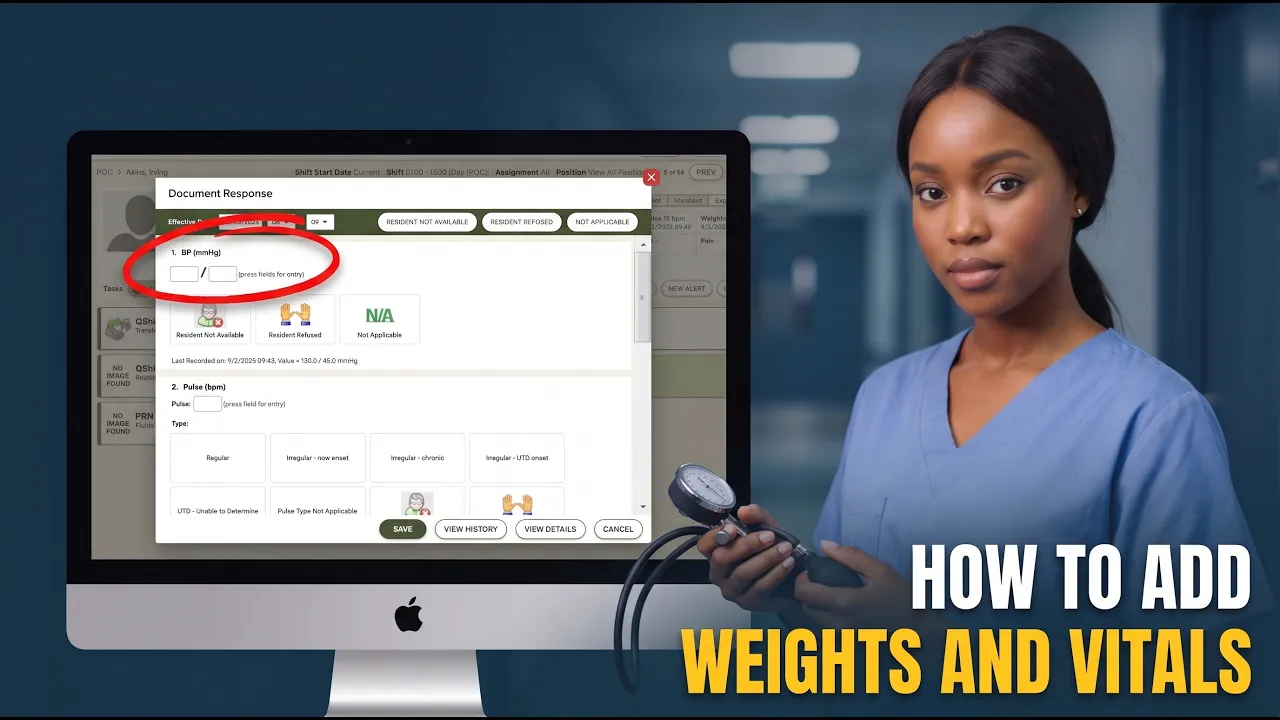
Hi everyone. In this video, I'll show you how to add weights and vitals in PointClickCare. So, there are four ways, believe it or not, to add weights and vitals in PointClickCare for a resident. And number one is point of care, other is resident dashboard, clinical dashboard, and EMR. So, I'll show you all of them. Let's start with the point of care. Uh we go to clinical, we go POC. Uh we
74 words, the words spoken in the first 30 seconds at 148 words per minute.
Free, no signup. See how the first 30 seconds hold attention, with rewrites.
Sentence shape
| Measure | This transcript |
|---|---|
| Sentences | 98 |
| Average words per sentence | 11.9 |
| Longest sentence | 36 words |
| Questions asked | 31 |
| Sentences containing a number | 7 |
Most used terms
Filler phrases
47 in total: right? 29 · uh 10 · kind of 3 · actually 2 · like 2 · um 1.
A literal whole-word count of the same phrase list the Prepublish browser extension uses, so a phrase inside another word is not counted and a phrase used in its ordinary sense still is. It is a count and not a judgement.
What this transcript is
Every word below is the caption track YouTube publishes for this video, pulled from the video itself and reproduced unchanged. It is not Prepublish's writing, not a summary, and not a re-transcription: it is the video's own published captions. English captions, generated automatically by YouTube, in the video’s original language. Source: the video on YouTube. A channel that would rather this page did not exist can ask for its removal through the contact page, and it is removed.
No Script X-ray for this video: YouTube shows a Most replayed graph only once a video has enough views.
Hi everyone. In this video, I'll show you how to add weights and vitals in PointClickCare. So, there are four ways, believe it or not, to add weights and vitals in PointClickCare for a resident. And number one is point of care, other is resident dashboard, clinical dashboard, and EMR. So, I'll show you all of them. Let's start with the point of care. Uh we go to clinical, we go POC. Uh we go to POC tab. Let's select Irvin.
Good. This is the ADLs for Irvin, right? Let's go next. And here are the vital signs and weight. Let's add both. Let's add all of them. Let's start with weight. Weight, let's add a value, 147, standing, and saved. Okay. You see this became green. Now, let's add the vital signs. So, the vital signs usually differ by the way your point of your PointClickCare is set up. I'll show you my order. Your order of vitals might be a bit different.
So, blood pressure, 120 by 35, pulse, 74, regular, respirations per minute, 18, temperature, 98. We're using oral thermometer for that. You press saved, save, and that's also saved. So, here's how to add weights and vitals and vitals in the point of care. Let me show you the next option. On home screen, you could add weights and vitals directly from the resident chart. We go to clinical and we go to residents. In the residents, we select our resident, Irwin.
And we have a tab here called WTS/Vitals, weights and vitals. Press this. So, here you'll see that all the possible weights and vitals that you could that that you could chart for this resident, right? So, let's start with view all. View all shows you all the previous measurements of the weights or the vitals, right? So, you can see when it was done, what value was recorded, right? And you can also from this screen, from the uh view all screen, you can strike them out.
How do you strike them out? You press strike out, you select the reason, error, for example, and you press strike out. Boom, this is striked out by physician because it was an error. Okay. All of the weights and vitals have this like view all kind of history attached to them, right? How to add a new one? You press new. And and and here you can add all of them in a single kind of place, right? Let's add weight 47, blood pressure 120 to 35, position standing left arm, temperature 98, route oral, pulse 74, pulse type regular, respirations 18, right?
And if you have others, you can add others, right? You press save. And all of them are charted, right? Some of the vitals will have baseline admission value attached to them, right? So, for example, at admission, people recorded a certain baseline for the blood pressure, and here, by pressing edit baselines, you can edit the baselines. So, you can change it, for example, and say, "Ah, okay, actually they're they have a bit lower temperature as they're 96 all the time." And then you specify uh that it's done by this is done by measured by Aurelia, right?
And it appears here in the baseline column, right? You also may have some warnings configured for any of the readings. For example, you see here, you can see that blood pressure is too low based on this warning, right? And if even if you go at view all, it will have the warnings attached to each of the um attached to each of the measurements of this particular weight and or vitals vital sign. Okay, good. So, this is how to add weights and vitals from the resident chart.
The other way you can add weights and weights and vitals is through clinical dashboard. You go to clinical, and here in the quick entry, you can select a particular vital that you want to chart. Let's call it pulse, for example. Right? So, then what then you go on this screen, and in this screen, you can see you can first of all filter what kind of residents do you want to see, how to sort them, right? And starting from here, you can you can essentially add the vitals for all of them.
So, you can just start adding this to all of them, right? 71, 74, 72, 70, 72, and so on, right? You also will have to select a pulse type for each of them each for each of these readings, right? And then you can once you've entered who you wanted to enter, right? You can press save, and it will save the and it will save this weight and vitals for them, right? So, recorded I in the morning, September the 3rd, and here are the Here are the actual numbers.
Yeah, so essentially, this is especially useful, for example, for blood sugar. So, you're If you're going around the unit measuring blood sugar, you can just go, you don't need to enter position here, just enter the numbers for all the blood sugars that you measured. So, all the quick entries will be here, right? So, you just decide which one uh weight or vital sign you want to enter, and you can start entering them one by one for all the residents.
The last part I wanted to show you is how to enter weight and vitals in EMR. So, in EMR, in particular, some of the administrations, they require you to chart the vital signs, and you can see which one by if they have this small uh heart sign, right? This is weight and vitals documentation required. So, and then you you will press at them, you will actually will need to uh put in the blood pressure or the pulse, right?
But, you can also use the precious button use last recorded value. Right? Okay, let's change to administered, right? And let's press record, right? So, so we've also now charted the weights and vitals during uh while administering this, right? Because we're using the last recorded value. And other way in the EMR to chart weight and vitals is for this particular resident, at the resident screen, press other actions and vitals.
So, in this screen, you can again enter all of the vital signs, right? So, weight, how it was scaled, blood pressure, how it was measured, temperature, how it was measured, pulse, and what pulse is it, respirations, blood sugar, and so on, right? And then you just press save vitals. This is the fourth way to put your weights and vitals. Uh this is pretty much it about it. Uh not really complex, quite simple. I hope hope this is helpful for you.
Click like and subscribe to our channel. Share what you want to learn in comments. I'm publishing videos every 2 weeks. Thank for watching and goodbye.
The words are the caption track's own and nothing is reworded or re-transcribed. Paragraph breaks are placed between sentences so the text reads as prose.
Free tools for your own script. No signup, no login.
Paste your draft and see where viewers are likely to drop off, with a rewrite for each weak line.
Paste the first 30 seconds of your own draft for a hook score and rewrites.
Check your draft against YouTube's advertiser-friendly guidelines before you record it.
Read this channel's public videos and transcripts, and download a writing brief for it.