Getting the transcript
Reading the captions from YouTube. A video nobody has opened here before takes 10 to 30 seconds; this page fills in on its own.
Getting the transcript
Reading the captions from YouTube. A video nobody has opened here before takes 10 to 30 seconds; this page fills in on its own.
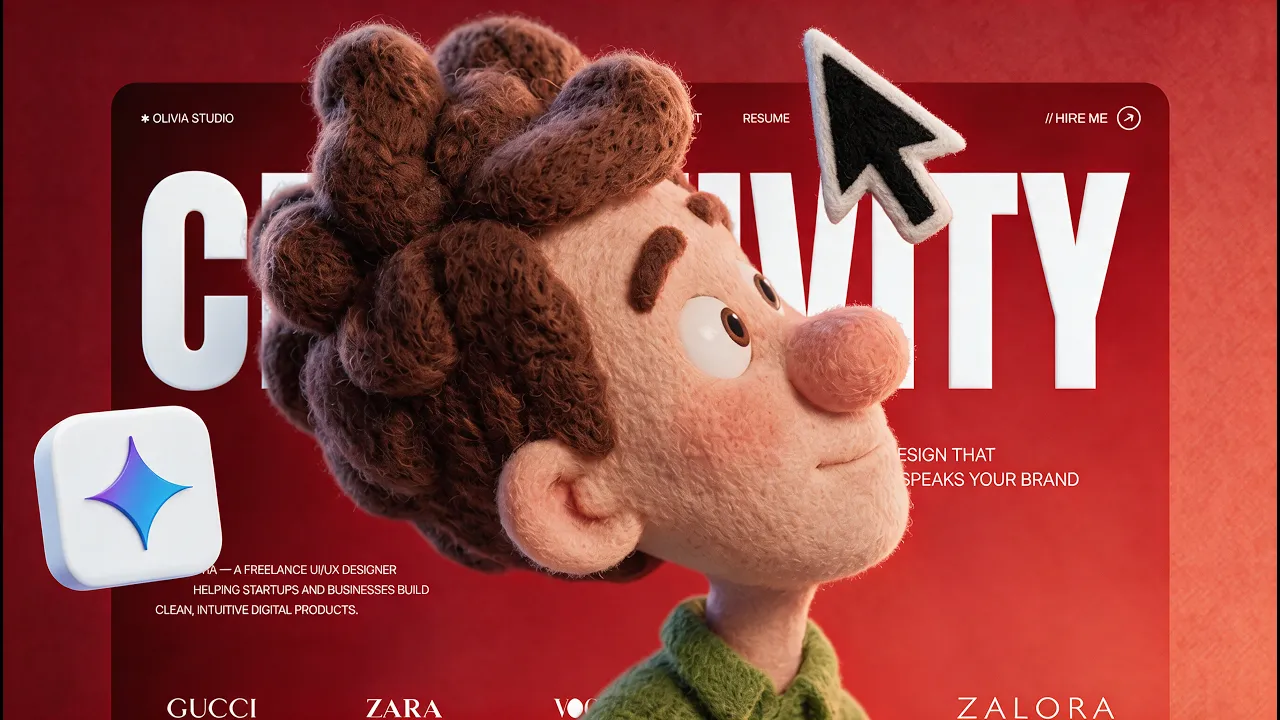
Viktor Oddy · @ViktorOddy
This video has no Most replayed graph yet: YouTube shows one only once a video has enough views. These are the moments viewers replayed most in Viktor Oddy's most watched videos.
Most replayed moment at 3:11
4.5x that video's typical replay level
guessing. That's why I'm going to go to Motion Sites and just find some fonts that I like. So, one of the fonts that I like is this one. I'm just going to copy the uh the prompt here and I'm going to paste it here and I'm just going to delete a bunch of stuff. I'm going to create only the kind of the CSS styles.
Said at 3:04
The graph counts replays. It does not show where viewers stopped watching.
Words
1,913
Runtime
10:17
Speaking pace
186wpm
Reading time
8min
186 words per minute, between the 181 median and the 201 75th percentile of 349 measured videos. That distribution comes from the 349-video hook study.
Opening (first 30 seconds)
In this video, you will learn how you can create this cursor tracking website all using AI. I'll share with you the full process from creating the assets to actually publishing it to being a live website. Building it with Google AI Studio, this is a free tool that you don't have to pay anything for and all of the tools that I'm sharing you in this video are free. I'm not affiliated with any of the tools. You'll learn how you can create assets, how you can actually then turn that into
93 words, the words spoken in the first 30 seconds at 186 words per minute.
Free, no signup. See how the first 30 seconds hold attention, with rewrites.
Sentence shape
| Measure | This transcript |
|---|---|
| Sentences | 144 |
| Average words per sentence | 13.3 |
| Longest sentence | 44 words |
| Questions asked | 0 |
| Sentences containing a number | 10 |
Most used terms
Filler phrases
54 in total: uh 18 · like 17 · actually 10 · literally 4 · um 4 · basically 1.
A literal whole-word count of the same phrase list the Prepublish browser extension uses, so a phrase inside another word is not counted and a phrase used in its ordinary sense still is. It is a count and not a judgement.
What this transcript is
Every word below is the caption track YouTube publishes for this video, pulled from the video itself and reproduced unchanged. It is not Prepublish's writing, not a summary, and not a re-transcription: it is the video's own published captions. English captions, generated automatically by YouTube, in the video’s original language. Source: the video on YouTube. A channel that would rather this page did not exist can ask for its removal through the contact page, and it is removed.
In this video, you will learn how you can create this cursor tracking website all using AI. I'll share with you the full process from creating the assets to actually publishing it to being a live website. Building it with Google AI Studio, this is a free tool that you don't have to pay anything for and all of the tools that I'm sharing you in this video are free. I'm not affiliated with any of the tools. You'll learn how you can create assets, how you can actually then turn that into videos for free, and then to publish that to your own domain or send it to your clients.
And of course, I'll share with you the best way to actually find clients and find clients specifically on Twitter. I've grown my account to 68,000 followers in just over a year and I'll share with you all of the tricks I know to do that yourself. So, you will learn everything you need to build AI websites and sell them for a lot of thousands of dollars if you follow everything that I'll share in this video. So, without further ado, let's get into the first step of the video.
It is actually finding an image that you want to create the reference. first tool is absolutely free as well as the rest of the tools. Just go here and type like character uh character art or person, something like that that will give you a lot of images. And as you can see, there is a lot of different ones that you can already start working with as your uh moving person, uh moving characters. So, maybe something like um 3D, let's say, if you want to find something that would look great.
So, just spend a couple of minutes and then once you found one, just copy this. I'm going to go to ChatGPT. So, if you have ChatGPT, you can use that. It is free or I can use just Figma because I have paid option and it gives me the ability to work with um added with prompt. So, I'm going to say, "Create image like this, but make the person look into uh the camera and close his mouth, just a normal smile." Let's say 16 by 9 aspect ratio. and aspect ratio is just means like what size it is.
So, let's say uh this is normal aspect ratio, this is Instagram aspect ratio. So, 16 by 9 just means that it will look great on the websites. So, let's just wait and see what it comes back with. This is what we got. Unfortunately, Figma did not uh change the aspect ratio, so I can do that manually just uh dragging it and saying expand. By the way, I'm not affiliated or sponsored with any of the tools that I'm showing with this video.
There is no affiliate links, nothing at all is paid for. I use Figma just because um I had paid subscription. I do not think that I would recommend Figma for any new users cuz it's it's not the future. Figma is definitely dying, so do not think that you need to use Figma. So, once I have this, I would need to create animation for this and for animation, I usually use uh Hicksfield or the free ones are Kling. So, let's see if I can use Kling right now because Hicksfield is really, really expensive and I wanted to show you how you can build that free some stuff in this video.
So, here I can just sign in. Once you've registered on Kling, it will give you a free credits. So, I'm going to click on all tools and then I'm going to click on uh image to video. I'm going to select multi-shot. So, that way way we can select actually the first frame and the second frame and here I'm going to um just go back to Figma and create one more image where the person looks to the right side. So, I'm going to click on edit with prompt.
Make him look to the right side. You can use ChatGPT again, it is free. You don't have to pay for any of the tools. So, for this, I'm going to say make him look to the left side. And let's just wait and see it comes back with. And now that we have both of these images, all we have to do is just export both of them. So, click on export, select JPEG. This is a bit lighter format, but doesn't really matter. I'm going to name this person.
And I'm going to copy that. And let's save this. Go back to Kling, and I'm going to add a start frame. I'm going to find our thing here. And once there, I can select of the images. It's going to upload, so we can see that we need to swap them places. Like this. Oh, I could have just Now, let's try that again. The first frame. And for the prompt, it is very simple. I'm going to just say animate. And it's going to understand that this is the first frame, and this is the last frame.
Again, we have 63 credits, so this is exactly one uh animation. Let's say 5 second is okay. I think we can even make it 4 seconds. So, let's do exactly that, and that even less credits. We don't really need audio. That is in less credits. And now, let's click generate and see what it comes back with. And here is the video that we generated. Now, let's just download this. So, I'm going to click download. The next step is to actually build a website and change our video.
So, go to Motion Sites that AI. This is the website that I put all of the prompts here. Type in the search for to wrist. And uh yeah, you'll have this one. It's here, retro futurist. Just copy the prompt. This is absolutely free. You don't need to create an account. You don't need to pay for anything. Just copy that, then go to another free tool, which is Google AI Studio, also absolutely free. Then just paste the prompt, literally.
And it will build it out for you, and then we can replace the video. So, let's just wait and see what it comes back with. And here is result that we received. As you can see, this is literally one prompt that we just copied and we have this fully responsive website on all of the devices. All we need to do is just change the video. So, I'm going to say, "Replace the video link with this one. Do not change anything about the functionality.
Just replace the link." And I'm just going to paste the link that I took from Kling. So, again, just uh you can either download this or just copy the link directly from here. Up to you. Both ways working. So, let's just now wait and see what it comes back with. And this is the result that we received. As you can see that we have already this thing working perfectly well without us doing much. Now, let's change all of the colors to the white as well.
Instead of having the content on our page black text color, let's turn that into white. And let's just send that and see what it comes back with. And there we have it. Here's our animated landing page that took us absolutely few seconds to build and then we have this fully responsive website that works well on all of the devices. Works well on mobile as well that we just created in literally very quickly. Now, let me show you how how you can actually send it to clients or publish it.
So, there are two ways. First one, you can literally do inside of this app which is Google AI Studio. Uh you would need to uh click on get started and then you would publish it. Uh if you don't have any experience if you have any a little bit experience with the code, you can just uh download it and publish it to actually Vercel. So, I would just click download it as a zip file. I would go to Vercel .com. And here it is as simple as just clicking it on deployment.
And then just dragging the folder that you just downloaded to your app. So, let's just find it here. Let's open it. Double click on it to make sure that it is not zip file and then I will just click on new deployment. So, add new. You would just click project. And then you would just drag this thing here. Click on deploy. It will take a couple of seconds and then it's going to take a couple of seconds more to deploy it.
Once it's done, you're able to connect your domain. You're able to see the stats, how many people visit your website, how is it going, you're able to send it to the client, connect their domain and stuff like that. And just like that, we can click on it and we can see that it is on actual live domain that we can share with our clients, with our friends. Now, let me show you how you can actually find clients to sell these websites to and the best way is starting Twitter account.
This is a long-term game. It's not going to happen in a month or in a week, but it is a great way for designers to share their work and then put a call to action at the bottom and then sell the website. It cannot like you should put differently, not just like grab the prompt. You can put like contact me to build this website for you. So, just take any screen recording that you have. Let's say you've created something like this and then you use my prompt.
If you If you tag me on Twitter, then I will repost your post and it will probably go viral. Like if you created this result, but with another character and you can show that it is actually looking great, then I will 100% like uh take a look at it and if it looks great, so you can just use any screen recording. There is a lot of free ones. There is a paid ones depending on which tool you're using, whether it's Windows or MacBook.
Just research a little bit and then just show that you can move your mouth, that you can like interact with stuff here and then it doesn't have to be long like 6 seconds is enough. Click on post. Once you create an account, just say build this with Google AI Studio for free. If you need a website, click the link in the DM. Uh on the in the this group click the link below. And then you can just put a link to your Calendly.
So, Calendly is just a booking software that clients can book with you calls. And on the call basically just say that you have a package like it's say 3,000 for a landing page. They don't really care if it's made with AI or if it's made by you. The only thing that they
The words are the caption track's own and nothing is reworded or re-transcribed. Paragraph breaks are placed between sentences so the text reads as prose.
Free tools for your own script. No signup, no login.
Paste your draft and see where viewers are likely to drop off, with a rewrite for each weak line.
Paste the first 30 seconds of your own draft for a hook score and rewrites.
Check your draft against YouTube's advertiser-friendly guidelines before you record it.
Read this channel's public videos and transcripts, and download a writing brief for it.