Getting the transcript
Reading the captions from YouTube. A video nobody has opened here before takes 10 to 30 seconds; this page fills in on its own.
Getting the transcript
Reading the captions from YouTube. A video nobody has opened here before takes 10 to 30 seconds; this page fills in on its own.
Marcus Jones · @Marcus-Jones
Where viewers went back to watch this video again, from YouTube's public Most replayed graph, lined up with what was said at that moment.
Most replayed moment #1
22:214.0x the video's typical replay level
video. So for me, I'm all good because this video has no copyright issues. So we're going to hit next. So, what you're going to want to do is first save your video to unlisted. Now, when you upload it to unlisted, it means no one will be able to see it unless you directly send them a link to the video. Let it sit for
Said at 22:14
Most replayed moment #2
14:283.8x the video's typical replay level
people are going to skip. If you are doing chapters, when you're titling them, try to title them in a way that doesn't make people think, "Oh, I already know this or I already know what's going to happen." And just skip to the next interesting part of your video. All right, going back down, continuing on. Allow
Said at 14:20
Most replayed moment #3
9:123.2x the video's typical replay level
and paste the same list of hashtags. But just be careful doing that if your videos are very different because YouTube terms and conditions. So, you need to make sure your hashtags are actually relevant to the video that you're posting. Now, if we keep coming down, we end up in the custom thumbnail section. Now, a
Said at 9:05
The graph counts replays. It does not show where viewers stopped watching.
Words
6,725
Runtime
26:18
Speaking pace
256wpm
Reading time
28min
256 words per minute, above the 201 75th percentile of 349 measured videos. That distribution comes from the 349-video hook study.
Opening (first 30 seconds)
Today I'm going to go over my exact uploading process and settings I use that have helped me go on to get videos like this almost 4 million views. This one 2 million views. This one 3 million views. This one 1.9 million views. You get the idea. Now I've got the social proof out of the way. Let me just show you exactly what we do step by step in depth and make the best YouTube video uploading tutorial on the internet. So first thing you're going to do to upload your video is come to YouTube. Obviously you need to be signed in. Hit this button. Hit upload a video. pretty straightforward. I have already done that and you can see I have a video being
128 words, the words spoken in the first 30 seconds at 256 words per minute.
Free, no signup. See how the first 30 seconds hold attention, with rewrites.
What this transcript is
Every word below is the caption track YouTube publishes for this video, pulled from the video itself and reproduced unchanged. It is not Prepublish's writing, not a summary, and not a re-transcription: it is the video's own published captions. English captions, generated automatically by YouTube, in the video’s original language. Source: the video on YouTube. A channel that would rather this page did not exist can ask for its removal through the contact page, and it is removed.
Today I'm going to go over my exact uploading process and settings I use that have helped me go on to get videos like this almost 4 million views. This one 2 million views. This one 3 million views. This one 1.9 million views. You get the idea. Now I've got the social proof out of the way. Let me just show you exactly what we do step by step in depth and make the best YouTube video uploading tutorial on the internet.
So first thing you're going to do to upload your video is come to YouTube. Obviously you need to be signed in. Hit this button. Hit upload a video. pretty straightforward. I have already done that and you can see I have a video being uploaded or has uploaded right here. The first thing we're going to look at is the title. Now, we're going to get on to some of the more advanced settings and cool fun stuff later, but we need to spend some time on the title here because the title is incredibly important for a number of reasons.
First myth I want to bust. There have been people around here saying that the file name of your video, which is often reflected in the title, impacts your SEO and how well your video rank. That is a complete lie. Ignore anyone who says that. But what does matter to SEO is your video title itself. So if you want to rank your video in search, getting this right is the most impactful thing you can do. The thing is though, not every video is designed to get the majority of its views from YouTube search.
So let me give you an example. Let's go this video that I showed you earlier. This is a video where I say, I bought 5 million YouTube views. Here's what happened. Now when you think about this, this video's got 2 million people to watch it. But not many of those people are probably going to YouTube search and typing in I bought 5 million views blah blah blah. So instead, most people probably would have found this on their YouTube homepage or in their next up.
And as you can see here, if I go into traffic sources, you can see that this is correct, right? Only 5% of my viewers actually came from YouTube search. So why does this matter? Well, it means that if your video is the kind of thing that's not going to be found through YouTube search, it's something like I bought 5 million views or I discovered this crazy challenge or whatever it is, something that people probably aren't going to be searching for.
You don't need to worry about including any keywords or SEO stuff here. Just focus on making this title as clickable as possible. The more clickable it is, the more likely it is the algorithm is going to promote that video to viewers on the homepage on recommended and your video is going to get a lot of views. However, if your video is the kind of video that is likely for people to search for it. So, tutorial videos are a good example of this, like how to change a light bulb for instance.
In those sort of instances, it's very important that you get keywords right because otherwise your video is not going to show up. And the reason I'm telling you all this here is creating the right title that's going to get you the most amount of views really depends on the type of video you're posting. And you need to evaluate your video, figure out which of the two buckets I've just mentioned it best fits in, and then write your title accordingly.
I might turn gain into get because I'm a dumb Australian who doesn't like long fancy words. Then I might come over here and type get analytics access to a YouTube channel like a pro. Because what I think viewers who want to find a video like this are going to most likely be typing into YouTube is something like how to get analytics access to a YouTube channel. And so I want to make sure those keywords are in my title.
Now, you can use a keyword research tool like Vid IQ, for instance, to dive a lot deeper into the best keywords and search phrases to include in your title, but for now, I'm just going to leave this and move on to the next part of our video, which is the description. Now, the description is something that people get wrong all of the time, and it's actually one of the most important elements to uploading your video. So, here is the description template I like to use for all of my videos.
I'll explain exactly how to use it and why I use it right now, but I'm going to give you this template for free later in the video just as a bribe to keep you watching and get my watch time up. But anyway, so the first bit of the description is you want a little text hook that sort of elaborates and teases what your video is. This hook, we don't want it to be any longer than 95 characters. And I'll get to why that is in a moment.
Also, if you're creating a searchable video, like we talked about earlier, you want to make sure that you're including your keywords in this section. If your video isn't very searchable, it doesn't really matter what keywords you include in here. Just make sure this section entices and excites people to stick around for the video. All right, so I might write something like, "Here's a step-by-step tutorial on the easiest way to get analytics access to a YouTube channel." I'm just going to check the uh character count of this.
Bam. Perfect. 94 characters. I'm just using an extension. It's called Character Count. It's completely free. And again, if you're seeing extensions and stuff around my uploading process, I like using tools to make my life easier, but you can do most of this stuff manually if you don't mind putting in a bit more time. So, now we're going to move down our description a bit to this section. This is what I call your first call to action.
And a call to action is where you promote something. And if you have a product or service, obviously this is the perfect place to put it. And you might be thinking, "But Marcus, I don't promote anything. I don't have a product or sponsor or whatever." That's fine. Promote another one of your videos here. If someone clicks on your video and then they click on your call to action, you've now turned one view into two views.
So, don't miss out on that opportunity. And you want to copy the exact spacing and character counts I mentioned here. Because what we want this to look like is, let's go to a video on YouTube. Good old Grammarly. What we want our description to look like is this. So, you're going to have your first text hook. That's the first thing people are going to read. And then you're going to have your call to action here with the link showing up, whether that's to your product, service, or another YouTube video.
And this is all going to show up without people having to click on the more button. You don't want to push this link down to another row because if you do, then people aren't actually going to be able to click on it without clicking on the more button. Now, speaking of links, this is something else that people stuff up. If you're linking to a product or a service or a website, then try to have a unique tracking link for every single video.
That way, you know exactly what videos are sending traffic to your website. Because some videos send more traffic than others. For example, I had a video that got 700,000 views, I think, and it was sending double the amount of leads to my website as another video I had that I think got like 1.4 million views. And without my tracking link, I would have had no idea that my 700,000 view video was more successful and I would have kept making more videos like the one that got 1.4 million views.
Now, if you're not sending traffic to a website, let's say you're promoting another YouTube video, you don't just want to link the video here. What you want to do is create a playlist. And if you haven't got any playlists already, you just want to come to your YouTube studio, come up to create, click on create new playlist, just add in the title of your playlist, description, doesn't really matter, and then click add videos and add a bunch of your videos to this playlist.
And the reason you are going to do this is because if I go to one of my playlists, let's say I go to this one, and now that I'm inside of this playlist, I copy this link and use this link for my call to action. When someone goes to this video and clicks on this link, not only is it going to actually open up the video, but it's going to open up the video inside of a playlist like you can see here, which is good because one, it pushes down all of the recommended competitor videos and make it harder for viewers to see them.
And they have to scroll all the way down here to see these videos, but two, it means that if people get to the end of your video now, they're going to just automatically be loaded up another one of your videos and then another one and then another one, which is going to hopefully help you get multiple views off the same viewer. So, I'm going to put that there. Next, what I like to do is I like to have this videos to watch next section.
And I have a couple of different videos that are related to the topic of the video I'm posting with links to them. Again, to try and get people to watch multiple of my videos. And what you'll notice here, if you look at these links carefully, you'll see that these look like the links I just showed you. And that's because these are also playlist links. So, if I copy this and I chuck this into YouTube, you'll see that it loads up this video, but it loads it up again inside of a playlist.
Now, down below, what I like to do now is have another section for calls to action. Again, I use emojis here because I want to draw people's attention to these calls to action. This is exactly the same as the call to action that's up here. I just change the wording of it. So, if people don't click up here, I have another shot of getting them to click down here. So, what I would do is I could just like copy something like this.
Instead of doing, want to watch me buy 5 million views, I could just do something like I spent $80,000 buying views. watch what happened here, which is actually true, by the way. And again, I'm just going to promote the exact same thing. So now I've got the opportunity to try and get people to do this thing. And then below that, I'm just going to have any other calls to action that I want to promote. So this could be maybe your social media.
For me, it's an email list. I highly recommend people promote an email list, especially if you're an education type channel, because it means if anything ever happens to your channel, you have all the email addresses of your subscribers. And so you can just email them your new videos or new offers or products or whatever it is. Now, below that, I like to have a little quote. I don't know if this actually makes a difference.
I just like it. I'll then have my contact information for brands. And then below that, I will have a bunch of hashtags. Now, I get a bunch of questions about these hashtags. Firstly, people ask, is it not allowed by YouTube? And the answer to that is no. If you read YouTube's terms and conditions, they say you can have up to 60 relevant hashtags, and I usually have about 50 here. And when you link a hashtag in your video, it's going to one show the hashtags at the top of the description.
But if you click on those hashtags, it's also going to make your video show up when people type in that hashtag. Now, do many people type in hashtags? No. This isn't a great strategy to get huge amounts of views. As you can see, there's only like me and two other creators actually tagging their videos with these hashtags. But I think about it this way. It can't hurt. It's not going to make me get less views. And if your videos are all around a similar topic, I normally just copy and paste the same list of hashtags.
But just be careful doing that if your videos are very different because YouTube terms and conditions. So, you need to make sure your hashtags are actually relevant to the video that you're posting. Now, if we keep coming down, we end up in the custom thumbnail section. Now, a quick note here. If you don't see this section, it's probably because you haven't verified your channel. So, if you have a new channel, what you need to do is come into settings.
Then you want to go to channel. Then you want to go to feature eligibility. And in here, you can see this is new channel, right? I'm not eligible for these other two features because I haven't verified my phone number. So, you would just need to verify your phone number. And then you'd also need to verify a valid ID to get access to the last one. And that's going to allow you to do things like custom thumbnails, upload videos longer than 15 minutes, etc., etc.
But anyway, back to thumbnails. We have upload a file, which can upload a singular file. You can autogenerate a thumbnail, which is usually horrendous. And you can test and compare, which is going to let you upload multiple thumbnails and test them against one another. Now, I do think the test and compare option is the one you should go with. I've heard people saying test and compare actually hurts your videos. I haven't found that, and a lot of my other YouTuber mates who are much smarter than me haven't found that either.
So what I would do is you just come and click on this and then you upload multiple different thumbnails. So I might just upload this one, this one, this one. Now what I will say is that I have been getting some interesting results from thumbnail test and compare. Let me show you what I mean. So if I come to my content, you can view how your thumbnails went later by coming down to the video that you added on, clicking on options, and clicking on view, test, and compare.
I did test and compare, but with three of the exact same thumbnails. I did this across multiple videos. And what you can see is that YouTube actually gave me very different results. It said that this thumbnail was the most successful with a 40% watchtime share and this thumbnail was the least successful with 27% watchtime share. Which is interesting because these two thumbnails are literally exactly the same. So right now, should you fully trust YouTube's test and compare feature, a friend of a friend of mine who's actually talked to YouTube's developer team who created this feature.
And even the developers who created this feature say that they think it's about 50% accurate, which probably means it's like 30% accurate. So long story short, don't take the results that you get from the thumbnail test as gospel. Also, it's not a bad idea to run the thumbnail test multiple times to make sure that your winning thumbnail actually is a winning thumbnail. But overall, I still do use it right now, assuming all three of your thumbnail variations are actually good quality.
All right, if we continue down, we now are at the playlist section here. You can just click in here and just select all playlists that are relevant to your video and just hit done. Coming down further, we are at the copper section. This is where you have to designate whether your video is made for kids or made not for kids. The way you want to think about this here is think about is your video made specifically for kids.
So think about something like Peppa Pig, right? The TV show. That TV show is made specifically for kids. So if you're uploading videos like that, then yes, the video is made for kids. On the other hand, if you're uploading videos that are akin to, say, Marvel movies, right? Marvel movies aren't made for kids, even though kids enjoy watching them. And if your video content allows for you to do this genuinely, selecting no is usually the option you want because it's going to give you a whole bunch of extra features that would be unavailable if you said your video is made for kids.
All right, continuing on. Age restriction. If your video is very explicit, then yes, you can restrict it to viewers over the age of 18. Most of the time, you don't have to worry about this. Also, video game violence and stuff doesn't really count. So, I had gaming channels, for example, for 5 years, lots of killing and death and stuff like that, and I never had to restrict my video to over 18s, and I never had any problems.
So, continuing on, paid promotion. If you have sponsors or brand deals, you're supposed to check this box legally. Now, I'm not saying you shouldn't check this box, but I will say that a lot of big creators, and you guys have probably noticed this, don't check this box even when they are promoting things. So, like, if you get this one wrong, it's probably not going to matter. But, I guess you should try and be genuine about this.
Now, if you do check this box, it's going to show a little banner at the beginning of your video that says, "This video includes paid promotion," or something like that. Now, next, we have YouTube's AI section. So basically, if you've created AI characters or footage that could be mistaken for real characters or footage, you're supposed to check yes here. So I'm just going to click no because I don't include that. Now, next one, we have automatic chapters.
Chapters are those things where you can see the video plays been broken up into multiple different segments. Sounds like a really great idea, turning on allowing automatic chapters and key moments. I hate it because YouTube's AI often gets it wrong. So, I would turn it off if you want to add those sections or segments to your video, which as you've probably seen from my uploading process here, I don't think it's necessary.
There are times where I think chapters can sort of hurt retention because people see the upcoming chapters and they just skip to them. But, of course, that's not every video. So, if you do want to add chapters, I would do it manually. The way you would do that is you'd come up to your description and you would type 0 col 0 0 and then type the name of your first chapter. Then, you'd come down and type the timestamp where that chapter ends.
So, let's say it's 020. Then type the name of the next chapter that's going to be. So it might be intro. It might say 0.1 and go zero 50 2 150.3 etc etc. You don't have to have these spaces. I just added them in for some reason. And that'll make those chapters appear inside of your video. Now an important thing to note if you are doing chapters, try not to spoil your video. So I see a lot of people do this in their chapters.
They basically spoil the content and make it so the viewers don't actually need to watch. So, for example, if I had a chapter in this video that was like why chapters don't matter, you're going to be watching the video and you're going to see that little chapter with its title and be like, "Okay, he said chapters don't matter, so I don't need to watch this. I'm just going to go to the next step." And people are going to skip.
If you are doing chapters, when you're titling them, try to title them in a way that doesn't make people think, "Oh, I already know this or I already know what's going to happen." And just skip to the next interesting part of your video. All right, going back down, continuing on. Allow automatic places. We don't want YouTube to dox us, so let's take that off. Next, automatic concepts. Turn that off. You don't want that.
Next, we have tags. Now, tags in 2024 and beyond basically don't matter. I do use tags, and my rational reasoning for that is the fact that YouTube has still included them means that they are somewhat relevant to some degree. But in my experience, the difference tags make so minute that I put very little effort into this. I will basically just use a tool like Vid IQ. I'll type in like one keyword, just copy all of the related keywords that show up, and paste them in here in bulk.
So, it literally take you like 20 or 30 seconds to do this. And I don't think you should even bother spending more than that amount of time on tags. All right, continuing down. Video language, you can select that here. Caption certification, leave that at none. Recording date. I don't know why they have this. Almost no one uses this feature, but I guess you can add the recording date of your video if you really want to.
Now, license and distribution. If you select standard YouTube license, it means that people aren't supposed to take your video and re-upload it themselves. If you select creative comments attribution, it means that people can re-upload your video or re-upload parts of your video as long as they give you credit. Now, I like to leave it at creative comments attribution because I think, well, if someone wants to re-upload my video and credit me, it's like free promotion.
It's free marketing for me. Why would I not want that? So, most people have it as standard YouTube license cuz they don't want people to steal their content. I'm like, you want to steal my content and promote me in it? Fine. Like, go for it. Please be my guest. Cool. Next one is allow embedding. If you have this checked, it's going to allow people if they want to embed your video into their website. Same thing here. If people want to embed my video into their website, it's free marketing, free views for me.
Of course, you can do that. And the next one down here, this is a really interesting one. So, publish to subscriptions feed and notify subscribers. Now, when you check this, it means when you post your video, it's going to end up in your viewers subscriptions feed and notify any people who have the bell notification turned on. And you would think that you would want to leave this on. Here's why not. So, if you post a variety of different types of videos, let's say you've been posting a bunch of Minecraft videos and then you go and post a guitar tutorial video.
If you have your publish to subscriptions feed and notify subscribers checked in the beginning, YouTube's going to be more likely to promote your guitar tutorial video to the viewers who watch your previous videos who are interested in Minecraft, not guitar tutorials. And so those viewers don't click. They don't watch. And sometimes that can get the algorithm confused and it thinks, well, this is just a bad video. Maybe it's the best guitar tutorial in the world.
It's just been promoted to the wrong audience. But sometimes YouTube doesn't seem to be smart enough to figure that out. So in my opinion, think about it like this. Would the viewers of your previous videos also really want to click on this video that you're about to publish? If the answer is yes, great. Leave this on. Publish it to subscriptions feed and notify your subscribers. If the answer is no, leave this off because you don't want YouTube to send your video to the wrong type of person who's not going to watch and it's going to make it less likely that the algorithm will promote your video more in the future.
Next, allow shorts remixing. This will just allow people to create shorts using your content, your video. Again, I like to allow this cuz free marketing. And if we come down to category, this is where you can select the category of your video. Now, if you select certain categories, like gaming for instance, it'll actually allow you to type in exactly what the game is that you're playing. In other categories, say like comedy, doesn't require any sort of additional specification.
So, I would just go through here, select the category that makes most sense to you, and if there are any additional prompts that show up when you select your category, just fill them out to be as accurate as they can be in describing whatever type of content it is that you've made. So, for this video, I might just go like education. This is going to be like a how-to video. It isn't part of any academic system, so I'm just going to go none.
And here, I would just type in whatever it is I help my viewers with. All right, continuing on. Comments and ratings. I like to allow comments to be on. For comment moderation, I like to have it at basic as well. If you get a lot of hate comments and you can't handle them, you could put it at strict or hold all, and that will only allow comments that get approved to be published to your video. Basic's pretty good in my experience.
And last, you can choose how you want to sort your comments by. Always leave this at top because that's how most videos on YouTube are sorted. And of course, you want to allow people to see how many people like the video. Otherwise, people will think you're weird and you're hiding something. So, now we've done all of that stuff. We can just hit next. If your channel's monetized, you can come here and click on on, which will mean that your video is going to show ads.
Now, if your video is over 8 minutes in length, you can actually insert midroll ads into your video. So, there's going to be ads that played not just at the beginning of your video, but during your video. But if you're at the point where you have 1,000 subscribers and 4,000 watch hours, which is how many you need to monetize, you probably already know how to do that. So I'm just going to keep going. Cool. Next is add suitability.
So basically, you just want to go through this questionnaire and just answer all of these questions as accurately as you can. So I might just have that. Adult content, there's going to be none. Violence, none. Hump, lax, none. Recreational drugs, none. None. None. None. Cool. None of this is that. So then I can just hit submit rating. And then I'm going to hit next. And you always want to try and be as honest as you can in this section.
Because if you stay honest there, YouTube is going to basically allow you to continue moderating your own content. But if YouTube picks up that you're lying about what's actually in your video, then they're going to stop trusting you and they might actually need to review your videos, which could take some time. Meaning that if you want to post your videos right away, you're going to miss out on a chunk of ad revenue while YouTube are reviewing your ad suitability.
So next we're into video elements. You can add subtitles here if you want to reach an a broader audience. YouTube automatically adds subtitles for most languages. I just let YouTube do it cuz it's pretty good. Next, you can click on add an end screen. What an end screen is is that video box or playlist or channel subscribe icon that pops up at the end of a YouTube video to do whatever it is you wanted to do. So, you can import an end screen from a previous video and we're just going to create one custom for this tutorial.
So, I'm going to click add. So, YouTube has a couple of different templates you can use here. What I like to do personally is I like to promote a video. So, your video is going to pop up here. What you can do is you can click on this and I like to drag this out like that to make it as big as possible and chuck it right in the center of the screen. The reason I do this is the more elements you add onto the screen, the more what's called decision fatigue is induced.
So when I was working in marketing for 4 years, what I learned was the more choices people have, the less likely it is that they're going to make any choice at all. So I like to just give people one big choice, which is the thing I want them to do, which is to watch another one of my videos so that I can turn that one viewer into two views. Now, the other thing I like to do is end screens by default are set to last about 20 seconds. 20 seconds, in my opinion, is way too long.
It doesn't take people 20 seconds to decide on whether or not they want to watch your next video. So, if you want to scroll to the end of your video to see how long it is, you have to like kind of drag your playhead off the screen like that and then click on this little button and it'll like move it to the end of your video. So, I can see that my video is 4 minutes and 47 seconds long. So, I'm just going to drag this over to here.
Click on my playhead and then I'm going to drag this down to let's say it was like 47 seconds. I think giving people about 7 seconds is enough time ideally. So I'm just going to chuck that there. The reason I don't have a hard and fast number here is because I usually like to in my videos themselves actively promote the end screen that pops up. So I'll say something like, "Hey, if you want to watch XY Z video, click on that video on screen right now." And depending on how long it takes me to say that call to action will depend on how long it is that I have this end screen show up for.
So, I'll basically just have this end screen show up at the point where I say there'll be a video on screen right now. So, I'll just drag it to wherever that is, but roughly my end screens usually end up being about 5 to 10 seconds. Now, after you've selected your placement and how long you want the video to be for, you can select what kind of video you want to feature here. Now, if you have no idea, I would just select best for viewer and let YouTube choose what video to promote to your viewer.
But if you do what I mentioned previously where I actually have a bakedin call to action in my video script where I'm like, "Hey, go check out the video on screen that's going to help you do XY Z." I like to come to choose a specific video and then choose the specific video that I am promoting in my outro for obvious reasons. So once you've done all of that, you can just hit save. And the last thing is cards. Basically cards will show this little like icon at the top right hand corner of the video, but not many people click on or use cards nowadays.
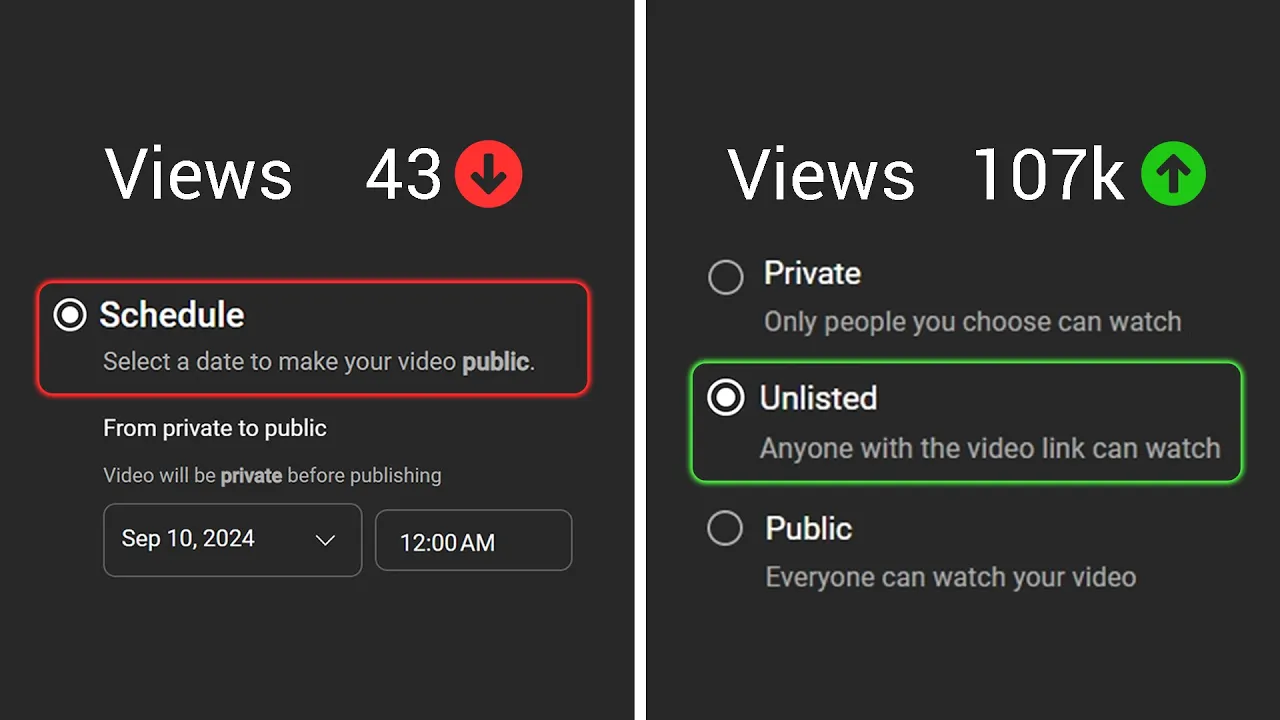
So vast majority of people I don't think you need to use them. So we're just going to hit next here. Now it's going to show us a screen to see if we have any copyright issues in our video. So for me, I'm all good because this video has no copyright issues. So we're going to hit next. So, what you're going to want to do is first save your video to unlisted. Now, when you upload it to unlisted, it means no one will be able to see it unless you directly send them a link to the video.
Let it sit for an hour or so while it publishes the HD version of your video because if you just upload your video right away to public, the video might have only processed to standard definition. So, when people watch it, it's not going to look very good. Also, YouTube might not have checked whether or not you have any copyright violations yet in your video cuz also that can take some time sometimes. So you might find that you upload a video, you post it, and YouTube's like, "Hey, this video has copyright issues." And at that point, you've posted it and it's too late.
So upload it to unlisted until all of your copyright checks and your high definition version of your video is processed. Mine, you can see it already has down here from these icons. But a lot of longer videos might take some more time. Now, what I personally like to do is come down to schedule and I like to schedule the video to go live at my peak time, so when most of my viewers are active. So, that Vid IQ extension I told you about that I've got installed tells me that my best times to post are between 12 and 2:00 a.m.
So, I could just select whatever day I want my video to go live on. And then I would select 12:00 a.m. so that it goes live at the beginning of my peak time. Now, if you don't have Vid IQ installed, something you can do is you go to your YouTube channel and you go to YouTube Studio. Then, you're going to go to your analytics. Then, you're going to come to audience, the audience tab. And if you scroll down, you should see this little thing here, and it's going to tell you when your viewers are online.
So, if I hover over these boxes, the lighter purple you see, the more viewers are online. So, these dark purple sections, it means not many of my viewers are online. If I hover over this, you can see that. But, if I hover over these sections, for example, like from 12 to like 2 3 4:00 a.m. That's when the majority of my viewers are, which is what Vid IQ just told me, right? I should be posting around like 12:00 a.m. But quick thing, bear in mind.
If you have a really small channel and you don't have much data, unfortunately, this section of your analytics is not going to show up. In saying all of that though, don't worry too much about publish time. A lot of people make a big deal about what's the perfect time to publish out to get more views. It really doesn't make that big of a difference. But coming back to actually publishing our video, you might see this option down here, set as premiere.
What this will do, if you select this and you hit set up premiere, you can select like a countdown timer that might look something like this. And you can choose what you want the length of the countdown timer to be. So, you can actually make a trailer for your video that people can watch before your video goes live at the scheduled date. And you can also add redirects, which would allow you to sort of like stitch together multiple live streams or live events.
I never use this, but anyway, if you're creating a really big, massive, exciting video, I like to set as a premiere to try and sort of build a bit of extra hype within your audience. If you don't really have an audience at the moment, then setting as a premiere doesn't really matter. But I would say try not to do too many premiieres because if every single one of your videos is a premiere and you're uploading frequently, then eventually when you do premiere a video, people are just going to be like, "Well, he always premieres." Like it it's not really that special.
So I try and be selective with this. So when people see me publish a video as a premiere, they're like, "Oh, this one's special." And so if you hit that, your video is going to show up as scheduled like this. Just sort of build hype for when the video is supposed to go live. And when the video does go live, there's going to be like a live stream chat where viewers can interact and you can interact with your viewers while everyone's watching it for the first time. and cool stuff like that.
And now all of this has been done. You just hit schedule, close this out, and you can see that the video has been scheduled like so. And if I go to my channel really quick, and I need to do this really quick cuz I need to delete this premiier because it's going to make my channel look stupid. Um, let's load it up. If I go to my homepage here, you can see it right here. So, you can see upcoming how to get analytics access to a YouTube channel, blah blah blah.
If I click onto this, you can see that I've got a premiere and there's one person currently waiting. And the the kind of the weight looks it looks like this. Anyway, I'm going to delete this really quick. so people don't see it. This is stressful. A lot of people go through this and think that just by publishing their videos properly, it's going to help them get more views. It's actually more about well, well, actually, I have a whole video on this, so I'm not going to get into this now cuz this video's already been super long.
Video on screen. Go watch that video. Make sure you do all that stuff first and then come back to this publishing guide. Then publish your video like I've just shown you here, and you're going to give it the best possible chance of getting more views. So, go check out that video, and I'll see you on the next one. See you.
The words are the caption track's own and nothing is reworded or re-transcribed. Paragraph breaks are placed between sentences so the text reads as prose.
Free tools for your own script. No signup, no login.
Paste your draft and see where viewers are likely to drop off, with a rewrite for each weak line.
Paste the first 30 seconds of your own draft for a hook score and rewrites.
Check your draft against YouTube's advertiser-friendly guidelines before you record it.
Read this channel's public videos and transcripts, and download a writing brief for it.
Sentence shape
| Measure | This transcript |
|---|---|
| Sentences | 431 |
| Average words per sentence | 15.6 |
| Longest sentence | 64 words |
| Questions asked | 11 |
| Sentences containing a number | 39 |
Most used terms
Filler phrases
141 in total: like 87 · actually 23 · basically 8 · sort of 7 · kind of 5 · right? 5 · literally 2 · I mean 1 · uh 1 · um 1 · you know 1.
A literal whole-word count of the same phrase list the Prepublish browser extension uses, so a phrase inside another word is not counted and a phrase used in its ordinary sense still is. It is a count and not a judgement.