Getting the transcript
Reading the captions from YouTube. A video nobody has opened here before takes 10 to 30 seconds; this page fills in on its own.
Getting the transcript
Reading the captions from YouTube. A video nobody has opened here before takes 10 to 30 seconds; this page fills in on its own.
Frank Kane · @kanefrank
Where viewers went back to watch this video again, from YouTube's public Most replayed graph, lined up with what was said at that moment.
Most replayed moment #1
12:372.7x the video's typical replay level
the number of lines in that file so let's type in spark-shell and that should bring up an interactive Scala prompt with spark all set up for us looks like Windows Firewall wants us to open a port that's fine hit allow access
Said at 12:31
Most replayed moment #2
4:422.7x the video's typical replay level
and we want to add in a javacore home so I hit new there javacore home and I'm going to set that to where I install Java which for me was C jdk other thing I have to do is add that to my path so if I run Java from
Said at 4:34
Most replayed moment #3
5:262.5x the video's typical replay level
going to leave this up because we're going have to come back to this environment variable page for spark so this next step is only going to be important if you're on Windows if you are on Windows and you probably are I want you to download from the resources on this lecture the wis. exi file and
Said at 5:20
The graph counts replays. It does not show where viewers stopped watching.
Words
2,697
Runtime
14:39
Speaking pace
184wpm
Reading time
11min
184 words per minute, just over the 181 median of 349 measured videos. That distribution comes from the 349-video hook study.
Opening (first 30 seconds)
so first things first let's get everything installed that you need to actually develop spark code using the Scala programming language bear with me here there's going to be a lot of steps to follow and you do need to follow them very carefully all it takes is one misstep or one typo here and there and things won't work so do follow along and if you need to hit pause as we go to kind of like keep up with me do what you got to do you know take it
92 words, the words spoken in the first 30 seconds at 184 words per minute.
Free, no signup. See how the first 30 seconds hold attention, with rewrites.
Sentence shape
| Measure | This transcript |
|---|---|
| Sentences | 8 |
| Average words per sentence | 337.1 |
| Longest sentence | 1,092 words |
| Questions asked | 0 |
| Sentences containing a number | 3 |
Most used terms
Filler phrases
45 in total: actually 13 · uh 12 · like 11 · kind of 3 · you know 3 · um 2 · sort of 1.
A literal whole-word count of the same phrase list the Prepublish browser extension uses, so a phrase inside another word is not counted and a phrase used in its ordinary sense still is. It is a count and not a judgement.
What this transcript is
Every word below is the caption track YouTube publishes for this video, pulled from the video itself and reproduced unchanged. It is not Prepublish's writing, not a summary, and not a re-transcription: it is the video's own published captions. English captions, generated automatically by YouTube, in the video’s original language. Source: the video on YouTube. A channel that would rather this page did not exist can ask for its removal through the contact page, and it is removed.
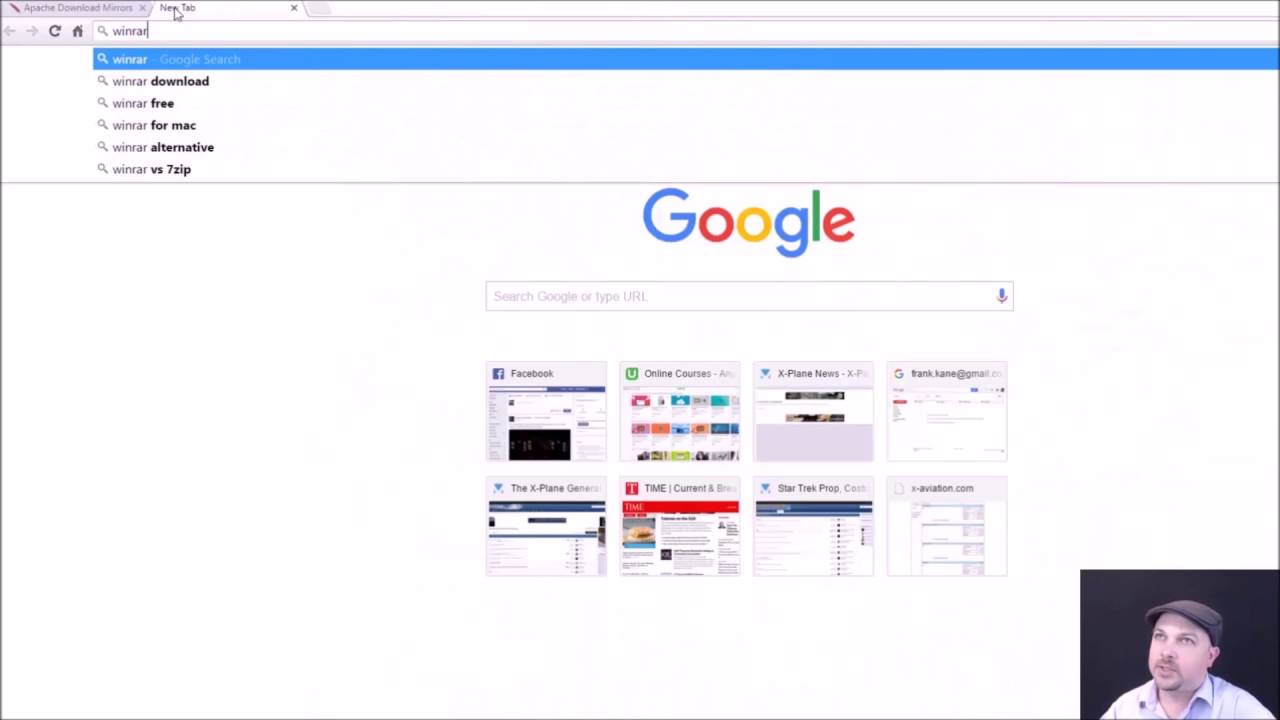
so first things first let's get everything installed that you need to actually develop spark code using the Scala programming language bear with me here there's going to be a lot of steps to follow and you do need to follow them very carefully all it takes is one misstep or one typo here and there and things won't work so do follow along and if you need to hit pause as we go to kind of like keep up with me do what you got to do you know take it one step at a time hit the pause do what I do and move forward so it's very important you get this stuff right with that let's move on so high level overview of what we're going to do right now we're going to first install a Java development kit because the Scala programming language is built on top of java and we need a jdk in order to interpret Scala code we're then going to install spark itself we're going to go download a pre-built version of it from the spark website and all we have to do is save it in the right place and set a couple of environment variables so that your operating system knows where to find it and finally we'll install the Scala IDE itself which is just a special version of eclipse you might have used that before in other programming you've done and we can just go to Scala .org to do that now these installation instructions are going to be specific to the Windows operating system I'm using Windows 10 here but if you want to do it on some other OS you can do that too on Mac OS there's a thing called Homebrew you might want to look into and that can actually install spark on your system with just one line of uh one line of code that's pretty cool stuff on Linux it does depend on what kind of Linux you have so I would recommend just going off and uh Googling you know install spark on Ubuntu if you need to the overall steps will will be the same except for the wi utils utility that we're going to install it's just how you do it will be different so the way that you actually set environment variables on a Linux system will be very different from how you do it on Windows for example and even different from one kind of Linux to to another so let's dive in and uh get started let's start by installing a jdk a Java development kit so open up your favorite web browser and just type in jdk that should bring it up we're going to go to the oracle.com website to get that and we're going to hit the jdk download button here go ahead and accept the license agreement and download the version for your operating system for me that's Windows 64-bit and that will come down 187 megabytes later all right Chrome's going to run a quick virus scan on it and off we go let's open that up and again this is going to install a Java development environment because Scala needs Java to run on top of let's go ahead and hit next now I'm going to change the installation location for the Java development kit and just want to make it something you can remember so you know maybe uh C colon back jdk we're going to have to enter this into some environment variables later on so it's important that you remember where it is and make sure it's going someplace where you have space for it so let's go ahead standard Windows installer here nothing special we're just going to go with the defaults except for the paths and now it's going to actually extract the installer itself which should kick off now now why it doesn't remember exactly what we said before for the installation location I don't know it's a little bit annoying so let's go ahead and remind it that we want it to go into the C jdk folder and now the Java runtime environment will be installed and we're done now next we need to set some environment variables to make sure that other tools can actually find Java and the uh the executables in it so on your operating system there might be a different way of of setting environment variables on Windows I'm going to show you how to do it Windows 10 to be precise but on Mac and Linux you'll have to follow different directions so just go ahead and look up how to set environment variables on whatever your operating system is is probably involves modifying A bash RC file or a profile file in your home directory but again it depends very much on your specific operating system so if you're not on Windows go look that up now how to actually set environment variables and then we'll come back here and take a look at what we're doing on Windows however what we're going to do is right click on the little window icon here and go to control panel click on system and security click on system and then click on advance advaned system settings and from here we can finally get to the environment variables and we want to add in a javacore home so I hit new there javacore home and I'm going to set that to where I install Java which for me was C jdk other thing I have to do is add that to my path so if I run Java from someplace outside of where I installed it windows can still find it so I'm going to highlight path up here in my user variables and hit edit and I'm going to add in A New Path that's going to use percent sign Java corome percent sign bin and what that does is reference the Java home environment variable that we set and say we want the bin folder underneath that to be part of our system path hit okay and hit okay again and I'm going to leave this up because we're going have to come back to this environment variable page for spark so this next step is only going to be important if you're on Windows if you are on Windows and you probably are I want you to download from the resources on this lecture the wis. exi file and wherever you download files on your computer go there hit pause and go take care of that right now please I'll still be here all right once you have that wi utils file downloaded from this lecture go find where you downloaded it right click and hit copy and go up to your C drive and make a new folder and call it when you tills just like that okay now inside that when you tills folder open that up and create a new folder in there as well called bin okay and now open up the bin folder and paste in that wis. exit file that we downloaded next thing we need to do is set up an environment variable to tell spark where that is spark won't work without this file on windows so it's very important go back to your environment variables and create a new one under your user variables and we're going to call it Hadoop unor home just like that all overc casee and for the value we're going to put in C colon back SL wi utils which is the folder we created for it all right and with that we have a little extra thing that spark needs to be happy we can move on with spark itself so next thing we're going to do is install spark itself so let's go to spark. apache.org and hit the download button up here and uh right now the latest release is 1.6.1 if you see a newer one go for it and this is very important important you don't want the source code package you want a pre-built one pre-built for Hadoop 2.6 and later if you don't don't don't forget to do that if you do won't work and we'll go ahead and hit download spark again the pre-built version and we'll use whatever mirror they recommend that's fine now notice it's actually a tgz format now you might not have a a utility on Windows already to open tgz tgz files that stands for tar and gzip which is really a Unix file system file format now if you do need something on Windows to open that sort of a file I would recommend WinRAR just type in RN WinRAR like that you can get it from rab.com and you can just go ahead and download install that if need be to decompress that tgz file that came in so let's go ahead and take a look at that file we downloaded with WinRAR I can just right click on it and say extract and it will decompress that file for me again if you're on Mac or Linux you can just use command line tools to unzip that and let's take a look at what we got so hit refresh here I should see it at the top of my list somewhere here it is and inside we have something that looks like that now again we want to move this someplace where it's going to be easy to remember I don't want to leave it in my downloads folder because odds are that won't stick around forever so on my C drive I'm going to create a new folder called Spark and in there I'm going to copy the contents of the spark package itself so I'm just hitting control C here to copy contrl +v to paste and there we have spark so just like we did for the jdk I need to set some environment variables so that other things know where Spark is let's go ahead and do that back to the system properties here we're going to hit environment variables again and we're going to add another new user environment variable this one's is going to be called spark home and that's going to be set to wherever you installed it for me that was cspark if you have another drive that has more room maybe it makes sense to put there but just to keep things consistent we'll go with that and just like with the jdk we're going to add that to our path as well so edit the path add a new environment variable we're going to reference the spark uncore home variable we just sent and again add the bin path to that all right so double check things at this point okay we should have Java home bin and Spark home SL bin in our path again those are surrounded by parentheses um Sorry by percent signs and make sure that you have a Java unor home environment variable set to where you put Java the jdk and make sure you have a spark home environment variable set to where you installed Spark all right that's all the hard part we can go ahead and close out of the uh system control panel there and the last thing we're going to install is the Scala IDE and to get that you can just go to Scala id.org and go ahead and download it so get whatever makes sense for your OS for me it's Windows 64bit go ahead and get that notice that it has a requirement of jdk which we already installed as our first step and that should come down in a couple of seconds all right now the thing with scalla IDE is that it's built on top of eclipse so there's nothing to install really you just uh go ahead and unzip that right click on it extract all and we'll wait for that to decompress there's H quite a few items in there so it will take a little bit of time through the magic of video editing will come back when that's done okay it finally decompressed and left us open in this uh extracted folder here that contains an eclipse folder and all we need to do to install eclipse is to copy this folder someplace where we're not going to lose it so I'm going to hit control X to cut that out of my downloads folder and I'm going to stick it on my C drive paste and that will just copy it over and if you want an easy way of getting to it later on you might want to consider creating a shortcut to where you put that so you go to open up eclipse eclipse.exe is actually the Scala IDE itself so you might want to right click on that drag it to your desktop and say create shortcut here that will make it a little bit easier to get there in the future all right let's just make sure everything's working at this point so if you right click on here and go to command prompt I have a handy dandy prompt for this in my taskbar but if you don't you can just go here and let's CD to where we installed spark itself so that was C colon backplash backs spark obviously if you're on a different OS the path will be different so on Windows I'm going to do a dir see what's in this directory on Linux or Mac OS it'll be LS and looks like we have some stuff in here there's a uh changes. text file so let's do a little simple spk program to count up the number of lines in that file so let's type in spark-shell and that should bring up an interactive Scala prompt with spark all set up for us looks like Windows Firewall wants us to open a port that's fine hit allow access and that's pretty cool so we have a spark environment spinning up here all these info and War messages are normal so don't worry about them but look we have a prompt we can actually write some spark code let's do that so here's your first Scala code ever Val text file pay attention to case it matters equals sc. text file open parentheses quote changes. text all right and we actually just created an object in spark called a resilient distributed data store based on top of that big text file so now we can just call call methods on that thing text file. count for example and that will count up the number of lines in that file 34960 wo so uh what's in there let's do like a text file dot I don't know um take 10 huh gives me a little array of the first 10 lines of the file pretty cool stuff so hey it's it's actually working we're actually writing some spark code here how cool is that now uh if you you're seeing some error messages or something like that go back double check your environment settings make sure that all those environment variables are correct make sure everything's installed that you need if you follow those instructions it should be working if not go ahead and post a question on the course and we'll try to help you out but at this point you should have a working Scala environment go ahead and quit it with an exit command and we're back to the command prompt believe it or not you've probably gotten through the most tedious part of this course already just getting everything installed and set up but now that we have that behind us we can start to have some fun so stay with me in the next lecture and we'll actually start playing with some actual movie ratings data and put that spark installation you just put together to good use
The words are the caption track's own and nothing is reworded or re-transcribed. Paragraph breaks are placed between sentences so the text reads as prose.
Free tools for your own script. No signup, no login.
Paste your draft and see where viewers are likely to drop off, with a rewrite for each weak line.
Paste the first 30 seconds of your own draft for a hook score and rewrites.
Check your draft against YouTube's advertiser-friendly guidelines before you record it.
Read this channel's public videos and transcripts, and download a writing brief for it.