Getting the transcript
Reading the captions from YouTube. A video nobody has opened here before takes 10 to 30 seconds; this page fills in on its own.
Getting the transcript
Reading the captions from YouTube. A video nobody has opened here before takes 10 to 30 seconds; this page fills in on its own.
Charting Made Easy · @easy_charting
Words
1,672
Runtime
10:05
Speaking pace
166wpm
Reading time
7min
166 words per minute, between the 160 25th percentile and the 181 median of 349 measured videos. That distribution comes from the 349-video hook study.
Opening (first 30 seconds)
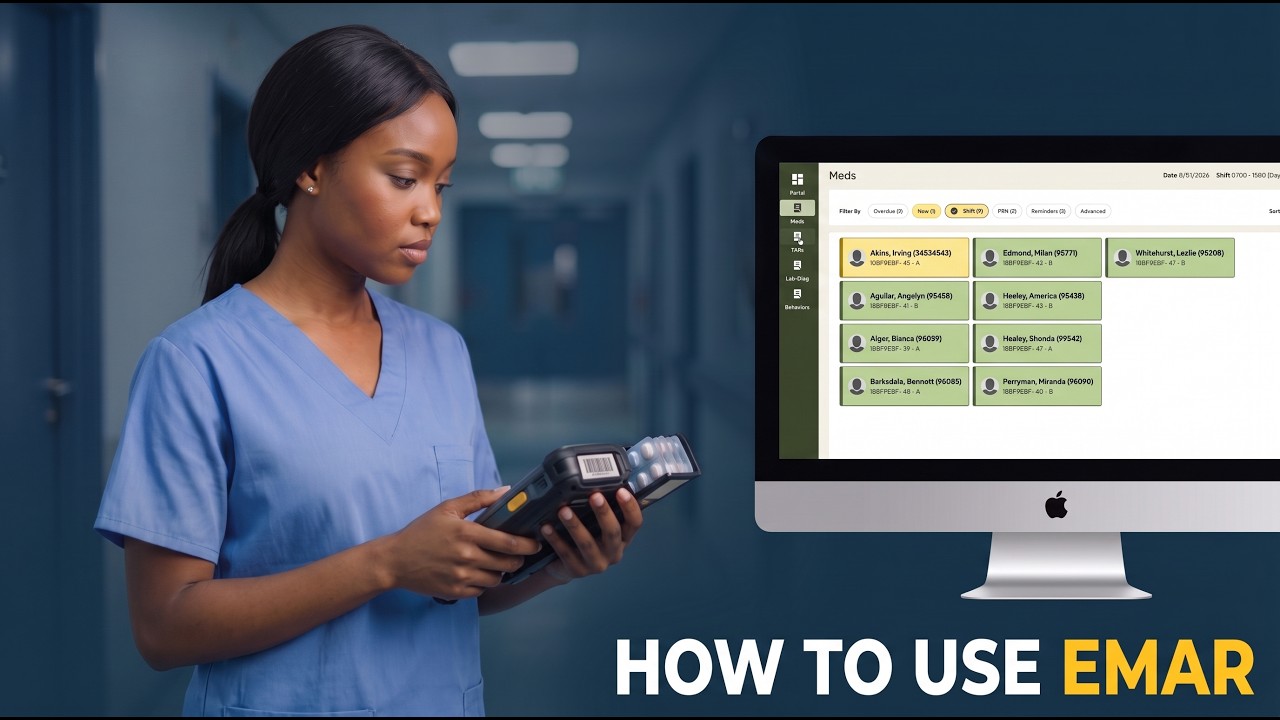
Hi everyone. In today's video, I'll tell you about EMR in PointClickCare. What's EMR? It's electronic medication administration record, which is, funnily enough, an electronic version of MMAR, medication administration record. And a medication administration record is a list of every medication a resident is supposed to get, in what dosage and when, and at the record that they got it. Uh how to access EMR? Uh go to clinical, and you go to EMR. So, first of all, quick explanation here, right?
83 words, the words spoken in the first 30 seconds at 166 words per minute.
Free, no signup. See how the first 30 seconds hold attention, with rewrites.
Sentence shape
| Measure | This transcript |
|---|---|
| Sentences | 140 |
| Average words per sentence | 11.9 |
| Longest sentence | 64 words |
| Questions asked | 43 |
| Sentences containing a number | 5 |
Most used terms
Filler phrases
80 in total: right? 40 · uh 22 · kind of 6 · like 5 · actually 3 · um 3 · you know 1.
A literal whole-word count of the same phrase list the Prepublish browser extension uses, so a phrase inside another word is not counted and a phrase used in its ordinary sense still is. It is a count and not a judgement.
What this transcript is
Every word below is the caption track YouTube publishes for this video, pulled from the video itself and reproduced unchanged. It is not Prepublish's writing, not a summary, and not a re-transcription: it is the video's own published captions. English captions, generated automatically by YouTube, in the video’s original language. Source: the video on YouTube. A channel that would rather this page did not exist can ask for its removal through the contact page, and it is removed.
No Script X-ray for this video: YouTube shows a Most replayed graph only once a video has enough views.
Hi everyone. In today's video, I'll tell you about EMR in PointClickCare. What's EMR? It's electronic medication administration record, which is, funnily enough, an electronic version of MMAR, medication administration record. And a medication administration record is a list of every medication a resident is supposed to get, in what dosage and when, and at the record that they got it. Uh how to access EMR? Uh go to clinical, and you go to EMR.
So, first of all, quick explanation here, right? So, in this video, we'll be talking about two tabs here, meds and tars. Uh so, meds is a EMR, medication administration record, and TAR, tars, is treatment administration record. This is all non-med meds related interaction, like wound dressing changes, skin creams, getting oxygen, catheter care, glucose checks sometimes. So, non-medication related. Uh so, so let's start with EMAR.
First thing to remember is this button. If you press this uh notepad with a pencil, you can change your assignment, right? So, what kind of assignment is displayed displayed right now in the EMR in the MAR screen. We'll stay in Magnolia Way, this assignment. Below that, you can see the resident listing for this particular assignment. Uh let's start with understanding these filters first, right? Overdue, self-explanatory, medication time is overdue.
Now means you need to give it now. You can give it now already. Everything that you can give on shift. Everything you can give on PRN. Uh everything that has a reminder attached to it. And also advanced. Advanced is very useful in that regard because it allows you to filter by additional documentation, for example, by weights and vitals. So, for example, if you want to see all the medications that would need you to also document blood pressure, you can select this and you can apply this to this list and you can see all only all of them.
Let's clear this filter for now so it doesn't mess up what we do. But, this is very useful, for example, if you need to check blood sugar and you can select all the uh patients that need the medication and blood sugar check at the same time. Let's talk about the color coding a bit here, right? Yellow is again due now, you can give them now. Green, nothing is due or it was completed. And white, uh nothing is due now. So, let's go into the resident screen.
Let's select Irvin. So, same color scheme applies here. So, yellow is due now and white is, for example, a PRN medicine that you can can be given on occasion. If you have more medications than could fit on the screen, there will be a small next button right here in the bottom. Okay, let's start with giving the meds, right? So, uh it's kind of easy, right? So, here you can see the time when it's due, right? And essentially, when you are dispensing the med, uh you what you need to do is just press a Y here, like if you are dispensing this.
So, you press Y here. Let's say you've dispensed this, right? And let's say that you're also given them lisinopril. Lisinopril will be a bit different because it has this like small heart below. Uh and it says that it requires weights and vital documentations. Uh let's press yes here as if and PointClickCare will ask us to add this additional documentation, supplementary documentation, which is essentially weights as a fancy name for weights and vitals.
Um you can do you can do two things here, right? So, uh you can say you can kind of pass this, not recommended, right? But you can record the new value, right? Let's So, for blood pressure, let's put in 120 120 to 35. Um sitting left. For pulse, let's record next, 68. Is it a regular pulse? So, this is how you add this vitals as you give the meds, right? So, you press record. And it's kind of also ready to be saved, right?
The other way to add weights and vitals from this screen, for example, if you know that many of the orders here will require adding weights and vitals, there is this button here that allows you to press this vitals, and there you can enter all the vitals for this particular resident the resident which which you can use for all kinds of orders. If you click on that, so here is the order details, here is the supply details, right?
And here is the important thing called administration details. So, here if let's say if something has happened that doesn't allow you to give them this medicine, right? You you need to put this chart code here. So, let's for example, if let's say they took two medicines, but they refused the Nexcellon, then you press here drug refused, and then you put a progress note here. This. Spit it out. For example. Always remember to add progress notes when the medication is refused.
And you see now, here it's highlighted as yeses, right? So, we kind of distributed that. And here it says drug refused, right? And here you can here you can see that 01, it means it's not yes, so it wasn't dispensed administered correctly, but it's a chart code 01, which is drug refused. So, yeah, after that, let's see let's see we've done this scheduled meds. You can press save. It will then be saved and become green, right?
Okay, there is one med left, right? And this is the PRN med, right? So, we don't give it on a schedule, right? But if for example, if we want to give it that, it will tell us that okay, you you're doing this in the future. Okay, I'm fine with that. So, if if you're giving the meds in a PRN scenario, like when it's required, then you first of all need to do a progress Note they had a headache. And then most of the time you also need to go to supplementary documentation.
And here for example, you need to record the pain level, right? Let's say they they they made it a six, right? Then you record. Uh because you made a progress note, it asked you to sign a progress note. Sign in. Now it also says that it's been administered, right? Let's actually un-yes it for now. Not a not a yes anymore. I I will hand this in the can do is apply to all administrations. If there's some administrations due, and for example, let's say they had a nasty behavior, you can select one of these chart codes and it will be applied to all the administrations, right?
Which is quite good if they're not present or for example, had a behavior as said or maybe they they were they were out when the medication pass was made. Okay. What if you made an error uh in administrating, right? For example, you've gave them the meds, but they actually spat it out, so you had to uh you actually but you already told but you already charted this as a successful administration, then you need to strike it out.
Strike it out is using this eraser button. You you select this history and you press strike out. Boom. Now it's strike out, right? It's became uh due again, right? Because you still need to give it, right? So, now you can see all the Now you can see all the color codes in the same screen, right? So, due not due, but could be given, and uh successfully successfully administered administered. So, that's pretty much the EM the EMR screen for a single resident, right?
So, here you select the medication. Here you can, for example, chart the vitals, write a progress note, apply some chart code to all administration, reorder supplies. Let me show you this real quick. Uh let's say if you're usually you'll have some option here to reorder supplies if you are running low on some of this. Yeah, let's have another look at TARs. Um So, it's quite the same. It looks the So, it has the same color coding.
It looks exactly the same, right? And it works kind of exactly the same. So, here you'll just have the special So, you here in this resident list, you'll just have the treatments that you need to provide to them, right? So, not the medication, but treatments. And it goes roughly the same way, right? So, you can So, there is administration details. You can select chart code. Uh zero is yes, I provided, and you can write a progress note, right?
So, you can just If you have If you've done this, you can click yes and save it. Boom, it's saved, right? So, now it becomes green. It's successfully done. So, one last thing I want to show you with regards to medication administration in uh not an not an EMR not an EMR in our regular PointClickCare screen, you can go to clinical dashboard. And in this clinical dashboard, there is usually it's varies by your setup, but it's usually there.
You can find something called med passes in the last 24 hours. Here they are, right? So, it's it's just an overview of who needs to get what, right? Also color coded, whether it was failed, whether it's overdue, whether it's due. And you can just have a look here at the residence. For example, Miranda, she still she still needs two two meds to be administered, right? And here you for example, you can see that also Miranda has a has a med overdue, even worse, right?
So that's pretty much about EMR. Good luck administrating medication. Like this video and write me a comment if you want to learn something else about EMR. I'm always here to happy to help. I'm publishing videos every 2 weeks. Thanks for watching and goodbye.
The words are the caption track's own and nothing is reworded or re-transcribed. Paragraph breaks are placed between sentences so the text reads as prose.
Free tools for your own script. No signup, no login.
Paste your draft and see where viewers are likely to drop off, with a rewrite for each weak line.
Paste the first 30 seconds of your own draft for a hook score and rewrites.
Check your draft against YouTube's advertiser-friendly guidelines before you record it.
Read this channel's public videos and transcripts, and download a writing brief for it.