Getting the transcript
Reading the captions from YouTube. A video nobody has opened here before takes 10 to 30 seconds; this page fills in on its own.
Getting the transcript
Reading the captions from YouTube. A video nobody has opened here before takes 10 to 30 seconds; this page fills in on its own.
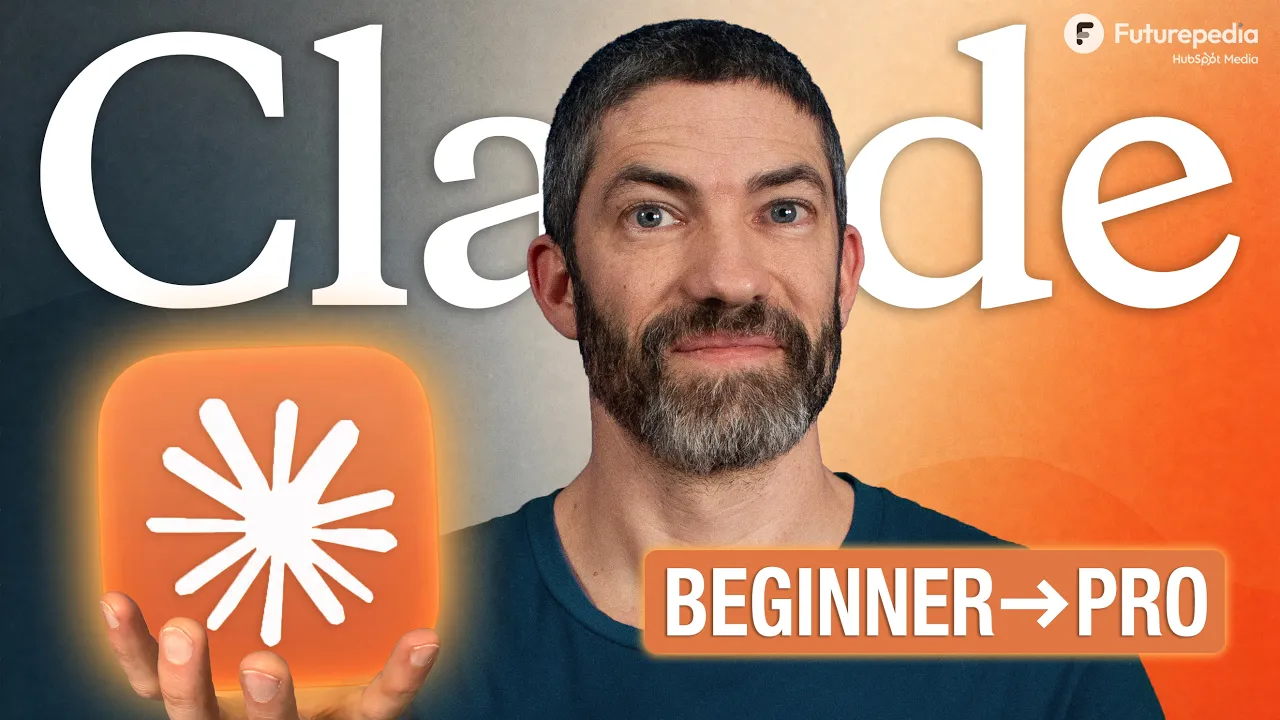
Futurepedia · @futurepedia_io
This video has no Most replayed graph yet: YouTube shows one only once a video has enough views. These are the moments viewers replayed most in Futurepedia's most watched videos.
Most replayed moment at 14:02
2.8x that video's typical replay level
meeting notes in a specific format or executes your organization's data analysis workflows. It's really easy to create these. Just tell Claude what you want to create and answer Claude's questions. It will interview you about your workflow. Also upload a reference materials if you have them or an example
Said at 13:55
The graph counts replays. It does not show where viewers stopped watching.
Words
3,185
Runtime
16:15
Speaking pace
196wpm
Reading time
13min
196 words per minute, between the 181 median and the 201 75th percentile of 349 measured videos. That distribution comes from the 349-video hook study.
Opening (first 30 seconds)
Claude doesn't come with an instruction manual, so most people are only utilizing a fraction of what it's capable of and are probably doing some of that wrong. I have spent hundreds of hours using Claude, read through all the documentation, and tested every recent update, which is a lot. So, I'll cover everything to go from a beginner asking one-off questions to a pro sending it off to accomplish real work. First, just a quick trick if you've been in another LLM for a while and are switching to Claude, but you don't want to lose all
98 words, the words spoken in the first 30 seconds at 196 words per minute.
Free, no signup. See how the first 30 seconds hold attention, with rewrites.
Sentence shape
| Measure | This transcript |
|---|---|
| Sentences | 191 |
| Average words per sentence | 16.7 |
| Longest sentence | 47 words |
| Questions asked | 0 |
| Sentences containing a number | 5 |
Most used terms
Filler phrases
24 in total: like 18 · basically 2 · kind of 2 · actually 1 · sort of 1.
A literal whole-word count of the same phrase list the Prepublish browser extension uses, so a phrase inside another word is not counted and a phrase used in its ordinary sense still is. It is a count and not a judgement.
Run the check on the words above: where attention is likely to drop, with a rewrite for each weak line. The free check shows the scores and the one issue costing the most.
What this transcript is
Every word below is the caption track YouTube publishes for this video, pulled from the video itself and reproduced unchanged. It is not Prepublish's writing, not a summary, and not a re-transcription: it is the video's own published captions. English captions, generated automatically by YouTube, in the video’s original language. Source: the video on YouTube. A channel that would rather this page did not exist can ask for its removal through the contact page, and it is removed.
Claude doesn't come with an instruction manual, so most people are only utilizing a fraction of what it's capable of and are probably doing some of that wrong. I have spent hundreds of hours using Claude, read through all the documentation, and tested every recent update, which is a lot. So, I'll cover everything to go from a beginner asking one-off questions to a pro sending it off to accomplish real work. First, just a quick trick if you've been in another LLM for a while and are switching to Claude, but you don't want to lose all the memory and context you've built up in there over time.
They really do start to learn and to understand a lot about you. Some people never switch at all because of that, but Claude has a feature to make that switch really easy. All you do is go to settings, then capabilities, then next to import memory from other AI providers, hit start import. Then follow the two steps listed, which is to copy the prompt and paste that into ChatGPT or Gemini or whatever you're using, then copy that response and paste it into Claude.
Hit add to memory and that's all there is to it. And back under that same area of your settings, make sure the search and reference chats and generate memory from chat history settings are toggled on. That allows Claude to build up memory and context about you and it becomes more personalized over time. Now, I will open up a new chat and I do need to point out that if you're on a free plan, this screen will look different.
On my paid plan, I have this option to switch over to co-work where I can assign Claude long work tasks to do on its own. Up top, I also have a code tab I can switch to. So, I'll jump over to a free plan and now those options aren't here. Claude does have a generous free plan. That's a good way to test and see what you can get out of it, but for most people, I recommend having a paid plan of whichever your AI of choice is.
In this case, we're talking about Claude. The paid plan gets you a lot more usage and reasoning models and also access to code work and code, which are amazing. That's where you can start using agents. I'll talk more about those later. Another one of the more confusing things in here when you're starting out is the model drop down. And if you get this wrong, you can waste a lot of tokens. And if you go through all of your usage, you have to wait for it to reset.
I know this is kind of a boring place to start, but getting it right can save you time and money. There's two choices you need to be aware of, the model and the effort level. Now, to start off, I basically never use Haiku for anything. It is the fastest, but the step up you get in responses from Sonnet, while still being pretty fast, make it always worth it to me. So, Sonnet is a great model as a daily driver when you want fairly quick responses with good reasoning.
Opus can tackle the bigger work. It's great at long, multi-step tasks and checks it to work as it goes. And these model numbers change over time, but Opus 5 is such a strong model that I hardly ever use Fable anymore. It's way more token intensive for not that much extra. So, really I'm almost exclusively between Sonnet and Opus, which makes everything a lot simpler. I just switch to Fable if I'm stuck on something with Opus.
So, put simply, if you're on Pro, use Sonnet as a daily driver, then switch to Opus for harder problems that need more reasoning. Now, if you're on the Max plan, which is what I'm on, I stick with Opus most of the time, especially when I'm in code or code work. But for certain creative tasks, I like Sonnet more. Now, the other factor you control is effort level. Effort level is how much thinking time it spends, basically how many tokens it throws at it.
More thinking doesn't always mean better responses. You don't need to crank this up all the time to get good results. Medium is great for most daily tasks. High is usually where you go for coding and analysis, then extra high for agentic sessions or multi-step coding tasks. If you use extra high for something that doesn't require it, it will not only take way longer, but it doesn't improve the result. It might even be worse sometimes, and it will just overcomplicate things.
Mostly, you'll just want to bump it up when that extra reasoning is important, or you feel like you're not getting a good enough response at medium. Once you've got that figured out, prompt away. AI has gotten much better at understanding what you're asking for, and most of what everyone used to talk about with prompt engineering just isn't necessary. Really, just a couple easy habits is all you need to get the best results.
First, a big thing it can't understand if you don't tell it is context. Say you're a marketer running an ad campaign, it doesn't know anything about your business or product or audience unless you tell it. So, just add in all the context you think might be relevant. It doesn't have to be organized or perfect, just dump it in. Claude can figure it out as long as it's there. And if you're not sure what context might help, which happens a lot, just ask Claude to ask you questions to gather any context it needs to best assist you.
I call that a context interview, and it's a really simple hack to getting much better results. The other big tip I have is to realize that although AI kind of always sounds really good at first, you have to get good at knowing when it's not, which is a lot of the time. Usually, the first response isn't good. Default to always pushing back and iterating. Treat Claude like a collaborator. Push back, ask to identify the gaps, the flaws in your thinking, the flaws in its thinking.
Ask what could be improved, just think critically about what it's telling you. It's better to assume it's not right and is giving you bad answers all the time, rather than to assume it's right all the time. If you want to go deeper into using Claude for work, I have a free resource linked in the description. It has a lot of what I'm covering, but in written form. And also a lot more example use cases. Plus, there's a full prompt library with over 100 prompts.
There's 12 ready to install skills you can use right away, even full guides on co-work and code. There is a ton in there with way more specifics than I can cover in a video like this. Make sure to grab that. It's a free resource in the description. Another way to bring context in is through connectors. You'll find them under customize, then connectors. Then you can hit add and browse connectors. Then there's a huge list that lets you connect Claude to all the tools you already use.
When you find one you want to add, just click the plus button. Then it will have you sign in to that account. Just like that, it's connected. A good way to use connectors is to give it context quickly through things like Gmail. It can learn how you respond to things, what clients you're currently working with, or projects you have. You can connect your calendar, then it will have up-to-date information on what's going on in your life or business, or Granola for meeting notes.
It can quickly analyze those and extract useful information, or Google Drive to give it access to your files. Connectors can be a super easy way to bring context in, but they can be used for a lot more than that. Like Claude doesn't have an image generator like ChatGPT or Gemini do, but I can bring one in through a connector. And I have this set up with Higgsfield. You can do the same with Magnific or Runway or a bunch of others.
But this one is a custom connector, which is also simple to set up. Just add, then add custom connector. Then give it a name and paste in the URL. Most of these sites will have it listed out. With Higgsfield, that's this one. Then I just log in when it prompts for it. And now when I ask for images or videos, Claude can generate them through that connector. So far, I've sent each of these prompts in just a default new chat, but I rarely start chats this way.
Probably 90% of my chats are in projects, which you can find over on the side panel. Projects are self-contained workspaces with their own memory, chat histories, knowledge bases, and custom instructions. Dedicated environments for specific work streams, and just a general way to organize your chats. I use projects for everything, but one thing to understand is projects are walled off. A project has memory of everything that happens inside of it, but if you're in a separate project or a default chat, those won't know.
I like that I have a lot of projects because I have a lot of different uses for Claude, and I don't like when it references between them. Some people may just want to have one for personal, one for work, and one for creative, or something like that. But when I'm working on something related to Futuropedia, I don't want it to reference the app I'm building, or my health, or my family, or anything like that. So I have a dedicated project for each thing.
And then all the just random one-off questions I have, I do outside of projects. So I'll set one up really quick. I'll create a new project, give it a name, then create. Then over on the right is how we'll customize this to have permanent context and customized instructions. Now under your settings, there are also account-level custom instructions. I never use these because I don't want my instructions to apply to everything.
I want separate instructions for business, different ones for YouTube, for health, etc. I only use them in projects. And these custom instructions will guide how Claude behaves. Context about what you're working on, process instructions, tone and style preferences, or specific requirements. And below that, you also have project files, where you can upload any sort of document you'd like Claude to have persistent knowledge of in this project.
Reference documents, brand guidelines, background materials, examples of work you want Claude to emulate, technical documentation. Projects also have built-in memory that refreshes automatically once per day. That way Claude remembers across every conversation within that project and it learns more over time. And that's one of those settings we made sure was on in the beginning. So, I created a project for this business, uploaded brand docs, tone guide, SOPs, sales history, and I wrote custom instructions.
And now every conversation inside this project inherits that context automatically. It's like hiring an employee who already has read your entire company handbook before their first day. Now you don't have to re-explain things across chats, rewrite context, or upload the same files repeatedly. It's all there every time. That is a huge improvement in the experience, but you may still find yourself repeating processes and prompts across chats.
That's where skills come in. I think of skills like recipe cards for workflows. A repeatable process Claude will follow to get the same type of result every time. The way I usually create these is I will iterate back and forth in a chat to get to a final result like I covered earlier where you're pushing back, fine-tuning the response. And then once I've already gone through that whole process of refining and getting it all the way how I want it, I'll tell Claude to package that entire process up as a skill.
Then it will do it all on the first try the next time I ask for it. For example, say I need Claude to look through the sales sheets for the week and analyze all that information, then come up with a special weekend run. Once it comes up with that, I want it to write the copy and then use the Higgs field connector to create an image for that special, then give me the special, the caption, and the image in one response so I can easily upload to social.
I went back and forth over multiple prompts to get there. Now when I say package that process up as a skill called weekly special, it analyzes that whole conversation and bundles it up for me. Now anytime I call that skill, it will know how to do that entire process without me having to go back and forth and type it all out again. And you can build up skills for all sorts of tasks, and Claude will use them based on the context of your prompt.
You don't need to explicitly ask for it to run a skill. Although, you can call them by name using forward slash if you want to be sure. Just from what I've covered so far, you'll already be using more of Claude than probably 90% of people. But, that's still only a fraction of what it can do. To unlock the next level of capabilities, we'll move into co-work. Chat is your thinking partner. Co-work is more like your assistant.
It's an agent you can delegate real work tasks to. There's a difference in thinking with it. Instead of a back-and-forth conversation, you give it a goal, define the end point. Then it will think it through, come up with a plan, and make a checklist. It'll work through that checklist step-by-step, checking things off as it goes for however long it takes. Oftentimes, it will multitask and delegate multiple sub-agents to do separate tasks on the checklist.
Then it comes back with the finished result. Part of how it does all this is it gets its own computer in the cloud where it can build things up throughout the entire session. With this, it's able to do much more intensive, long-horizon work. Things like multi-step research, analyzing and cleaning up a large amount of files, drafting reports, creating dashboards, project planning, content pipelines, the types of things you would normally assign to an assistant.
The other really unique feature with co-work is scheduled tasks. You can set it up to run on a schedule, so it will work without you even prompting it at all in the future. With that weekend special skill I created earlier, I can ask it to run that every Friday morning, and then I'll wake up with the special and posts for socials all ready to go. And a quick note here, there are two versions of co-work. If you're using it on the web, it works exactly as I just described.
But, if you use it in the Claude desktop app, there is a difference. The computer it gets for your session is your actual local computer. You assign it a folder to work in and then it's able to open, edit, create, and organize files directly on your computer. Everything else is the same, but it's running locally instead of in the cloud. Personally, I usually run it in the cloud and assign it to a drive folder using that Google Drive connector, and I add any files I want it to work with and let it save anything it creates there.
If Co-work is your assistant, Claude Code is your engineer. Apps, websites, automations, Chrome extensions, productivity tools, it writes all the actual code for whatever you describe, and you do not have to be a developer to use it. You describe what you want in plain English, and it writes all the code to make it exist. If you haven't tried it yet, you definitely should. With the recent models, it's insane what you can build just through prompting.
I am not a developer, and I don't know how to code, but I build things all the time. In a recent video, I showed off a Premiere Pro plugin I vibe coded that I use for every one of my edits now, and it saves me a ton of time. I actually had so many comments ask to use it, so I am working on making it available for other people to use. I'll probably make a video about that whole process at some point. But for that plugin, I did use Codex, but it works the same.
Claude Code is what I've been using for a pretty complex mobile app I'm working on, and there's just a bunch of other tools I've built with it that I use all the time. And my point isn't to show off any of these tools, it's to say that you absolutely can and should use it even if you're not a developer, because I'm not either. Now, with Code, I do recommend using it on the desktop app, even though you will see the ability to use it in the cloud if you're on the web.
But there, you'll need to assign it to a GitHub repo. If you're on the desktop app, you just assign it to a folder on your computer, then send off a prompt. And if you're just starting out, I definitely recommend switching it to plan mode before you tell it what to build. Then it will think through and develop a thorough plan for you to review before it gets started. I do have a full video on Claude Code if you want to master it, but really just try opening it up, assign it a folder, switch to plan mode, then ask it to build something you wish existed and see what happens.
You'll be blown away at what comes back. That is how to master Claude. Start with everything inside chat, use the right model and effort, then connect your tools, set up projects, and create skills. Then move into co-work to start working with an agent you can assign real work to. Then jump into code to let that agent build things for you. This stuff has gotten so much more powerful and easy to use for a non-technical person over the past year.
I really think everyone should move into the agentic tools you have access to. And hopefully that helps. I have full tutorials on co-work or code if you want to dive deeper into those next.
The words are the caption track's own and nothing is reworded or re-transcribed. Paragraph breaks are placed between sentences so the text reads as prose.
Free tools for your own script: paste a draft and see where it stands before you record it.
Paste your draft and see where viewers are likely to drop off, with a rewrite for each weak line.
Paste the first 30 seconds of your own draft for a hook score and rewrites.
Check your draft against YouTube's advertiser-friendly guidelines before you record it.
Read this channel's public videos and transcripts, and download a writing brief for it.