Getting the transcript
Reading the captions from YouTube. A video nobody has opened here before takes 10 to 30 seconds; this page fills in on its own.
Getting the transcript
Reading the captions from YouTube. A video nobody has opened here before takes 10 to 30 seconds; this page fills in on its own.
Automation Stack · @Automation_Stack
Words
663
Runtime
3:02
Speaking pace
219wpm
Reading time
3min
219 words per minute, above the 201 75th percentile of 349 measured videos. That distribution comes from the 349-video hook study.
Opening (first 30 seconds)
How to create AI product photos with openart.ai. Hey everyone, welcome back to my YouTube channel. In this video, I'll show you exactly how to do so. But first, if you want to get the best deal for openart AI, make sure you click on the link down in the description, and you're also going to be able to find an exclusive coupon that you can actually use. So, let's just go ahead and get started. Okay, so we're just going to start off by clicking on the tools option here above the prompt, and then we're just going to select image, and we're just going to select the first
110 words, the words spoken in the first 30 seconds at 219 words per minute.
Free, no signup. See how the first 30 seconds hold attention, with rewrites.
Sentence shape
| Measure | This transcript |
|---|---|
| Sentences | 34 |
| Average words per sentence | 19.5 |
| Longest sentence | 55 words |
| Questions asked | 2 |
| Sentences containing a number | 0 |
Most used terms
Filler phrases
21 in total: actually 5 · basically 5 · uh 4 · like 3 · you know 2 · sort of 1 · um 1.
A literal whole-word count of the same phrase list the Prepublish browser extension uses, so a phrase inside another word is not counted and a phrase used in its ordinary sense still is. It is a count and not a judgement.
Run the check on the words above: where attention is likely to drop, with a rewrite for each weak line. The free check shows the scores and the one issue costing the most.
What this transcript is
Every word below is the caption track YouTube publishes for this video, pulled from the video itself and reproduced unchanged. It is not Prepublish's writing, not a summary, and not a re-transcription: it is the video's own published captions. English captions, generated automatically by YouTube, in the video’s original language. Source: the video on YouTube. A channel that would rather this page did not exist can ask for its removal through the contact page, and it is removed.
No Script X-ray for this video: YouTube shows a Most replayed graph only once a video has enough views.
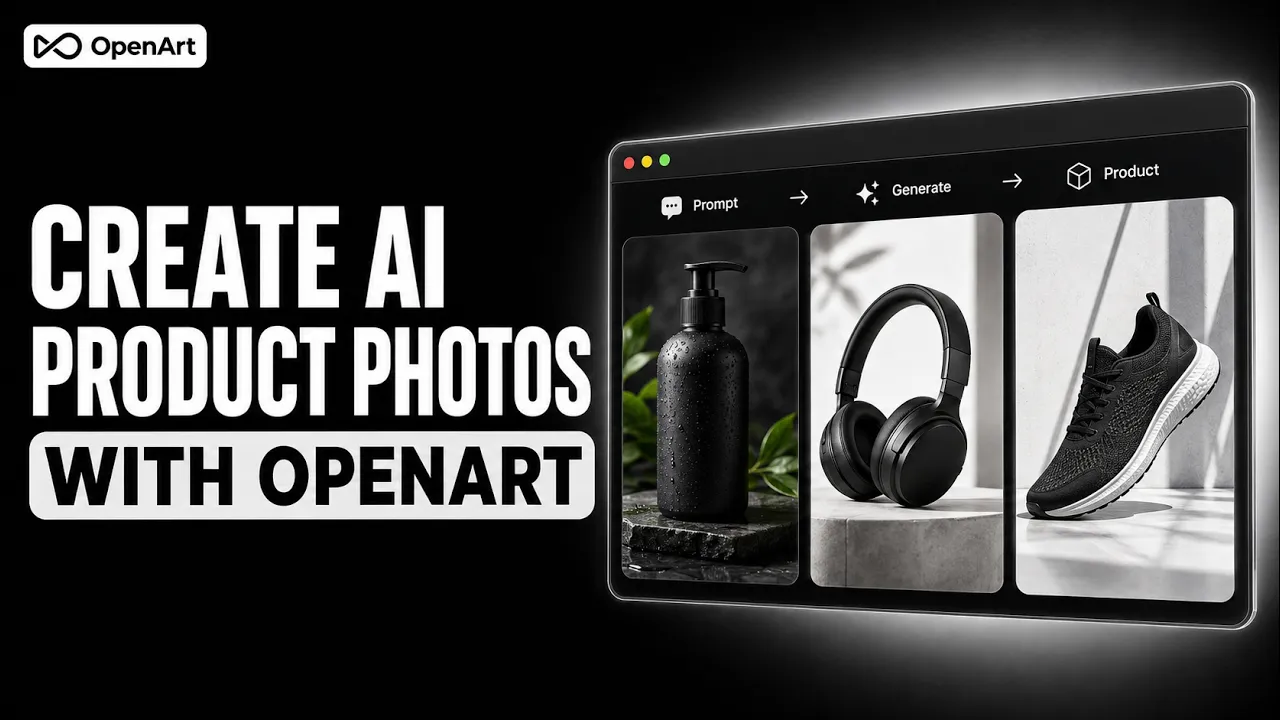
How to create AI product photos with openart.ai. Hey everyone, welcome back to my YouTube channel. In this video, I'll show you exactly how to do so. But first, if you want to get the best deal for openart AI, make sure you click on the link down in the description, and you're also going to be able to find an exclusive coupon that you can actually use. So, let's just go ahead and get started. Okay, so we're just going to start off by clicking on the tools option here above the prompt, and then we're just going to select image, and we're just going to select the first one, which is create image.
Now, from this, we're we're going to also still have two different options to choose from, either create an image or image variations. So, what we wanted to use is image variations. This is going to ensure that it keeps the product image exactly the same, but we can add more to it without having to change the actual product. So, the first thing that we will uh do is, once we actually select this, is select the different model.
Now, you can just play around with those, see which one is going to suit you best, but you have plenty to choose from, as you can see. Next up, we're just going to start with an image, so you're just basically going to upload your product image that you have. Uh we can use any of these, so I'm just going to um let's just use this one as an example, and then we're just going to go ahead and add a variation. So, how do you actually want this uh to look like?
What do you actually want to add extras to this product photo? Now, when it comes to prompts, the more detail that you are, the better, because you're just going to basically describe exactly what you want, and you can even add uh how, you know, how many pictures they actually want in here, and you can even select the output that you need for this image. So, once you do this, you can just go ahead and click on generate, and it's just going to do that for us.
So, I'm just going to click on generate, and I'm just going to get two different pictures, because I have chosen to have only two. But you can increase it up to eight. And as you can see, we're going to have these two different images, and it still has the text. So, you would want to add in the prompt that you also want to remove the text. And it's going to boot to It's basically just going to do its best to maintain the integrity of the product, keep it looking pretty much the same while adding, you know, a background to it.
Whatever you describe, here we have the plant shadows that we described and also the white marble. So, you can see that you can add any sort of prompt in here. It's just going to reflect on that. So, this basically how it works on how to create your product images. You can again just click on any of them. You can upscale them if you want to. And also, you can recreate the image entirely if you don't like it. And if you're done with that, you can simply just click on download from the top right and simply download the image, and you're pretty much good to go.
So, if you don't like this entirely and you wanted to add a new prompt, you simply just go back here, delete this, add your new prompt, and it's just going to do the process again. And this is basically it for this video. So, hopefully you found it to be informative and helpful. And for more information, subscribe to my YouTube channel, and thank you for watching.
The words are the caption track's own and nothing is reworded or re-transcribed. Paragraph breaks are placed between sentences so the text reads as prose.
Free tools for your own script: paste a draft and see where it stands before you record it.
Paste your draft and see where viewers are likely to drop off, with a rewrite for each weak line.
Paste the first 30 seconds of your own draft for a hook score and rewrites.
Check your draft against YouTube's advertiser-friendly guidelines before you record it.
Read this channel's public videos and transcripts, and download a writing brief for it.