Getting the transcript
Reading the captions from YouTube. A video nobody has opened here before takes 10 to 30 seconds; this page fills in on its own.
Getting the transcript
Reading the captions from YouTube. A video nobody has opened here before takes 10 to 30 seconds; this page fills in on its own.
Christopher Lawley · @ChrisLawley
Where viewers went back to watch this video again, from YouTube's public Most replayed graph, lined up with what was said at that moment.
Most replayed moment #1
5:463.9x the video's typical replay level
But there's a few key aspects of reminders that are just really great that I want to highlight. One of my favorite features of reminders is you can break up a list and a list is what reminders call s a project. You can break up a list into different sections.
Said at 5:40
Most replayed moment #2
15:392.3x the video's typical replay level
these notes and import them into Apple Notes using the import markdown feature. I told it to recreate my whole folder structure and then move those notes into the proper folder. It did a great job.
Said at 15:35
Most replayed moment #3
20:352.3x the video's typical replay level
le if it's a script or notes for video I can put the a link to that in the task in reminders, or if I have a meeting coming up and I created a meeting notes document, I can put a link to that note right in
Said at 20:32
The graph counts replays. It does not show where viewers stopped watching.
Words
5,391
Runtime
27:27
Speaking pace
196wpm
Reading time
22min
196 words per minute, between the 181 median and the 201 75th percentile of 349 measured videos. That distribution comes from the 349-video hook study.
Opening (first 30 seconds)
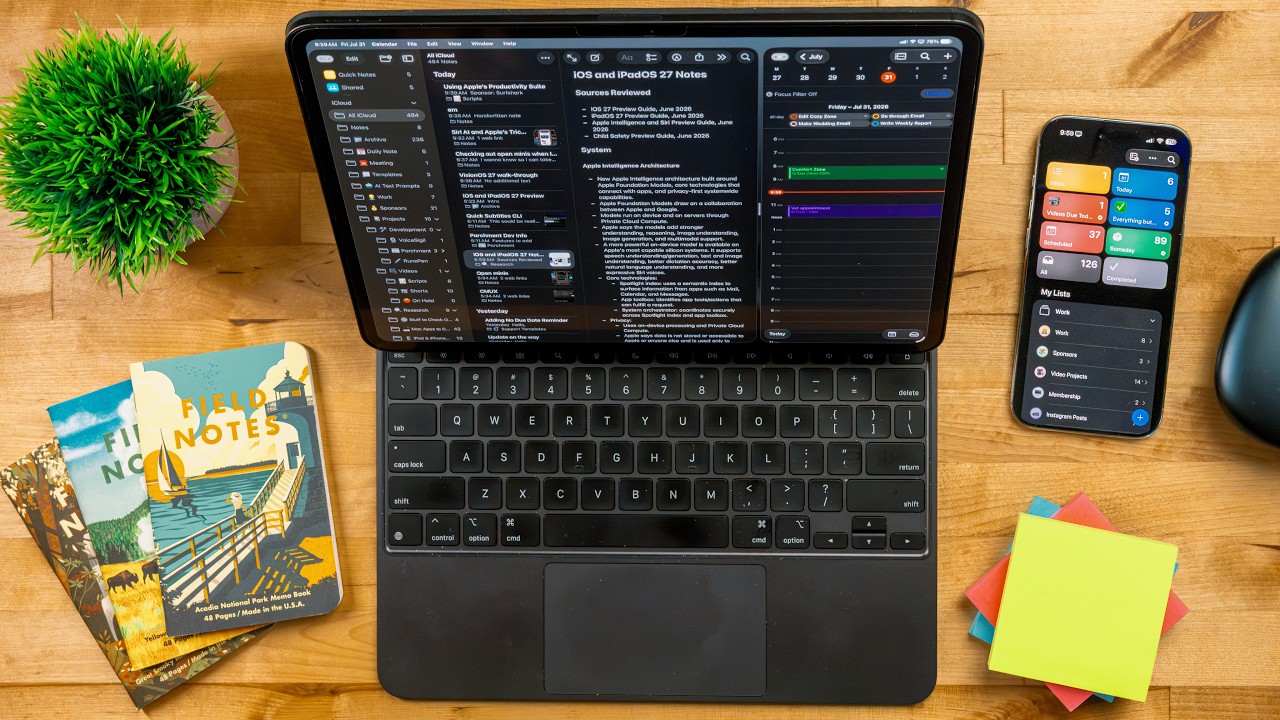
I try a lot of productivity apps, but lately I've been working on a few things that just require a more connected setup than what I've had in the past. With the new Siri in the OS 27 updates and well, something I built myself that I'll get to. The Apple productivity suite of apps is exactly what I need right now. This video is sponsored by Surfsharp. Between the new Spotlight and Siri, the dedicated Siri AI app, and the Apple Watch, there's a lot of wa ys to create a note, pull up a project, or
98 words, the words spoken in the first 30 seconds at 196 words per minute.
Free, no signup. See how the first 30 seconds hold attention, with rewrites.
Sentence shape
| Measure | This transcript |
|---|---|
| Sentences | 314 |
| Average words per sentence | 17.2 |
| Longest sentence | 103 words |
| Questions asked | 2 |
| Sentences containing a number | 15 |
Most used terms
Filler phrases
102 in total: like 50 · uh 18 · you know 13 · kind of 12 · basically 3 · literally 2 · um 2 · actually 1 · sort of 1.
A literal whole-word count of the same phrase list the Prepublish browser extension uses, so a phrase inside another word is not counted and a phrase used in its ordinary sense still is. It is a count and not a judgement.
Run the check on the words above: where attention is likely to drop, with a rewrite for each weak line. The free check shows the scores and the one issue costing the most.
What this transcript is
Every word below is the caption track YouTube publishes for this video, pulled from the video itself and reproduced unchanged. It is not Prepublish's writing, not a summary, and not a re-transcription: it is the video's own published captions. English captions, published by the channel, in the video’s original language. Source: the video on YouTube. A channel that would rather this page did not exist can ask for its removal through the contact page, and it is removed.
I try a lot of productivity apps, but lately I've been working on a few things that just require a more connected setup than what I've had in the past. With the new Siri in the OS 27 updates and well, something I built myself that I'll get to. The Apple productivity suite of apps is exactly what I need right now. This video is sponsored by Surfsharp. Between the new Spotlight and Siri, the dedicated Siri AI app, and the Apple Watch, there's a lot of wa ys to create a note, pull up a project, or look up an event.
I've never been busier than I am right now. I'm working on a bunch of different things. The YouTube channel, I just launched an app, I'm doing a couple other things that I have not quite re ady to announce. And the biggest project of my life, planning a wedding. I need to be able to quickly save information, recall that information, and to be able to share a note and task with other people. There are a bunch of different collaboration tools, and a lot of them skew very enterprise y, but the stuff that's built into iOS, iPad OS, and Mac OS really shouldn't be looked over.
It's really good. A core feature that I have been relying on is the new Siri AI, and it's at its best when it's using the system apps. Now, to be totally fair, this is still in beta. I'm recording this at the end of July, so there's still a little ways to go before it officially ships . Third party apps will be supported, but they will need to do some work in order to support Siri AI. Even if they had already supported app intents and shortcuts in the past, they'll still need to do a bit more work in order to be able to fully integrate with Siri AI.
But this is what makes the Apple Productivity Apps interesting. I know they're already gonna work right now, even in the beta. And they work really reliably. The last thing I want is to be saving some information about my tucks or the cake or the venue or somet hing like that, and not get lost or put in some bucket that I just can't find. So at its core, the Apple Productivity Apps of Sweets are three different apps: there's reminders, there 's calendar, and there's notes.
Yes, there's the old IWork stuff like pages, numbers, and keynote. I'm not really counting that. That's more like office product. I'm just I'm just counting like note-taking, task management, and calendar in this video. Reminders is one of those apps I go back to every single year during this beta season. Usually it's a great app that gets access to a lot of the new system features or it gets new features itself. So it really helps me prepare for my walkthroughs.
Now, this year before WWDC, I had been using Todoist, and I just really wasn't looking forward to mov ing all of my to-doist tasks and projects into reminders, but my pal Federico Vitichi created what's c alled a reminders command line interface. This is a tool that hooks into terminal and basically allows you to do things with reminders. So I set this up with codecs and I told Codex to take everything that was in Todoist, all my projects , all my tasks, all the information that's in those tasks, and recreate it in reminders using this com mand line interface or CLI.
It did a great job. It created every project. It created every task. It even moved over the notes that were in the task, uh priorities, all sorts of different information that I had in tasks. It moved it all over as well. It was really nice not to have to recreate my task management setup for the hundredth time. Now, reminders itself has come a really long way and it's very powerful. I run my business out of reminders, and my business has become very um multifaceted.
There's uh lots of different branches to it now. But the fact that I can run a I I I'm gonna say fairly complex business, but it's you know it's not some multi-national corporation, but there's a lot of different arms to it. But the fact that I can run it out of a task manager that's free and built into the OS is pretty impress ive. I've done a video about how I set up uh my task manager, specifically reminders, and how I organize it in the past.
I'll link to that and everything in the description below. This video is sponsored by Surfshark. One thing I've been doing a lot more of is working outside of the house, whether I'm working at a coff ee shop or I'm traveling and working out of a hotel. Whenever I'm using my device outside of my house, I'm always using Surfshark. Surfshark is a VPN service that keeps you and your data safe. Now, this isn't some well, I have nothing to hide, so I have nothing to lose, kind of thing.
At places like coffee shops and hotels and places with these open Wi-Fi networks, they can see your tra ffic. And when their networks get compromised and bad people get in, and trust me, their networks get compr omised, those people can see your traffic. And this isn't some marketing line. I used to work in IT and this is something we tested and you know set up a lab to basically see how this is possible and how much data these people could get.
And it's a lot. With Surfshark's VPN, your data is routed through secure servers, so nobody can see your traffic or inform ation. And my favorite part about Surfshark is they use memory-only servers. So this means they can't keep logs. Even if they wanted to, they couldn't keep those logs and keeping logs using a VPN just defeats the pur pose. But having a VPN isn't just about security, it can be a handy tool for browsing the web, whether you want to see a streaming services library in another country or check price discriminations based on region .
Like I said, I use Surfshark whenever I'm outside of my home. Start your seven-day free trial and get an extra four months of Surfshark VPN. Go to Surfshark. com forward slash Lolly or use code LOLLI at checkout. My thanks to Surfshark for sponsoring this video. But there's a few key aspects of reminders that are just really great that I want to highlight. One of my favorite features of reminders is you can break up a list and a list is what reminders call s a project.
You can break up a list into different sections. So if your project or list in this instance has multiple stages or sub-projects in it, you could displa y all of that right here. I've been doing this with the apps that I've been working on. Yes, apps, plural. I've been using this to track bugs and features I want to add. What's also nice is you can drag and drop tasks around so you can just move them into whatever section you want them to be.
You can also turn on the column view, and this gives you a Kanban style layout. This is how I manage video projects. I lay out all the projects I'm working on and the different stages that they're in. Whenever I complete one stage with a video project, I just move it over to the next and I just keep mov ing it until it's completed. I've also set up a few smart lists as well. I use these to filter my day. I can work on multiple videos in any given day, and this helps me see what is video related and what is n't.
Now, I just use tags to filter these, and you can set up smart lists using all sorts of different crit eria. You can also pin smart lists up to the top section as well. But reminders doesn't have to be about just managing big projects. It's great if you just want a simple to-do list. If you are just like, hey, I got a bunch of chores I need to do Saturday, you can just write them down here and just check them off as you go along.
This way you don't forget anything. I think everyone should be using a task manager. There's so many things that we have going on in our lives, and stuff can just fall through the cracks . Even if you're just keeping a simple list of, hey, these are the things I need to get to at some point . Reminders can do that. If you have a list of tasks that you need to do often, you can actually build template lists. All you need to do is just make the list first and you can fill in all the tasks that you need to do.
Then just go into the menu and you can turn that into a template. Then at any point you can just pull up that template and it'll autofill everything out for you. In reminders you can also have collaborative lists. You can share a list with somebody. This isn't really something I did a lot with in the past, but now that I'm planning a wedding, I have a shared list set up with my fiancé. We're in the very start of this whole crazy planning phase.
We don't have much on here just yet. Uh but you know once we start and you know finding a venue and all that stuff, this is gonna be really important to have. I also took this shared list and broke it up into different sections, stuff that we need to to dogether , stuff that's my responsibility, and stuff that'll be her responsibility. I totally understand if you need something a bit more than reminders. Reminders is great if you don't need that big enterprise software, or aren't forced to use that big ent erprise software.
A lot of Apple apps get about 80% of the way there. And for probably 99% of the people out there, that 80% is exactly what they need. But there is specialty software like to-doist or things or something like that. If you need, you know, really specific features, those are out there, and that's fine if you need those . But I would encourage everyone to at least try reminders, don't stick your nose up at the built-in system app.
Now, there are some things I would love to see reminders get support for in the future. First off, attaching PDFs or just any kind of documents. Right now, you can attach images to a reminder, but oftentimes I will get sent something like, Hey, you I need you to look over this packet, sign this contract, whatever. And it would be really great if I could attach specifically PDFs, but any file would be also welcome. But if I could just attach a document to a reminder so that way when I get to that reminder, I'm like , oh hey, here that here's that thing.
I don't need to go digging through files or finder or whatever. Reminders also needs an easier way to add extra data. I'm gonna talk about this more in a little bit, uh, but let's just say I figured out how to do this really easily and reminders has been around a long time. It's way too difficult to uh change the list a reminder belongs to, the priority, add a note, all this important information that's in here, you have to go through way too many menus and sub-menus in order to do this.
It should all be supported via natural language input. And that brings me to my next point: better natural language support. So you can type out the task and then you can type out it's you know due tomorrow at 7 p. m. Great, that's there. But you can't change the list, you can't change the priority or any of that stuff via the natural lan guage. It's it's very bare bones. And then the last thing: please, please change the SF rounded font in reminders.
It's this colored font and it just makes it look Fisher pricey and it just makes it hard to take remind ers seriously. It literally rem makes me think of, you know, my first task manager you give to a three-year-old. It just doesn't look professionalal. Cendar is Apple's roughest productivity app. When looking at other calendar apps like Fantastical, the built-in calendar app's feature set is pretty limited. It's not it's not anything to write home about.
It's pretty bare bones. Now, for me, out of the three core productivity apps that I talked about, a task manager, a node, and a calendar app, the calendar one is the app that I rely on the least. I usually have a few appointments a week and then maybe something happening on the weekend. So I don't really live out of my calendar like I do a task manager and a notes app. So the calendar app is fine for me, kind of going back to that whole like Apple's apps get you 80% of the way there, and that's fine for most people.
That's me in this case. Now, something I will give them full credit for in the OS 27 updates is they brought natural language support to the calendar app. Woo-hoo! But they did it like reminders where it's pretty limited. Uh as far as I can tell, there's not support for like changing, you know calendars so like if you have say like your Google calendar or iCal calendar you might have subcalendars underneath there as far as I can tell there's no way to change that information uh in the natural language stuff you have to do that in the menu whereas something like Fantastical you can just hit forward slash and type the new calend ar.
The natural language support does support date, time and location. So that is pretty nice. This is the app I would love to see Apple spend some time on next year just improving, making it just look a little better, function a little better, smooth out some of the rough edges. There's there's a the It's not bad, but it could be so much better. Or the other alternative is Apple just buys Fantastical. I think they have the money to do it.
Notes was the app that I was the most nervous about moving to. I've been a big obsidian user for years now. In fact, I've made a few obsidian videos and and they were really well received and I I enjoy obsidian . But obsidian it's it's starting to feel a little old now. And maybe that's not fair, but it takes them a long time to adopt system level features. For example, multi-window support on the iPad still isn't even there.
That's been around since iPad OS 13. Multi-window support. And that's just not even in Obsidian. So sometimes they don'tt adop system features at all. Sometimes it takes them a really long time. And that's not something I want to wait around for because I do find Siri AI to be really useful, and we'll get into that in uh just a minute. But going into nodes, once I relearned all the keyboard shortcuts, I felt pretty at home here.
It's not a markdown text editor, so I can't just, you know, hit pound pound to do a header or an H2. But the benefit of having a rich text editor as opposed to a plain text editor like Obsidian, for those that don't know, a rich text editor renders out what you're writing. So if you make something bold, it shows that it's bold. A plain text editor, if you do the markdown for bold around it, you'll just see the asterisk on the s ide of those words.
But the benefit of a rich text editor is I can add images in line with my note, or I can add uh URL c ards in my notes. It just looks a little bit nicer, it's a little more well organized, but it takes a little bit more work to get it there. That being said, you can do stuff like this with obsidian. I've talked about this in the past, but sometimes those plugins can be a bit janky, sometimes they bre ak things. Sometimes you go to export your document and you go, oh that's right, I was using this card plugin and now No, not not great.
Whereas with Apple Notes, it's gonna look like what it looks like. Plus with AppleNotes there's also the benefit of being able to use the Apple Pencil and attach files, which is really nice. Now I did take everything from my obsidian vault except my daily notes and move them to the Apple Not es app. And how I did this is I took advantage of an OS 27 feature. Uh I have Golden Gate running on my MacBook Neo. Now in the OS 27 updates, there's support for importing markdown notes into notes, and it will convert them to rich text right there.
It'll it'll convert it to the Apple notes formatting. There's also support for exporting Apple Notes to Markdown. So it'll take the rich text and then turn it into Markdown. So what I did is I took Codex and set it up inside my Obsidian vault, told it, you know, look at all of these notes and import them into Apple Notes using the import markdown feature. I told it to recreate my whole folder structure and then move those notes into the proper folder.
It did a great job. I didn't have to manually recreate anything. The only thing I had to do is the import markdown feature creates an import folder in notes. I just went in and cleaned those up. I didn't want to waste codex usage on that. It wasn't that big of a deal. It handled creating the whole folder structure, importing the notes, and then notes handled formatting everything in the Apple Notes format. And I double-checked everything.
I didn't lose a single thing. And like I mentioned, with the OS 27 updates, if you ever decide, eh, Apple Notes isn't for me, I want to go back to something like Obsidian or another markdown text editor, you can export all of your App le notes as Markdown. You don't have to recreate any of that stuff anymore. It's really nice. I did test it, it works great. Now the new Siri AI is deeply embedded in the notes app. Not only can I use it to ask about something I wrote about or uh saved a link for, but I can use it to create a new note, but I can also ask it about stuff within a note as well.
So for example, I've been getting a ton of feedback from my new app Parchment. All sent to me via email, and it's been all great feedback, but it's in different format. Some people will use bullet points, some people use numbers, sometimes there's no formatting whatsoever . All I've been doing is just copying and pasting their feedback into a notes document. So what I did is I just told Siri AI, hey, this is feedback for my app.
I want you to go ahead and summarize all of this and organize it. If anything looks like a duplication, combine the duplications and put like a times two, times three, whatever next to it. Then I just want you to turn it into a list. And it did a really great job at this. It all looks like uniformed feedback. I understand all of it. I was really happy with the way that worked. Now, one unsung hero of Apple Notes is QuickNote.
This is the ability to well, quickly add a note from anywhere in the OS. On iOS, iPad OS, or Mac OS. And there's a few different ways to do it. So on iOS and iPad OS, you can add a control center toggle if you want. This makes more sense on the iPhone, but also makes sense on the iPad as well. But there's a few other things you can do on the iPad. But this just brings up a card view on the iPhone and you can quickly add a note.
On the iPad, if you have an Apple Pencil attached, you can use the Apple Pencil and swipe up from the bottom right corner, or you can hit the Globe Q shortcut and you can get this little popover window and you can just type away right in here. The Globe Q shortcut also works on the Mac as well. In this window, you can attach links, draw with the Apple Pencil, just write a quick note, swipe betwe en other quick notes, and then just save that note into the quick note folder.
I've been really impressed with how far along notes has come in the last few years. I have just under 500 notes in my library, and search is really fast. I'm able to pull things up and find things. The tagging system works great, but the thing that I'm the most excited about is collaborative notes uh again this goes back to the wedding planning I'm gonna be doing a lot of note taking here in just a c ouple weeks because we're going to be looking at a few different venues and I want to make sure, you know , I have all the information for those venues down in the notes and I want to be able to share them with my fiance.
But notes isn't perfect. There's a few things I'd like to see. Proper markdown support. I don't ever expect Apple to turn notes into a plain text editor. But what would be killer is let me write the markdown shortcut. So let me write pound pound and then space and then whatever and turn that into a subheading. Or let me do asterisk asterisk a word asterisk asterisk and turn that word bold, like render it for you into rich text.
So basically use markdown as a shortcut for that. That would be nice. I don't think they'll do it, but it would be really nice. The other thing is the ability to set a custom font. Uh right now you just kind of have to use what Apple gives you, and yeah. There is a monospace font option, but it's just for the monospaced formatting you can't do like headers in monospace which is a bummer but the whole point of this video is about how all of these things work together and it's just a little bit of a cleaner system than having a bunch of different siloed buckets .
Like one of the best examples is you can have your reminders show up in calendar. So if you're somebody that lives out of your calendar but you have a few reminders here and there, you can see like oh you know I gotta do this thing at 4 p. m but I also have this meeting at 4 p. m so let me move something around another feature that I do is I make a lot of my notes collaborative not because I'm sharing with them with somebody but because I will get a link to that note so for examp le if it's a script or notes for video I can put the a link to that in the task in reminders, or if I have a meeting coming up and I created a meeting notes document, I can put a link to that note right in the calendar entry so I can just tap it and jump right to it.
With Siri AI, you can ask it to summarize your day or tell you what you have left for the rest of your day, or kind of phrase it however you want, and it'll interpret it really nicely, like really cleanly . It does a much better job of kind of giving you a summary of your day than the old Siri. It's much faster too. The nice thing about using the built-in system apps is you don't have to specify like, hey, what do I got going on in Todoist?
And what do I got going on in Fantastic Hell, you can just say, hey, give me a summary of my day, and I'll just pull up everything in calendars and reminders. That being said, I do think Siri AI does need some sort of memory file, because if you are using a th ird-party app, you shouldn't be required to move over to the Apple stuff because you don't want to say like, tell me what's going on in Todoist today, like every single time.
There should be a memory file so that Siri knows, hey, this person's task manager is to doist. I think Apple should do it. I don't know if they will, but in the meantime, if you don't want to do that stuff, you can use remind ers, I guess. The moment the system really clicked for me is I was walking the dog and I had I had the leash in one hand and um full poop bag in another hand and I had an idea for my my walkthrough videos that come out in the fall, my OS walkthrough videos.
It' as really good idea, but I know me. If I don't write that down like immediately, that idea is gonna be gone. It's it's never coming back. I couldn't put the leash down and I didn't wanna put the poop bag down, but I had my AirPods on. So I just asked Siri to create a note and told it my idea. And then I asked it to create a task and for me to do that. And it did it. And when I got back to my computer, that stuff was just right there.
I didn't have to fudge around with any shortcuts, try and get some third party app to work with Siri cor rectly, which even with the new Siri AI and a couple of betas that I'm on, it's third party apps still don't work great with it. Again, it's the beta. Hopefully that changes. But if you're really interested in embracing the that Siri AI, I I really think you're gonna have to look at the first party apps. If that was gear one clicking into place, the second gear to click into place was the new spotlight.
So spotlight has been completely overhauled. The only thing that's pretty much the same as the old spotlight is the name. They Apple took what essentially was the old spotlight, rebuilt it from the ground up, and they took what kind of was tight to Siri and baked it into Spotlight. So now anytime you just want to do something on your computer, you just type into spotlight and it happ ens. So if you want to create a new task really quickly, but you're in Safari or a video editor or you're de aling with email or something like that.
You just hit command space, type out that new task, and it'll save it to reminders. Or if you want to make a note of something, you don't need to jump into the notes app. Or if you need to make a calendar appointment, you don't need to jump into the calendar app. Now that stuff was kind of in there already, but it was very limited and fidgety. But it's solid now. It works really well. And it goes beyond just like notes, reminders, and calendar.
The other day I wanted to turn on the background noise feature. So I literally just typed turn on background noise in the spotlight and it did it. I also wanted to turn on my work focus the other day, so I just typed focus work, hit enter, and it tur ned it on. This experiment has had me exploring the Apple Watch more and using it for more than just turning on tim ers with Siri. All of these apps have decent Apple Watch app companions, and you can use them to input and view data as well.
But again, the new Siri is on the Apple Watch, so I can just tell it to do things and it reliably does it. Now, there is an annoying bug with the current version of the beta of Apple Watch OS, where Siri just hangs for a really long time. Like it thinks you're going to keep talking to it. So it takes a really long time to do a task with the Apple Watch. I'm hoping that gets cleaned up because that's kind of annoying.
Cause it it'll just sit there and then all of a sudden it'll buzz me and be like, it was done. I'm like, I asked you to do that like a minute ago. So Siri AI and my walkthroughs and all that stuff were a big reason why I wanted to explore these app s again. But the other part of it is, well I made an app. You might have seen the video already. I made an app called Parchment and Parchment is kind of an agenda app that Apple probably should make , but I'm really glad they don't.
Uh, because I got to make it. It takes your reminders and calendar and put them together and organizes them in an interesting way. It breaks up all your timed events and reminders and all your all day uh events and and reminders. So it breaks them up into two different sections. Plus, there's a daily note section as well. And I thought about adding to do a support and other task manager support, and I looked into it and it it's possible, but it's gonna be really hard.
Apple makes it really easy with their event kit API to bring in uh reminders and calendar support. Then there's the daily notes section. Now a lot of people have asked why doesn't this support Apple Notes? Apple does not have an API for third-party developers like myself to hook into Apple Notes. They consider that to be private data, so they don't expose that to uh third-party developers. So there's no way for me to do that.
That being said, I did add a shortcut action in an update after launch that allows you to export your daily note. Like any given day, it's it's a variable, so you can pick current date or any particular day, and it' ll export your daily note for that day. So what I've done is I set up an automation that runs at like 1150 PM every day that exports my daily note into a note in notes. For me, parchment is how I kind of manage my day.
I kind of view my day here, but when I need to go bigger, when I need to manage a project, when I need to manage, you know, multiple events or something like that, that. ' Thats when I'll go into reminders and calendar and stuff like that. But parchment is there for me to just manage my my specific day that I am focused on. So that's how I'm using the Apple productivity suite of apps. I want to hear from you all if you're using those, how you're using them.
If you have any questions for me, let me know in the comments below. My thanks to Surfshark for sponsoring this video. If you like the video, hit the thumbs up button, subscribe if you haven't already, and have a great da y
The words are the caption track's own and nothing is reworded or re-transcribed. Paragraph breaks are placed between sentences so the text reads as prose.
Free tools for your own script: paste a draft and see where it stands before you record it.
Paste your draft and see where viewers are likely to drop off, with a rewrite for each weak line.
Paste the first 30 seconds of your own draft for a hook score and rewrites.
Check your draft against YouTube's advertiser-friendly guidelines before you record it.
Read this channel's public videos and transcripts, and download a writing brief for it.