Getting the transcript
Reading the captions from YouTube. A video nobody has opened here before takes 10 to 30 seconds; this page fills in on its own.
Getting the transcript
Reading the captions from YouTube. A video nobody has opened here before takes 10 to 30 seconds; this page fills in on its own.
Christopher Lawley · @ChrisLawley
Where viewers went back to watch this video again, from YouTube's public Most replayed graph, lined up with what was said at that moment.
Most replayed moment #1
9:562.6x the video's typical replay level
In the settings, you can choose whether you want the markdown to render itself out or stay in the pla in text format. I wanted to give everyone an option because that is not a war I wanted to be a part of. And in the Apple Pencil section, like I mentioned, you get all of the pencil kit tool set built right
Said at 9:52
Most replayed moment #2
12:302.4x the video's typical replay level
And it was really nice. I just opened up parchment, wrote down the address, and I had it there. That didn't really need to be its own separate note in Obsidian. It was just something I was going to be taking care of that day. So I just put it right there and took care of it. So that's the core of parchment. But
Said at 12:24
Most replayed moment #3
14:022.3x the video's typical replay level
three weeks from now, whatever. If you tap or click on the date in parchment, it will jump you back to the current date. Now, there are a whole bunch of settings and editor tweaks that you can do.
Said at 14:00
The graph counts replays. It does not show where viewers stopped watching.
Words
3,693
Runtime
17:07
Speaking pace
216wpm
Reading time
15min
216 words per minute, above the 201 75th percentile of 349 measured videos. That distribution comes from the 349-video hook study.
Opening (first 30 seconds)
So, I made an app. This is the productivity app I have always wanted. This is parchment. So, let me explain a little bit why I did this, because I've I've never made an app that I've released to people before. I've made internal tools from myself and I've made some stuff that I've played around with, but I've ne ver released an app on the app store. So just like those other things, this started off as an internal tool for myself. So we got a puppy two months ago, and that kind of flipped my work life on its head. Uh, having a puppy, hey, turns
108 words, the words spoken in the first 30 seconds at 216 words per minute.
Free, no signup. See how the first 30 seconds hold attention, with rewrites.
Sentence shape
| Measure | This transcript |
|---|---|
| Sentences | 238 |
| Average words per sentence | 15.5 |
| Longest sentence | 87 words |
| Questions asked | 2 |
| Sentences containing a number | 6 |
Most used terms
Filler phrases
51 in total: like 23 · kind of 13 · uh 6 · actually 5 · you know 3 · I mean 1.
A literal whole-word count of the same phrase list the Prepublish browser extension uses, so a phrase inside another word is not counted and a phrase used in its ordinary sense still is. It is a count and not a judgement.
Run the check on the words above: where attention is likely to drop, with a rewrite for each weak line. The free check shows the scores and the one issue costing the most.
What this transcript is
Every word below is the caption track YouTube publishes for this video, pulled from the video itself and reproduced unchanged. It is not Prepublish's writing, not a summary, and not a re-transcription: it is the video's own published captions. English captions, published by the channel, in the video’s original language. Source: the video on YouTube. A channel that would rather this page did not exist can ask for its removal through the contact page, and it is removed.
So, I made an app. This is the productivity app I have always wanted. This is parchment. So, let me explain a little bit why I did this, because I've I've never made an app that I've released to people before. I've made internal tools from myself and I've made some stuff that I've played around with, but I've ne ver released an app on the app store. So just like those other things, this started off as an internal tool for myself.
So we got a puppy two months ago, and that kind of flipped my work life on its head. Uh, having a puppy, hey, turns out is a lot of work. Why didn't anyone tell us? And since we did this, I've been struggling to stay focused. I actually missed a really important meeting because I was taking care of Riley and working on something else at the same time. I totally missed this calendar notification. So with parchment, my whole day is in one app.
This is the first app I look at every day. I have the widget on all of my home screens and I just use the app to keep track of whatever I'm work ing on. Now parchment isn't meant to replace reminders or calendar or anything like that. It sits on top of those. I mean I gu,ess it could replace those if you really wanted to, but I'm still using the calendar app and the reminders app. For me, it's a way to bring these different streams together.
Now, parchment is available on the iPhone, iPad, and Mac, and let's kind of dive into how it works. I want to show you guys the setup here. So it uses the system calendar features. So whatever calendar you're signed in on your iPhone, iPad, or Mac, that's what's going to be available here in parchment. So if you're using your work calendar with Microsoft stuff or your personal calendar with Google or i Cloud, all of that stuff can show up here.
All you need to do when you set it up is give it permissions. And you can go into the settings and edit what calendars show up in parchment. So if you have something like a sports calendar you don't want in here, you can turn that off. It also hooks into Apple's Reminders app. So it'll pull in any tasks that are due on the current day or overdue for the current day. Plus, there's a date picker, so you can go in and see what tasks are going to be happening next Monda y or three weeks from now.
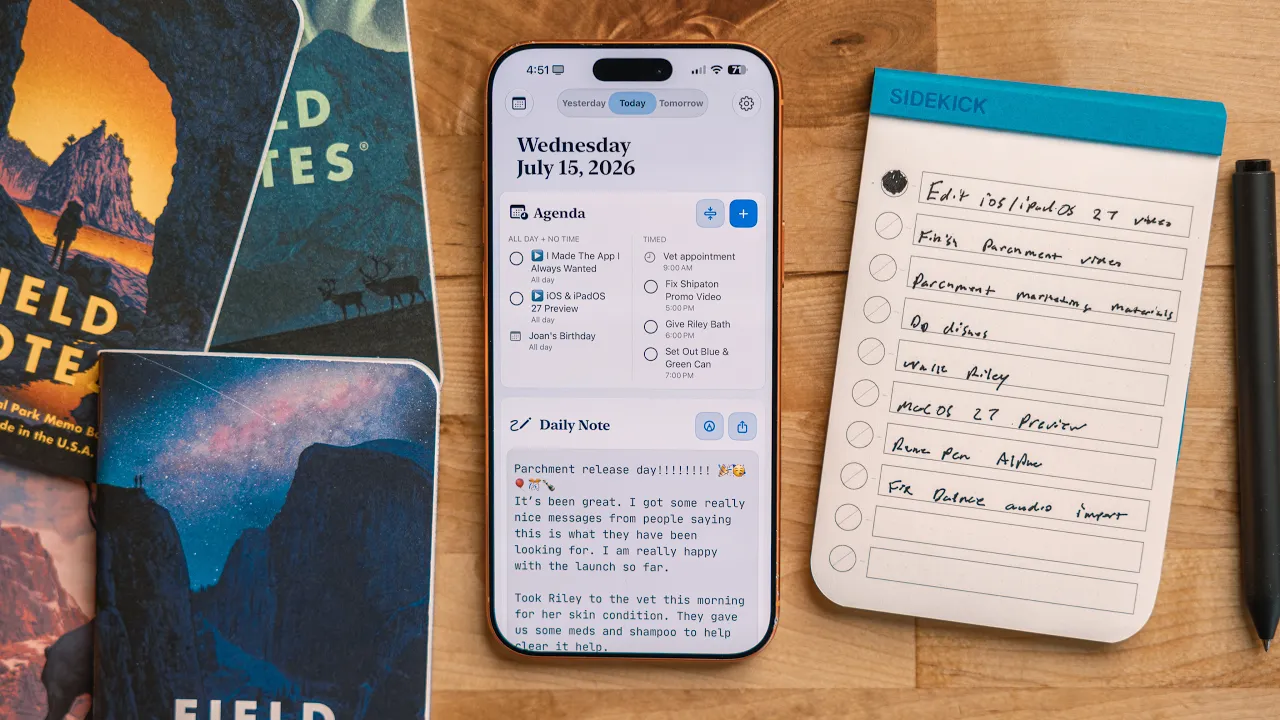
Whatever you want. Now you may have noticed the agenda section is actually broken up into two parts. There is an all-day and no time events and reminder section on the left. Then there is a timed events and reminders section on the right. This is because I truly believe not all events and reminders are equal. For example, say I have a task that's take out the garbage can every Sunday night because the garbage can is going to get picked up on Monday.
It doesn't have a time associated with it. I could do that at any point on Sunday. But what if I have a task that is, hey, I need to send this important email at 8 a. m. It has to be at 8 a. m. I need to get this done taken care of. That email task is more important than setting out the garbage can. I can set out that garbage can at any point on that Sunday, but I have to send that email at 8 a. m. Same thing with calendar events.
A meeting happening at 10 a. m. is way more important than knowing that today is Jane's birthday. So with this system, it breaks down everything that is an all-day task or event that I can just take care of at any time, or stuff that needs to happen at a specific time. Now the big reason why I did this is I've been using calendar apps that support both events and task man ager. So you can see your whole day in one place.
You'd probably thinking, great, you just surlocked yourself. But what was happening with these different calendar apps that I was trying is I noticed that it would take the all day events and all day tasks and put them up top. It made them like the priority. And then time stuff would be below it. So if you were using the widget or the month view or something like that and you had more than you know a handful of tasks or events that day stuff would get cut off and you wouldn't see the timed events which is kind of important.
So this is why I broke the agenda section of parchment into two different sections. Now if, you have an especially busy day and that agenda section is just really long and you're feeling overwhelmed, there is a collapse button that you can hit. By default, it'll show you the next two timed events or reminders that you have coming up. Timed events will just fall off automatically as those events expire, and then reminders will disappe ar as you mark them as completed.
Once all of your time stuff is done for that day, then in this collapse view, it'll start showing your all days events and tasks. Now one feature I really love that my pal Federico Vittici recommended I add is if you tap on a reminder in the agenda section, it deep links to the reminders app. So it'll take you right to that task in the Reminders app. So you can manage it, edit it, tweak it, move it around, do whatever you want in the Reminders app.
I love having my reminders and calendar in the same spot. Everything I need to do on that day is in one place. I don't need to go looking in a bunch of different apps. I know if I need to figure out what's going on in my day, I can open up parchment and I can just see it right there. Like I mentioned, parchment does have a widget and it just kind of mirrors what the agenda section lo oks like. Now there are different sizes of the widget that you can use, and due to iOS, iPad OS, and Mac OS system limitations, it just shows your top events and tasks that it can fit onto that widget.
But as you start to mark stuff as completed or as events expire from your calendar, like that time pass es, they will start to fall off and the next thing will show up. On my iPad, I really love the extra large widget. And on my iPhone, I've been using the large widget, but I do plan on supporting the extra large widget in iOS 27 when that comes out later in the fall. And there's also lock screen widgets as well. There's a small one that'll show you how many things you have left for that day, and then there's a med ium or large size one that'll show you what's coming up next.
Now, obviously, this is a little self-serving, but this is the first app I check every single day. It's I built it for me, so I probably should, but it really just helps me set the tone for my day. Helps me understand what's going on, what I need to accomplish, and what I need to do to get all of that stuff done. Now in parchment, there's also an option for creating and managing events and tasks. If you hit the plus button, there is a natural language input option for creating tasks or events.
You can tap the tab to change the input type or, you can just type task or event and it'll change the tab for you. In here, just type the name of the event or task, a due date and time. You can also add a location. If you add a forward slash, you can then change the name of the calendar or list. That was really important for me. I hate that reminders and the calendar app leave off the ability to change what list or calendar you can do in their natural language input.
For tasks you can use exclamation marks to set the priority. This supports one through three. And if you don't use any, that just doesn't set a priority by default. Now if you want more manual controls, there is a details button that you can hit and there is an option to go through here and you can add details to that task or event. And there's some more metadata options that you can't do with natural language like a notes, field, U RL, things like that.
Now, if you want to see the details of a task or event already created in the agenda section, you can just long press or right-click on that task or event, and it'll show you all the metadata that's asso ciated with it. There is an edit button that you can come in here and you can make changes. You can change due dates or locations or whatever is metadata is associated with that event or task. You can also just straight up delete that if you want as well.
Okay, so that's the agenda section, but there's a whole nother part to parchment, and that is the daily notes section. Now I think of this as a daily notes section, but you can use this for whatever you want. You can use it for meeting notes, you could use it for journaling. I'm also using it for writing scripts for short form videos. I'm getting back into doing daily short form videos, so I've been writing my scripts for those here.
Now in the daily notes section, there's actually two parts to it. So by default, you have a typed text section up top. This works on the iPhone, iPad, and Mac. You can just type away. That's fantastic. But on the iPhone and iPad, there is this Apple Pencil button right here. If you tap that, it will bring up the pencil kit tool set. Now on the iPhone, obviously there isn't an Apple Pencil, so you can use your finger to draw or handw rite something out.
But on the iPad, this is where it becomes really powerful because you can just handwrite out your daily note if that's something you want to do. You can also draw sketches or diagram something out, whatever you want. And what's nice about this is if you start at the top of it, it will actually just keep growing as you add content to this section. So you have kind of an infinite canvas. Now something I really wanted to do that I just wasn't able to do is I wanted to combine these two sec tions.
I wanted you to have the ability to do type text and Apple Pencil drawing handwriting stuff in the sam e area. The problem with that is device screen sizes. If this was just an iPad app, it wouldn't have been a problem. But because I had it on the iPhone, iPad, and Mac, you have text wrapping when you resize a window or it's on a different size. So the text would you know grow or shrink depending on how much you had written and what screen size it was.
So if you had drawings, your text could then be overlapping the drawings or handwriting. And if you wanted to like highlight something with the tight text with a drawing or like underline somet hing, it wouldn't sync up with other devices. It's just not possible. I worked really hard on that. And then I realized even Apple doesn't do this in the notes app. There's a handwriting field and there's a type text field. So that's why I kind of had to break those two up.
The type text section also supports Markdown. You can use this for creating headings, bold, italics, uh, underline, whatever you want for that stuff . But it also supports markdown lists, tasks, and links. In the settings, you can choose whether you want the markdown to render itself out or stay in the pla in text format. I wanted to give everyone an option because that is not a war I wanted to be a part of. And in the Apple Pencil section, like I mentioned, you get all of the pencil kit tool set built right in there so you can use anything you want, change colors, draw, handwrite, whatever you want.
You can use the calligraphy pin, however you want to do it. I primarily use the type text option, but I do occasionally handwrite something out or draw something out even, but my handwriting is bad. So I usually stick to type text. Now if you ever want to get your notes out of parchment, there are two different options. So in the daily notes section, there is the share sheet button. You can hit this, and if you just want to export your tight text, you can just do a text file and you can import it into any other note or just save the text file.
Whatever you wanna do, you can do it. Now if you have handwritings or drawings, that got a little trickier, so I just set up an option to ex port that as a PDF. But say you're like, okay, I'm done with parchment, I want to move my daily notes to something like Ob sidian. Okay, fine. I don't want you locked into the app. You can do whatever you want. So you in these settings, you can go into export and you will be able to export everything from the da ily notes section.
Now, this will do text files for just type text again, it's a little trickier once you start doing hand written or drawings, anything like that. So that just exports as a PDF. Now, a little bit of award of wording. I've worked on this to make it as fast as possible, but if you have a lot of stuff in parchment, this is gonna take a minute. So if you hit the export button and you don't think it's doing anything, just give it a little bit of time.
So for me, I use the daily notes section to kind of keep a running log of what I'm doing throughout my day. Like I said, we have the puppy, things can get a little rough. So I just kind of be like, hey, I fixed this bug and parchment. Now I'm working on this feature. Hey, I'm working on this script. I'm dealing with email. Whatever. I kind of keep a running log of my day. So that way when I come back in, sit down, I can be like, okay, that's where I left off.
Let's jump right back into it. Like I said, I've also been using it to write my script for my daily shorts. I've been using it for meeting notes. I've been using it as a journal. There's so many different ways you can use it, and it's flexible. Uh, you because it's markdown, you can just create headers and break things up the way you want. You can go back, everything sinks between your devices. It's really flexible. I'll also just use it to just jot something down quickly.
I was on the phone the other day with somebody and I needed to write down an address of a thing that I was doing. And it was really nice. I just opened up parchment, wrote down the address, and I had it there. That didn't really need to be its own separate note in Obsidian. It was just something I was going to be taking care of that day. So I just put it right there and took care of it. So that's the core of parchment.
But there's also some little touches in here that I've added and I got some feedback during the beta from people that gave me really good suggestions that I added in here as well. Up at the top, you're gonna see a yesterday, today, and tomorrow, and then a date picker option. I I love this because I can sit down for my day and I can go back over to yesterday and make sure I did n't just leave anything over there that's that still needs to be taken care of.
So I can just quickly jump to yesterday. But the tomorrow one is even better. So what I will do is kind of towards the end of my workday, if I'm wrapping up my day and I didn't fin ish everything I needed to, or I was in the middle of working on something and I didn't finish that tas k, I can just go to the tomorrow day, leave myself a note for tomorrow, and then when I sit down at my computer on that day, when I open up parchment, parchment will automatically open up to the current d ate.
I will see that note right there. It was really handy the other day. I was working on a sync bug in this app, and I just was banging my head against it. It was late, I needed to go to bed. So I just left some suspicions and some findings in my for myself the very next day. And then when I sat down the next morning, I opened it up, saw that, and you know what? It came to me right away because I was able to sleep on it, and I figured out how to fix it right away .
And that was just a nice, nice little yeah. Now, a nice feature is if you were on a date that is not the current date, so say you're on tomorrow or three weeks from now, whatever. If you tap or click on the date in parchment, it will jump you back to the current date. Now, there are a whole bunch of settings and editor tweaks that you can do. There's also the ability to reset the sync system if you have any issues. But if you have any issues, there's also a support button down at the bottom of settings.
Please email me. I worked really hard on the sync system and wanted to make sure it was reliable as possible. If people are using this for their daily notes, they can't be losing information. Sync was definitely the hardest part of working on this app. On the Mac, there is a setting to set up a global hotkey so you can just open up parchment from anywh ere in the system. I use HyperKy J for this. There's also a bunch of custom themes, and on the iPad and Mac, there's a bunch of alternate icons as well.
I really like the dark green one myself. On the iPad, I love having parchment and slide over. This is kind of my favorite way to use this because I can just be working on whatever I want. I can just swipe over, see what I need to do next, see what's coming up for my day, leave myself somet hing in the daily note and then just swipe it away. One of my favorite features that Apple added to slide over uh is the fact that you can resize the wind ow now.
I find the default window size to be just a little too small on the 13-inch iPad Pro. So I do make the slide over window a little bit bigger. I made parchment for me. It's a tool I've been using every single day for the last month or so, and it's been great for that. But I also realized that I think a lot of other people could benefit from this. So I've done a ton of polishing to make it user-friendly and not kind of janky.
I wanted it so that other people could just sit down and use it. It's really helped me with my focus issues and just staying on tasks throughout my day. The app is available right now. I will put a link to it in the description below, maybe even a pinned comment so you can find it easily . It is available right now. It is a one-time flat purchase of five bucks i didn't want to do a subscription i didn't want to put uh an in-app purchase in there and like hide a bunch of functionality behind that i especially didn't want to do ads or anything like that.
I just wanted to keep things as simple as possible. So it's five bucks. You've seen how it works in this video. So if you want it, great. If you don't, that's okay too. If you have any feedback or issues, there is a support button in settings at the bottom of the settings general tab. Please send me an email if you have any issues. Uh I would love to take care of those. Or if you have any feedback or feature requests, I'd love to listen to those.
I can't promise I'll implement them, but I will definitely listen to it. So that's parchment. That is the first app I have ever released on the app store and I actually do have plans for more. I kind of got the bug. I've got the development bug. I I haven't done development work in a long time, and I'm excited to do it again. So thank you all so much for watching. And if you go and buy parchment, thank you so much. I really appreciate it.
Thank you all for watching and have a great day
The words are the caption track's own and nothing is reworded or re-transcribed. Paragraph breaks are placed between sentences so the text reads as prose.
Free tools for your own script: paste a draft and see where it stands before you record it.
Paste your draft and see where viewers are likely to drop off, with a rewrite for each weak line.
Paste the first 30 seconds of your own draft for a hook score and rewrites.
Check your draft against YouTube's advertiser-friendly guidelines before you record it.
Read this channel's public videos and transcripts, and download a writing brief for it.