Getting the transcript
Reading the captions from YouTube. A video nobody has opened here before takes 10 to 30 seconds; this page fills in on its own.
Getting the transcript
Reading the captions from YouTube. A video nobody has opened here before takes 10 to 30 seconds; this page fills in on its own.
Calvin Hia | dainami ai · @calvinhia_ai
Where viewers went back to watch this video again, from YouTube's public Most replayed graph, lined up with what was said at that moment.
Most replayed moment #1
3:592.9x the video's typical replay level
have to pay a subscription, right? We only pay per usage of this. If I go back to Key AI, you can see my log, and this cost me about only 10 credits. And it's not only for infographics, right? With an MCP connected like this, you can generate any types of creative media. You could even create a UGC video,
Said at 3:52
Most replayed moment #2
2:342.9x the video's typical replay level
up with ChatGPT as well. Okay, so now that we're in Claude, let's set this up together. All you got to do is to go into settings and click extensions, okay? And then you just have to drag the MCPB file over, and you're ready to go. So, I'm going to drag it over and paste this in, and then you just have to click
Said at 2:26
Most replayed moment #3
2:112.8x the video's typical replay level
us over there. And that's where we go into step two, which is to install the connector. So, I've created an MCP connector, and all you got to do is to click into this and just download the MCP file here. Click into this. And then once you have that, it's super simple. You just have to upload this into your AI platform
Said at 2:03
The graph counts replays. It does not show where viewers stopped watching.
Words
2,075
Runtime
9:29
Speaking pace
219wpm
Reading time
9min
219 words per minute, above the 201 75th percentile of 349 measured videos. That distribution comes from the 349-video hook study.
Opening (first 30 seconds)
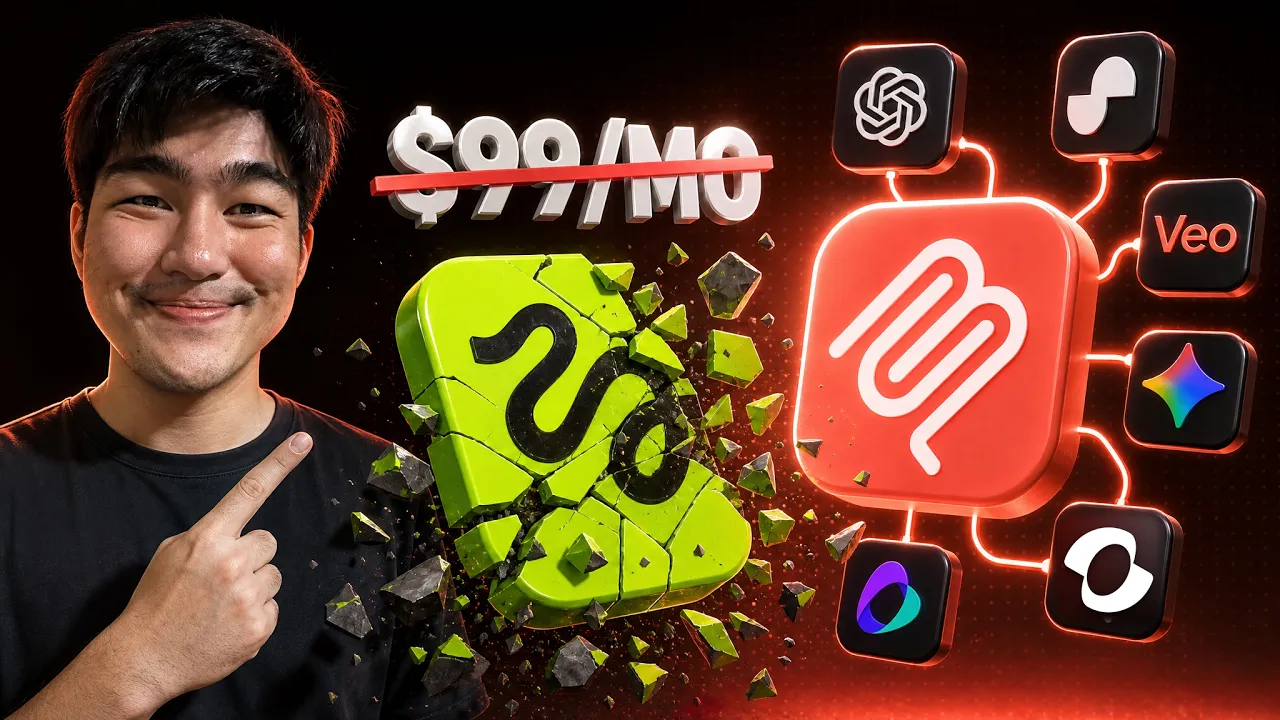
Stop paying for expensive subscriptions like Higgs Field because I just built an MCP that allows you to use every single creative model while only paying for what you use. The coolest part is this MCP is completely free and you can run it with any AI models like Claude, ChatGPT, and so much more. So, in this video I'm going to show you how I use it for my business and how you can do it, too. Now, the problem with most subscription tools like Higgs Field is that sometimes you may only want to use a creative model once, but yeah, you still have to pay a subscription
110 words, the words spoken in the first 30 seconds at 219 words per minute.
Free, no signup. See how the first 30 seconds hold attention, with rewrites.
Sentence shape
| Measure | This transcript |
|---|---|
| Sentences | 116 |
| Average words per sentence | 17.9 |
| Longest sentence | 51 words |
| Questions asked | 25 |
| Sentences containing a number | 8 |
Most used terms
Filler phrases
41 in total: like 21 · right? 13 · actually 6 · sort of 1.
A literal whole-word count of the same phrase list the Prepublish browser extension uses, so a phrase inside another word is not counted and a phrase used in its ordinary sense still is. It is a count and not a judgement.
Free, no account. See where attention is likely to drop, with a rewrite for each weak line. The free check shows the scores and the one issue costing the most. Or run it on the words above first.
Free · No login · See a sample audit first if you prefer.
What this transcript is
Every word below is the caption track YouTube publishes for this video, pulled from the video itself and reproduced unchanged. It is not Prepublish's writing, not a summary, and not a re-transcription: it is the video's own published captions. English captions, generated automatically by YouTube, in the video’s original language. Source: the video on YouTube. A channel that would rather this page did not exist can ask for its removal through the contact page, and it is removed.
Stop paying for expensive subscriptions like Higgs Field because I just built an MCP that allows you to use every single creative model while only paying for what you use. The coolest part is this MCP is completely free and you can run it with any AI models like Claude, ChatGPT, and so much more. So, in this video I'm going to show you how I use it for my business and how you can do it, too. Now, the problem with most subscription tools like Higgs Field is that sometimes you may only want to use a creative model once, but yeah, you still have to pay a subscription on a monthly basis.
But, with this MCP I'm able to connect directly to all of these different new creative models and just pay for what I'm using. And by turning into MCP, it really makes it super simple because you just have to connect it to your own AI tool like Claude, ChatGPT, and you can generate any creative materials directly from there. Just to give you an example, I've used it to create every single asset on my webpage as well as my YouTube thumbnails or even the short-form videos that I've been generating, right, generating all of them through Claude by using this one exact MCP.
So, to set this up is extremely simple. You can get this setup guide link in description below. And once you've gained access to it, you just have to follow along these steps to get it set up right away for you. So, let's go through this together. Firstly, just have to go down over here and you just have to go into this webpage called KeyAI. And so, KeyAI is what this MCP is using as a connector and the difference between KeyAI and other subscription platforms is that KeyAI is an aggregator that allows us to connect directly to all of these different creative models and only pay for what we use, right?
So, we don't have to pay a subscription to KeyAI. We just have to top up the credits and only pay for the model usage that we are using. So, all you got to do is to create an account in KeyAI, okay? And then you just have to add in some credits over here. And then in KeyAI, you can already use these different models, right? You can click into one of these models here like Nano Banana 2 Light. You can go into this and then you could just type in a prompt, you could just generate it, and you can see the exact credit that you would take to use this exact model.
We don't want to just be creating all these different creatives over here on this platform, right? The point of an MCP is to be able to connect it to our own AI tools like Claude or ChatGPT to generate assets for us over there. And that's where we go into step two, which is to install the connector. So, I've created an MCP connector, and all you got to do is to click into this and just download the MCP file here. Click into this.
And then once you have that, it's super simple. You just have to upload this into your AI platform to set this up, okay? So, I personally like to use Claude, so I'm going to set this up with Claude today, but but you can set this up with ChatGPT as well. Okay, so now that we're in Claude, let's set this up together. All you got to do is to go into settings and click extensions, okay? And then you just have to drag the MCPB file over, and you're ready to go.
So, I'm going to drag it over and paste this in, and then you just have to click install, and you'll have something like this. And over here in configure, you would be requested to add in an API key, right? This is the API key that you will get from KeyAI. Go into API keys, create a new key, and then give it a name, and then you just have to create that, and then you just have to copy the API key and paste that back in over here, okay?
Once that is done, you're good to go. You just have to set the permissions to always allow so that you can let Claude use this exact model, okay? Once this is set up, right? You can go into any new chat now, and you can click plus and make sure that the connector is set up. So, we have the KeyAI connector here. And once this is set up, you can now just chat with Claude and make it generate any type of creative materials for you.
You can use GPT image tool, you can use Sidans 2.0, and so much more. Let's say we want to create an infographic around the six steps of AI automation with Claude code using the GPT image tool model. I just have to type that in, click enter, and now it's going to call the KeyAI MCP and generate the full media for us, okay? And here we have a beautiful infographic about the Claude code six-step automation, right? And it uses the GPT image tool model, and we don't have to pay a subscription, right?
We only pay per usage of this. If I go back to Key AI, you can see my log, and this cost me about only 10 credits. And it's not only for infographics, right? With an MCP connected like this, you can generate any types of creative media. You could even create a UGC video, right? By typing something like this, create a UGC video of an old man running and talking about life with C Dance 2.0, 5-seconds clip. And click enter.
And what Cloud is going to do is is going to call Key AI right now and generate this video for you. Okay, and here we have it. Let's take a look. >> I'm 78. I still run every morning. Life don't wait for nobody, so move. >> Right, super cool. We're taking a step further. If you want to make this even more impressive, if there's a certain method that you actually use to generate this different type of creative media, you can actually transform it into a custom skill that uses this MCP to allow Cloud to generate this different content for you as well.
To give you a simple example, if you come back to the guide, I have a free skill that's called generate anything, okay? And what this free skill does is that it helps you identify which models to use for a different task. And it uses the MCP that I've created to generate the creative models for you. So, let me show you how this actually works. All we got to do is to download this skill, okay? After you've downloaded the skill, go back to Cloud, and we can just upload the skill into Cloud itself.
Let's go into customize, okay? And you can add in the skill, so you can upload a skill and just upload the zip file that we have downloaded earlier. Go into this and upload the zip file, and you have the skill over here. And make sure to turn this on. This is the instruction of how the skill will work, okay? So, now let's go into a new chat, and with this new skill, it's now able to identify which model to use to generate what type of media.
Let's say I want to generate new audio, and I do not know what tool to use, right? This model will actually go into Key AI and help me identify which model to use to generate audio for me. Let's say I want to create a lo-fi beat. Can you create a lo-fi music beat for me? And so, as you can see over here, it's generating one directly for me right now because the skill I've set up allows it to actually select the best model for the specific task and generate it directly for us.
If I go into key AI over here, you can see it's actually using Suno to generate the music for us, right? So, it's able to identify the specific model to use for our specific task. And here we have it, two lo-fi music that we can take a listen. Let's open this up. >> [music] [music] >> And you can try out this skill to generate different types of media for you, and what the skill will do is to identify the correct models for the specific task.
But really, this is just one simple example, right? What really makes the skill even more valuable is how customized it can be for your own specific task. For example, if you want to take it a step further and create a folder of advert projects that you can create different types of advert for you, you can use this same exact MCP connector and connect it with a couple of skills, like you can see over here. I do have a couple of skills that allows us to onboard a new brand into this project, generate new advert videos for us.
I have a brand for this Owala Sunday tote bag, and then I'm able to use this MCP and the skills to generate adverts like this for us. Let's take a look. Right, and this is possible because I have created a skill that connects to this MCP inside this project folder. And now this project folder is sort of like my own advert agency that allows me to generate different types of advert assets. But besides just adverts, these creative tools could also be used for other use cases.
For example, this is an example of a 3D webpage kit that allows me to generate 3D web pages from this project itself. So, I've connected it to the MCB-2 as well as give you a couple of different custom skills that allows Cloud to use C Dance 2.0 using this MCP to generate a media that looks like this, right? So that I can use it for a final web page that looks like this. Take a look. Right, you can see this whole interactive animation experience is created because I've connected it into a project that allows me to generate the visuals with C Dance 2.0 and then break it apart and then piece them all together.
And it's all possible because of this one MCP connector. It is also what I use to create graphic effects for my videos today. Check this out. Google Omni has just changed video editing forever. You can now add any types of graphics into your video or change your background or your clothes or even do this insane bottle trick. That is crazy, isn't it? The craziest part is I don't even have to do this all by myself. My Cloud buddies over here writes the prompt and do it all for me.
So, in this video, I'm going to show you how I did it and how you can do it, too. So, without further ado, let's get right into it. Right, all of this is generated using the other model like Google Omni and GPT image to generate the different assets as well. You can see how versatile this is because this MCP allows me to connect to all of these different models and create different types of custom skills to generate different types of assets and projects for me.
So, yeah, do give it a try and let me know what you would create with this specific tool itself. If you want to check out all the different guides and how to build different AI projects and skills for your own use cases like what I've shown earlier, you can also check out all of them linked in description below. Or if you want to build custom systems like this, you can reach out to us as well. That being said, I hope you guys found this video useful.
If you like videos like this, do give it a like and subscribe and I'll see you guys in the next one. Peace.
The words are the caption track's own and nothing is reworded or re-transcribed. Paragraph breaks are placed between sentences so the text reads as prose.
Free tools for your own script: paste a draft and see where it stands before you record it.
Paste your draft and see where viewers are likely to drop off, with a rewrite for each weak line.
Paste the first 30 seconds of your own draft for a hook score and rewrites.
Check your draft against YouTube's advertiser-friendly guidelines before you record it.
Read this channel's public videos and transcripts, and download a writing brief for it.