Getting the transcript
Reading the captions from YouTube. A video nobody has opened here before takes 10 to 30 seconds; this page fills in on its own.
Getting the transcript
Reading the captions from YouTube. A video nobody has opened here before takes 10 to 30 seconds; this page fills in on its own.
Omar · @lighttrok
Words
1,265
Runtime
7:27
Speaking pace
170wpm
Reading time
5min
170 words per minute, between the 160 25th percentile and the 181 median of 349 measured videos. That distribution comes from the 349-video hook study.
Opening (first 30 seconds)
Hey guys, it's a beautiful Tuesday. And in this video, I wanted to go over how you're going to be able to generate videos and at same time take advantage of Claude. How you will be able to use the systems to your advantage. Meaning, you're going to have to do only 20% of the work, which is telling Claude what to do. But the rest, the prompting and the knowing which prompt to use for this specific image, all of that are going to
85 words, the words spoken in the first 30 seconds at 170 words per minute.
Free, no signup. See how the first 30 seconds hold attention, with rewrites.
Sentence shape
| Measure | This transcript |
|---|---|
| Sentences | 85 |
| Average words per sentence | 14.9 |
| Longest sentence | 48 words |
| Questions asked | 3 |
| Sentences containing a number | 3 |
Most used terms
Filler phrases
6 in total: like 3 · literally 3.
A literal whole-word count of the same phrase list the Prepublish browser extension uses, so a phrase inside another word is not counted and a phrase used in its ordinary sense still is. It is a count and not a judgement.
Free, no account. See where attention is likely to drop, with a rewrite for each weak line. The free check shows the scores and the one issue costing the most. Or run it on the words above first.
Free · No login · See a sample audit first if you prefer.
What this transcript is
Every word below is the caption track YouTube publishes for this video, pulled from the video itself and reproduced unchanged. It is not Prepublish's writing, not a summary, and not a re-transcription: it is the video's own published captions. English captions, generated automatically by YouTube, in the video’s original language. Source: the video on YouTube. A channel that would rather this page did not exist can ask for its removal through the contact page, and it is removed.
No Script X-ray for this video: YouTube shows a Most replayed graph only once a video has enough views.
Hey guys, it's a beautiful Tuesday. And in this video, I wanted to go over how you're going to be able to generate videos and at same time take advantage of Claude. How you will be able to use the systems to your advantage. Meaning, you're going to have to do only 20% of the work, which is telling Claude what to do. But the rest, the prompting and the knowing which prompt to use for this specific image, all of that are going to be demonstrated in this video and you can leave this video by understanding exactly how you're going to do it and save 10x of your time.
So, without furthermore, let's get into the video. The first step is we're going to go to Claude. And then you find the video you want to be saved as a skill. So, every time you tell Claude or you attach the skill to Claude, it's going to make the video that you've chosen. And this video, as an example, is this one for me. I'm going to download it. And the next step is copying every single first frame and end frame of each clip in that chosen video of yours in the chat here.
And bam, just like that, all images, first frame, end frame, first frame. And then another clip, first frame, first frame, first frame. So, we don't need end frames if it's not necessary. For example, for this clip specifically, we didn't need any end frame. So, I just attached the first frame. But this one, this is the first frame and this is the end frame. This one needed an end frame. So, we're going to keep it simple.
We're going to attach all of them from the video. And the next most important step is prompting these images. What do you want from these images? Do you want to change the girl, her hair, maybe her clothes? Do you want to change the boxes, the design of them? You tell Claude exactly what you want. And when you get the results that you want, that's when you create a prompt and you make all the videos. This is only a one-time thing.
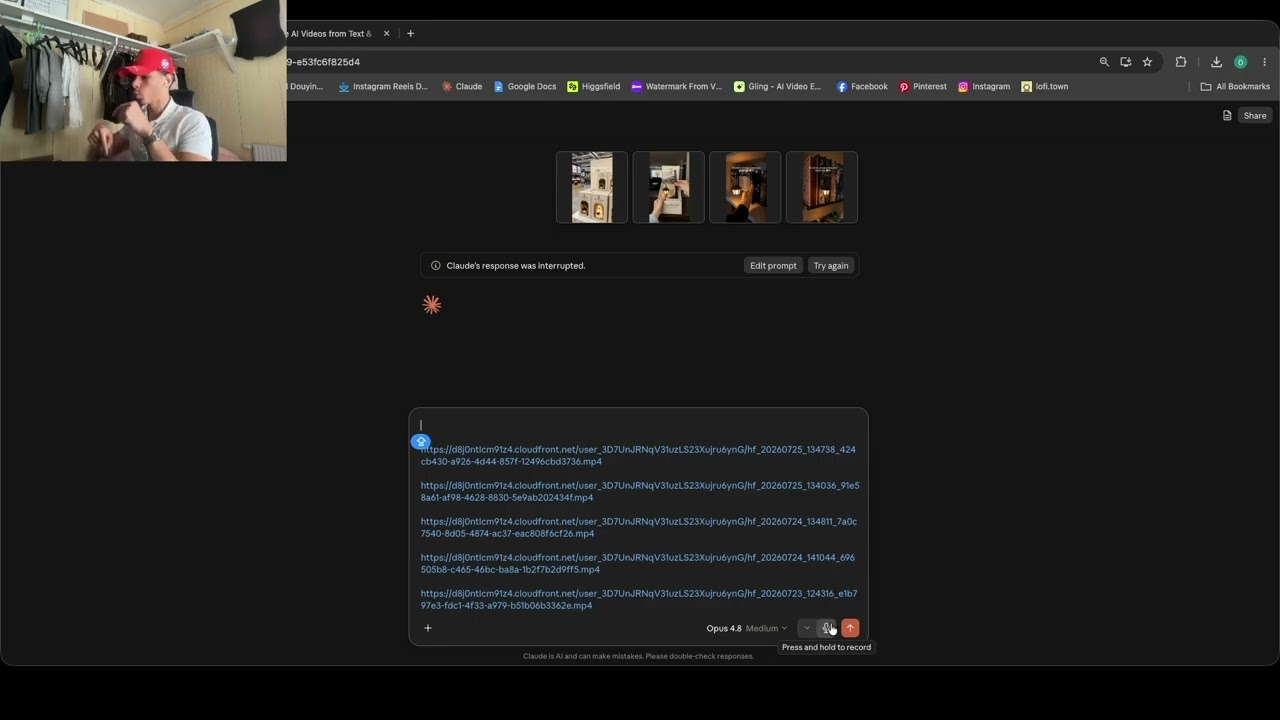
After you've done it, I'm going to explain to you how to take advantage of the results. This is how the videos turned out. Another one. And this one. Okay, this step goes like this. You take the first clip of the video, which is this one for me, and you go to the three dots, you copy the link of the video, and you paste it here in the chat. We go back and copy the link of this, go back again and paste it. This one comes after, paste.
Okay, done. Pasted all videos, all in the same order that they were taken from the original video. Kept original, everything, no text on the screen, nothing. Full video clips, fully generated with AI, and we're fine with them. They're all good. This is where the value bump comes. We're going to go use the voice feature as I always preach. Use the voice feature. If you don't use the voice feature, typing on your keyboard one word by one word, you're going to be too slow, guys.
You're not going to be competing with people who use the voice feature. When it comes to saving this concept, you're going to use the voice feature and listen to the following what I'm saying. So, for example, for the first attached link, if you use a specific prompt for it, still keep it, use it the same, and do it with the adjustments I tell you. For example, if I tell you to change the avatar to an avatar image I send you in the chat, then you should change it, but keep everything exactly, literally, the same.
I want you to build me a skill that I can reuse in the chat every single time. If I say white, Claude is going to know what white means because I reference something as white. So, when I say white, Claude sees it as I need to use this prompt, I need to use that first frame, I need to use this end frame because Omar said white and he referenced it, he said I should remember it for next time. Every time he says white, I do a certain action.
And as you see here, it pulls all the videos we put here and it's going to analyze, take it all prompts, all first frames, end frames of these video clips and do as I said, which is creating a skill file. For simplicity sake of this video, I didn't attach any first frames and end frames because my Claude in this specific chat, it's not trained. You need to attach the first frame and end frame of the clips you want to make.
As you see here, it's limitation, it says about limitation because I didn't attach any URL of the first frames of these videos. Bam, done. This is the MD file as we see MD file. It literally has everything in detail. And the more detailed you want Claude to be, you just say it. If you want to change a specific thing, go over this and change it. It went clip by clip by clip explaining exactly with the IDs of them how they should turn out.
And if you need any adjustments, if you want to change the avatar, you want to change the background, you just tell it. Just simple. Change the girl to a girl who is blonde. Change the app Change the background to this background I attached in the in the chat. It's that simple, guys. And as you see, for me, it's more detailed. It knows exactly how many seconds the video should be. It knows exactly what model to use, because I've trained it.
And luckily for you, I'm going to attach a skill in the description below to make it easier for your Claude to understand you and understand organic in general. This is all created by me, really just by experience, just by testing, and finding out by myself by generating a lot of videos. If you have an untrained Claude or even a trained Claude, this is going to help you significantly. It goes step-by-step. Literally goes to the model, aspect sound, it gives you everything.
And you can always come in here and change whatever you want to change, or you can tell Claude and it will give you a new skill or adjust the file in the description, or this specific store concept skill we made in this video. If you don't know how to attach a skill, you just download this, you click the plus icon here, and then skills, manage skills, and then add an upload skill. And you just upload the skill that you got from Claude.
Every time you want to use that skill, you just go to skills and choose the skill, which is this one we created. That's all you need to know about saving the most time by using skills to your advantage. Guys, if you don't use this and you're going into Q4, I promise you, you will lose a lot of time. And time, as we know, is very precious. With that being said, if you want to surround yourself with like-minded brothers, make sure you join the Discord in the description.
Hopefully this makes sense, and hopefully this helps.
The words are the caption track's own and nothing is reworded or re-transcribed. Paragraph breaks are placed between sentences so the text reads as prose.
Free tools for your own script: paste a draft and see where it stands before you record it.
Paste your draft and see where viewers are likely to drop off, with a rewrite for each weak line.
Paste the first 30 seconds of your own draft for a hook score and rewrites.
Check your draft against YouTube's advertiser-friendly guidelines before you record it.
Read this channel's public videos and transcripts, and download a writing brief for it.