Getting the transcript
Reading the captions from YouTube. A video nobody has opened here before takes 10 to 30 seconds; this page fills in on its own.
Getting the transcript
Reading the captions from YouTube. A video nobody has opened here before takes 10 to 30 seconds; this page fills in on its own.
Zubair Trabzada | AI Workshop · @AI-GPTWorkshop
This video has no Most replayed graph yet: YouTube shows one only once a video has enough views. These are the moments viewers replayed most in Zubair Trabzada | AI Workshop's most watched videos.
Most replayed moment at 9:02
4.9x that video's typical replay level
July 7th on your plans on your cloud plans. So, go ahead and take advantage of that because after that it's going to get pretty expensive and move to usage. I've been building non-stop. So, I recently built my personal assistant and my second brain I updated with cloud Fable 5 and it's absolutely incredible.
Said at 8:55
Most replayed moment at 21:31
5.4x that video's typical replay level
you if you scroll down to the bottom, you'll see that I have built Jarvis AI assistant prompt. So I've given you this prompt back before this was back when I built Jarvis. So you can have access to that so that way you can build a version of Jarvis for yourself. And then afterwards at the bottom, you're also going to
Said at 21:23
Most replayed moment at 9:59
8.1x that video's typical replay level
so you're not being charged here. You can go to the classroom section, click on YouTube resources, and then right here it says Jarvis AI assistant prompts inside Claude code. So, this is the prompt pack that I'm giving you guys for free, like I said, where now you can go ahead and read the instructions. You can
Said at 9:52
The graph counts replays. It does not show where viewers stopped watching.
Words
3,742
Runtime
17:13
Speaking pace
217wpm
Reading time
16min
217 words per minute, above the 201 75th percentile of 349 measured videos. That distribution comes from the 349-video hook study.
Opening (first 30 seconds)
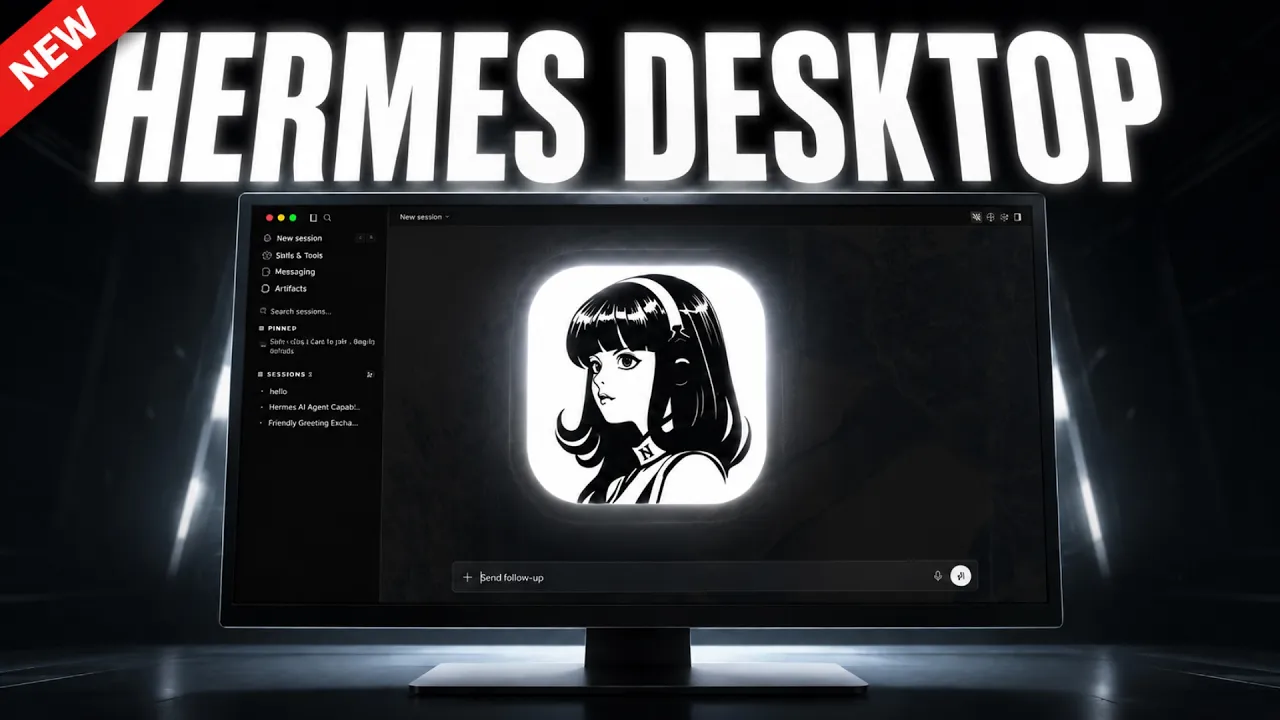
Finally, Hermes, the most popular autonomous AI agent, has an official desktop app. And this thing is absolutely incredible, which means you no longer have to work from the terminal. So, in this video, I'm going to show you step-by-step how to install it. And most importantly, I'm going to show you a few very important settings that you need to be aware to make sure that you're installing this and using this properly from the get-go. I'm going to walk you through how to set up your AI models, which could get a little tricky, and then also the different skills and tools and everything that it comes
109 words, the words spoken in the first 30 seconds at 217 words per minute.
Free, no signup. See how the first 30 seconds hold attention, with rewrites.
Sentence shape
| Measure | This transcript |
|---|---|
| Sentences | 244 |
| Average words per sentence | 15.3 |
| Longest sentence | 54 words |
| Questions asked | 19 |
| Sentences containing a number | 20 |
Most used terms
Filler phrases
147 in total: uh 45 · like 29 · kind of 22 · right? 15 · you know 15 · um 11 · actually 6 · basically 3 · I mean 1.
A literal whole-word count of the same phrase list the Prepublish browser extension uses, so a phrase inside another word is not counted and a phrase used in its ordinary sense still is. It is a count and not a judgement.
Run the check on the words above: where attention is likely to drop, with a rewrite for each weak line. The free check shows the scores and the one issue costing the most.
What this transcript is
Every word below is the caption track YouTube publishes for this video, pulled from the video itself and reproduced unchanged. It is not Prepublish's writing, not a summary, and not a re-transcription: it is the video's own published captions. English captions, generated automatically by YouTube, in the video’s original language. Source: the video on YouTube. A channel that would rather this page did not exist can ask for its removal through the contact page, and it is removed.
Finally, Hermes, the most popular autonomous AI agent, has an official desktop app. And this thing is absolutely incredible, which means you no longer have to work from the terminal. So, in this video, I'm going to show you step-by-step how to install it. And most importantly, I'm going to show you a few very important settings that you need to be aware to make sure that you're installing this and using this properly from the get-go.
I'm going to walk you through how to set up your AI models, which could get a little tricky, and then also the different skills and tools and everything that it comes by default and the things that you should enable. And then also the limitations and everything else you need to know. I don't want to waste too much of your time. Let's jump right in. All right. So, first things first, let me show you how to install this.
Now, uh be careful because there is a bunch of fake versions of the desktop app. You want to install the official version, which is in hermes-agent.newsresearch.com/desktop. I'm going to put the link in the description so you guys can just click on it and it should bring you right here. They have this nice little video that kind of gives you a little overview of what this thing is about. But, go ahead and download it whatever machine you're using.
So, Mac OS, Windows, Linux, whatever you're using, go ahead and just click on download. So, I'm using Mac OS, so I'm just going to click on download here. There you go. I have the uh hermes-setup.dmg file downloaded, so I'm just going to click on this. And this is going to open this thing up. Obviously, I'm on Mac, so uh this is a typical um process here. I just got to drag it to your applications there. Uh obviously, if you're on Windows, it's going to look something different, but I'm going to go back to my launchpad here.
And there you go. The Hermes uh desktop logo uh shows up right here. So, what you're going to do is click on this. So, for the first time when it opens, obviously, it's going to ask for some permissions. So, now what you're going to do is click on install Hermes. And this is going to go ahead and download the Hermes agent and everything else and all the dependencies uh so that way you can get it set up right away. So, let's go ahead and get this in a couple of seconds.
All right. So, it says Hermes is ready. So, I'm going to go ahead and click on launch Hermes. By the way, if I'm mispronouncing it, my apologies. I know some people pronounce it as Hermes, but I think the correct way is Hermes. So, let me go ahead and expand this a little bit. So, now it's going to say connected. Mine's taking me right in the kind of main page here, but because I've already connected my open router and it won't allow me to like disconnect that.
So, what you're going to do is as soon as you install Hermes and the first time you open it, it's going to actually ask you which model to choose. Now, what I would highly, highly suggest is going to open router because open router will give you the ability to use multiple language models, right? Like the free ones, like your Opus models, you know, your clouds of the world from Anthropic and from OpenAI and all of it from one cohesive and one environment with one API.
Because I tried installing it via Anthropic and it gave me an error. So, again, sometimes it's kind of prone to giving you errors if you go specifically with one model, but in general, you want to make sure that you have the ability to switch between different models, especially when new models come in the market. With open router, you'll be able to you'll be able to use that very easily. Again, this video is not sponsored or anything like that.
Up to you guys, but I just suggest you use open router. So, the way to get your API key, you're going to log into your account and you're going to come to the top right here on personal, click on profile, and go to the top and click on API, and you can just kind of click on new API, name it something, and create. Very, very simple. I've already done that. As you can see, I named it Hermes or Hermes, and I basically copied that API and went back to my Hermes desktop and just pasted the API key.
Very, very simple. Again, it's not too complicated at all. As soon as it introduce you to choose a model, I think by default it says news research or something like that. Just click on open router, add your API key, and you're good to go. And once you do that, you're going to be brought right here, and this is the main desktop app right here. So, right off the bat, you can see the look and feel is very familiar, just like ChatGPT or Claude, if you've used it before.
You've got your main chat agent interface in the center, and then on the left-hand side, you have the ability to open your new sessions, your skills and tools, messaging, artifacts. We're going to go over this in a little bit. And then at the bottom, you have your sessions. I already had, you know, a few interactions with this, so that's why my I already have sessions. Yours is going to look blank. All right. So, right off the bat, a few very important settings that we need to set up right away.
So, first of all, as far as the look and feel, by default, it's going to come as light. I don't like working on the light environment because, first of all, for your eyes, it's not good. So, let's go ahead and I'm going to show you how to change the theme. So, you're going to come to the top right here, click on open settings, and you're going to go to appearance. And here, you can select the color mode. So, you can select dark.
Make sure you're selecting dark, and then on the bottom, so you have the ability to choose multiple themes. Now, you can do the news, which is this kind of weird blue bluish kind of dark blue color. You can do midnight. This is going to be like a full full black. Amber, this is a cool one, too. I really like this mono. This is a very very nice color when it comes to the dark theme, but you can also do cyberpunk. This is kind of disturbing, but if you're into like the cyberpunk green, then you can choose that as well.
Or slate, this is a good one, too. But, I'm going to go with mono. So, that's that's all you need to do. Once you select that, you can just cross out of it, and now you have your nice Hermes agent that you can interact with in the bottom here. Let me go ahead and just say hello to make sure that this is connected. There you go. So, now you have the ability to kind of chat. There you go. Hello, how can I help you? Okay.
By the way, if you're interested in learning how to make money with AI, with these incredible tools that are hitting the market, check out the community. Link's going to be in the description. We just have a 7-day free trial right now going on for the this week. You can check out all of the courses that are inside community completely for free for 7 days. We have a bunch of different sections here that we show you how to make money with AI with Cloud code, how to build incredible projects for businesses that solve actual problem.
So, check out the community if you're interested in learning how to make money with AI. But anyways, So, now another very important thing is for you to have the ability to change the models, right? Because obviously, one of the great things about Hermes is the fact that you're not locked into any specific family of models like Anthropic or OpenAI or uh DeepSeek or anything like that. So, the way to change that, you're going to come to the bottom right here and it's kind of small, but it says Opus 4.8 because by default I chose that.
So, once you click on this, this is going to open up all of the different uh family of models that are available for you. Of course, by default, this is going to go with Anthropic, you're going to have Copilot, and then OpenRouter because I've already enabled it. If you've used OpenRouter like I mentioned in the beginning to uh attach your APIs, once you do that, so now it gives you kind of the default models. So, your Opus 4.8, Sonnet 4.6, Haiku, GPT 5.5, DeepSeek V Pro.
For this doesn't, by the way, come as default, I changed it. So, the way to add more models is because if you go to your OpenRouter, right? And you can search like I mean, there's like hundreds. So, I think at this point, probably close to a thousand models that these guys have, right? So, you have a ton of models to your access to. Of course, you have access to the most popular ones. So, uh the way to add models here, so you're going to click on edit models, and now you have uh the ability to, you know, enable or disable certain models, right?
So, before DeepSeek V Pro and V4 Flash was not available, but obviously, you can come and enable it from here, right? Let's say you want to add uh Qwen 3.7 Max, you can get it from here, or Kimiko 2.6, you can enable that, too, and everything else. And of course, you can always add a provider there, too. But of course, majority of the models, the most popular ones, are going to be available here. You can always search a model, as well.
Okay? So, once you enable the your favorite model, you're going to cross this out. And then now you can see it by it's Opus 4.8 still, but let's say I want to change this to DeepSeek. I'm going to go and let's say grab DeepSeek V4 Flash, right? So, obviously it gives you the ability to right away it says medium, right? So, you just by default have the ability to choose your effort level. I would leave it as medium unless you're doing something a very complicated task, then move to high or max, but medium should work.
And of course, you know, Opus 4.8 is still probably the most powerful model. So, by default I always choose the Opus 4.8 medium, but like I said, depending on the task, you can always change this. So, that's how you change the model there. All right, so a few other important settings, same thing. Let's go back to the top right here. You're going to click on the gear icon, so cuz I want to talk about a few of these important settings here.
So, again, same thing from the setting on the model, the first one is model. So, from here, if you for some reason want to change, you know, from OpenRouter to Anthropic or something else, you can very easily do that here and just kind of apply the change. Now, here's here's something very important. Through OpenRouter, obviously you have access to the auxiliary models. So, this is kind of really this is really cool because now you can actually change, depending on what you're doing, depending on the different tasks, you can add a different model.
So, earlier I came and I cuz obviously Gemini 3.5 Flash is probably the best model when it comes to image analysis. So, you can actually change for a specific tasks the the model that you want to use. So, here, because again I'm attached to OpenRouter, I'm using image analysis for it Google Gemini 3.5 Flash. But let's say you want to change this, all you have to do is click on change. You're going to select your provider.
And then here, you can change whatever model you want to use, right? So, let's say cuz earlier uh by default, since I was choosing Anthropic Claude Opus 4.8, it was automatically Opus 4.8. But, I went ahead and I said, "Okay, I want to change this to the Gemini 3.5 Flash." And that's how you can do it. Same thing if you want to change it to Grok or DeepSeek or whatever it may be. But, I would for my own sake, obviously, I would leave it to Gemini.
So, all you have to do is just click on apply, and now you're good to go. So, same thing as far as web ex- web extraction, right? So, you can change the model. By default, it's going to be whatever model you choose in the bottom there for your main agent, but you can change it to individual one. So, go ahead and take a look at the different you know, sessions that are available here, the auxiliary models for different purposes, and you can change and play around with that.
All right, so that's kind of the main model section here. As far as the chat, you have the ability to set a time zone. I highly suggest maybe setting a time zone for wherever you are, so that way you can you know, it doesn't mess up your time. And then as far as the personality of your model, this is where you can select, you know, something that's helpful, concise, technical, creative, teacher, or whatever personality you want to give, you know?
I'm going to leave it at none at this point. Image attachments control how image attachments are sent to the model. You can leave it as auto, actually. I wouldn't change these. You can leave it as it is. Appearance, we kind of went through that. This is how you can change the appearance, very cool here. The workspace, so again, this is where you can select the default project folder and tool the terminal to work. So, I would highly suggest creating an a separate folder, so that way everything is in one main folder.
So, I would suggest going to your desktop and creating a Hermes agent folder, so that way all of your files are in that particular directory. And as far as code execution mode, so um you can do uh project or uh strict. I would leave it as as it is here. Um and then the rest there, that's fine. Like leave it as it is. So, safety approval mode, so this is where how Hermes handles commands that need explicit approval. You can leave it as manual, right?
Because this will ask you or you can leave it change it to smart. Uh I've been leaving it in manual just because I want to make sure that it's not touching things that I don't want to touch. You can have an approval time out to 60 second uh and the rest you can leave by default there. Memory and contacts, so this is one of the big advantages of Hermes agent is that you have the ability to uh it has the ability to have persistent memory, meaning that it can have an interaction from um you know, other chats and it can update its memory on its own.
So, you can give it a memory budget. By default, I would leave it as it is for now unless you know what you're doing. Uh but later on, you can change that. So, it has the ability to have text-to-speech provider, right? You can change that here to 11 Labs or Edge or whatever it may be. 11 Labs is better in my opinion, but feel free to change it to whatever you want. So, it has the ability to actually uh do kind of voice and interact with it via voice.
So, if you want to change the settings, go ahead and do that, too. For the advanced I would leave everything as it is. And then same thing for a gateways and APIs and MCPs, everything uh should be uh however, you know, kind of leave it as default. Later on, we'll talk about how we can add uh MCPs and everything else in there as well. So, those are kind of the main settings uh as far as um the important things that you need to be aware.
All right, so that was kind of the main settings there. So, now kind of coming back here, uh so you just want to give you guys a quick introduction to kind of the uh skills and tools because this is very, very important. Now, um obviously, it uh automatically comes with a bunch of different skills that are enabled. So, a few things that I noticed. First of all, this Apple Notes, uh I've been using this. This is an absolutely incredible uh skill.
So, make sure you're managing this. So, this basically just gives Hermes the ability to have access to your Apple Notes. If you've saved notes from like years, you can basically interact with your Hermes agent to you know, pull up notes. If you have written something somewhere and you're like, "Oh man, I don't remember what I wrote in one of the notes. I need a number that needs to get extracted." So, that's where you can now you have your Hermes agent uh uh you know, utilize this Apple Notes to retrieve information that could be sitting there for like 2-3 years.
But anyway, so that's a good one to enable. A bunch of these are already enabled. It comes enabled as it is. So, things like Cloud Code for as far as the autonomous AI agents. So, you can delegate code to Cloud Code CLI or the Hermes agent Codex, uh open code and everything else. So, these are the things that by default are available like Excel Draw, um as far as humanizer, like this is a really good one. Uh it kind of strips AI-isms and adds real voice.
So, that's a really good one to have. Um and then as far as sketching or sign writing and music. So, these are a bunch of things that already gets enabled. But of course, you always have the ability to uh get rid of these and it's very simple. You just disable it here. Okay? So, that's the skills. As far as the tools, so I'm going to do another video on this cuz this is another very important one. Especially, I'm very interested in the video generation, video analysis, image generation, and browser automation.
These are really cool. And again, this Home Assistant is another one that's going to be very cool that I'm going to really explore. So, make sure you guys like and subscribe because those videos are going to be coming up soon. But this is essentially the tool sets, you know, and probably going to add more and more. Right now, there's only 27 uh tools. 17 of them of already they're already enabled by default, but you can always enable more or add more there.
So, check this out as well. Again, I'm going going doing uh in-depth video on this because this is going to take a while otherwise. So, messaging, same thing. This is where you have the ability to, just like before when you were interacting with Hermes, you had to interact through Telegram or Slack or uh Discord. So, you can still do that, right? You can add your Telegram. So, you can click on open setup guide. They give you a nice little step by step instructions on uh what to do here, but it's pretty simple.
You just go to Bot Father on your um on your Telegram and you create a new bot. You copy paste the bot token in here and you allow the Telegram user IDs. This is where you paste your uh Telegram user ID and then you'll be good to go. So, that way you can interact with this from your phone as well. Again, I'm going to create a separate video on those because it's going to take a long time. So, that was a quick one. I want to make sure that the settings are the most important ones uh so that way that's enabled.
In the next one, we're going to go ahead and explore and create more videos that are going to be useful uh on the Hermes agent in general and then also something that you can actually build with this, right? Because this is kind of like an introduction. I think this is a great move on the Hermes side because the desktop version gives them a huge advantage and puts them in the same league as your Claude codes, Claude code acts of the world um cuz now they're going to I'm sure they're going to keep adding more and more stuff.
This is just the first version. I'm sure they're going to improve this uh cuz right now it's still pretty limited, right? Compared to Claude code or um codex, but I think this is the first step they're going to definitely improve on this. So, check it out. Hopefully you guys like uh this video. Make sure you like and subscribe cuz like I said, I'll be planning to make more videos on this uh particular Hermes agent desktop app and we're going to build incredible stuff.
And again, if you're interested in learning how to monetize these and how to get your first client, check out the community. Hopefully I'll see you there. If not, thanks for watching. I'll see you on the next one.
The words are the caption track's own and nothing is reworded or re-transcribed. Paragraph breaks are placed between sentences so the text reads as prose.
Free tools for your own script: paste a draft and see where it stands before you record it.
Paste your draft and see where viewers are likely to drop off, with a rewrite for each weak line.
Paste the first 30 seconds of your own draft for a hook score and rewrites.
Check your draft against YouTube's advertiser-friendly guidelines before you record it.
Read this channel's public videos and transcripts, and download a writing brief for it.