Getting the transcript
Reading the captions from YouTube. A video nobody has opened here before takes 10 to 30 seconds; this page fills in on its own.
Getting the transcript
Reading the captions from YouTube. A video nobody has opened here before takes 10 to 30 seconds; this page fills in on its own.
Omar · @lighttrok
Words
1,830
Runtime
10:59
Speaking pace
167wpm
Reading time
8min
167 words per minute, between the 160 25th percentile and the 181 median of 349 measured videos. That distribution comes from the 349-video hook study.
Opening (first 30 seconds)
What is good people? Welcome to another video. In this video, I'm going to drop a value bomb. So stay tuned until the end so you can understand how you are going to create as many as 20 videos at the same time in the span of one hour with Hicksfield for your organic drop shipping products. So essentially a lot of people out there has the problem of [snorts] being too slow of pushing out content of being the first at a product
84 words, the words spoken in the first 30 seconds at 167 words per minute.
Free, no signup. See how the first 30 seconds hold attention, with rewrites.
Sentence shape
| Measure | This transcript |
|---|---|
| Sentences | 142 |
| Average words per sentence | 12.9 |
| Longest sentence | 114 words |
| Questions asked | 7 |
| Sentences containing a number | 7 |
Most used terms
Filler phrases
16 in total: like 10 · actually 2 · right? 2 · kind of 1 · you know 1.
A literal whole-word count of the same phrase list the Prepublish browser extension uses, so a phrase inside another word is not counted and a phrase used in its ordinary sense still is. It is a count and not a judgement.
Free, no account. See where attention is likely to drop, with a rewrite for each weak line. The free check shows the scores and the one issue costing the most. Or run it on the words above first.
Free · No login · See a sample audit first if you prefer.
What this transcript is
Every word below is the caption track YouTube publishes for this video, pulled from the video itself and reproduced unchanged. It is not Prepublish's writing, not a summary, and not a re-transcription: it is the video's own published captions. English captions, generated automatically by YouTube, in the video’s original language. Source: the video on YouTube. A channel that would rather this page did not exist can ask for its removal through the contact page, and it is removed.
No Script X-ray for this video: YouTube shows a Most replayed graph only once a video has enough views.
What is good people? Welcome to another video. In this video, I'm going to drop a value bomb. So stay tuned until the end so you can understand how you are going to create as many as 20 videos at the same time in the span of one hour with Hicksfield for your organic drop shipping products. So essentially a lot of people out there has the problem of [snorts] being too slow of pushing out content of being the first at a product or if you find a proven to work product on your burner how can you hop on it as fast as like 30 minutes how can you push out content that fast in this video I'm going to answer all of that and show you exactly how you are going to do it these type of a questions have been asked by my creators and my students and I showed them and I' I've been keeping it mostly inside, not leaking it because why leak it, bro?
And in this video, I'm going to show you guys how I do it myself and how my creators and students do it. So, let's start with we go to claude. We need our reference videos that are we are going to copy. And I have this video and this video that I'm going to demonstrate in this video. So essentially what we're going to do is we're going to start with all of the videos. You copy all of the first frames and end frames of each clip.
This is the end frame. You copy it. Bam. And you do it with all of them. I'm going to do this and come back to you all when I've done it. Essentially, you take all of your videos, all videos. Let's say you create five videos. All of the clips you want to create from each each video. You take the first frame and the end frame and you paste them here. After this is where the value bomb comes, guys. This is mo the most simple thing that most of yall don't think of.
Use the voice feature. For the first image, I want you to change the towel. Instead of being rainbow, I want you to make it white. And I want I want you to keep everything else the same in that photo. And for the second image that is the end frame and the first image in the widgets which is this one's guys this one is the first frame first attached image is the first frame. So I want you to create the second image after the first one is done.
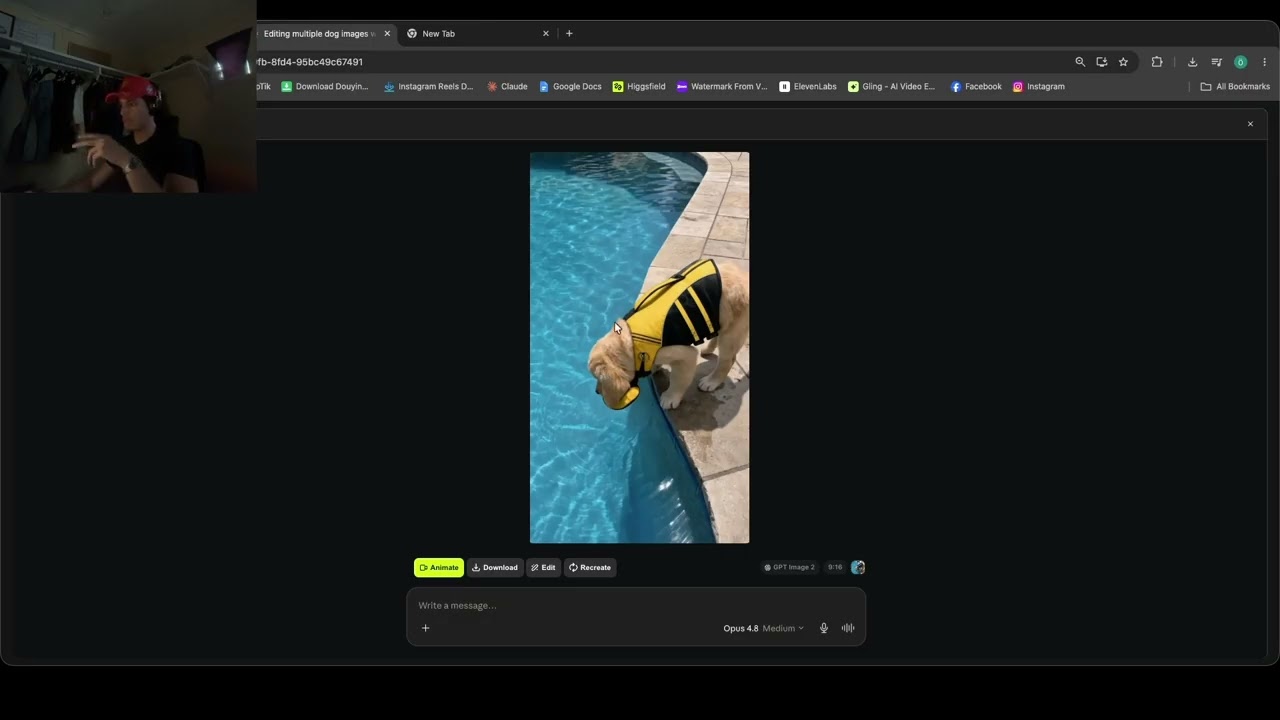
So we can use the first one's results to make the end frame which is the second image consistent to it. And for the third attached image in the widgets, I want you to keep everything the same. Just remove the text from the screen and make the life jacket the dog has on yellow. And for the fourth image, that is the end frame of the third image. So we are going to create the fourth image after we get the results of the third image.
So it can be consistent. You guys see, right? This is how it is. I know it sounds a lot of energy and that, but I promise you it saves you a lot of time. And since I'm filming this video, I'm kind of, you know, losing focus, but if I was really making videos, I go like all in all speed. I fill up these images. I send all the images of the videos I want to generate and I go all in. As you see, if you would type these with the keyboard, hello, I want to do this.
You are you're too slow. Too slow, guys. So, essentially what we're going to do now is we're going to go to this. You guys have to download this Google Chrome extension which is called image downloader. You click on it. Then what we got to do is going to bam bam bam bam bam bam bam bam. Then you remove all of these so your clawed chat doesn't get overloaded with images. Otherwise, you're going to have to switch chats here and there because the max images you can attach in one chat is 100.
I don't know if it's going to give me the widget here because this chat is not trained. Okay. Yeah, it's opening. Perfect. So, it opens the widget essentially now. And what you're going to do is you're going to upload all of the images at the same exact order you uploaded them and you describe them. So this bam. Okay guys, as we see I uploaded all of the images here in the same order I described them in here. And then I'm just going to send it and it's going to start generate all of them.
Guys, you don't understand how much time this will save you. The voice note feature and uploading all first frame and end frame images at the same time and describing them using the voice note feature. Imagine you typed all of that, all of the things you speak. Imagine you had to type it on the keyboard. Bam, bam, bam, bam. It's too slow. You're not going to compete. You guys see it start generating all at the same time like this.
And for me, it describes like everything what I what I did with the first one just to make sure because sometimes it can mess up if you describe it in the wrong way while prompting here as we did. Okay, first image. Bam. It replaced the rainbow towel to the white towel over the dog and kept everything the same as I described. Bam. Second one. I don't know what we changed. I think we made this one yellow. Okay. Yes, it changed the dog to black.
Kept everything the same. Same thing. It removed the dog from this. Kept everything the same. This one, it changed this one to black. And you guys realize, right, it didn't launch the end frames. I told it to hold. I told it when the first frame is done, we're going to use the results, which is this one, to make the end frame consistent to this one. So, what we're going to do now is we're going to just send the links of these images like this.
And there was another one, I believe, this one. Like this. And now we're going to tell it generate the end frames for these first frames now. And it's going to generate exactly as you described it from the beginning the images it's been holding. While it's generating, I'm going to explain to you all how you're going to save time also making the video, the clips. So, essentially what we're going to do is this is the first frame.
Okay? You put it in the chat and you describe how you want it with the voice note feature, guys. For me, I have the 3:1 concept saved in my cloud. So, I can just tell it do the 3:1 with this and reveal the dog under. Since I didn't have the end frame for this, I believe I saved it, but for the sake of simplicity sake, I'm going to keep it. Attach the first frame link and the end frame link. You put it after here, like this.
And you describe with the prompt here what you want with these frames. Make sure that you describe and make Claude save for you that every time you attach a link or two links, you tell it the first link is always the first frame. The second link after it is the end frame and under those two links, I have how I want the video or the prompt directly. When you tell this to Claude and make it remember it, every time you attach something like this, a link is going to take this as the first frame.
And if you attach another link, it's going to be the end frame. Okay, this is now how you're going to save time creating all the videos at the same time. We're going to paste all of the links and after each link for these frames, you explain how you want the clip to be. For this one, I'm going to explain that I want the dog to be jumping on the water and he floats because he has the life vest on. Make the dog jump in the water and make sure he's floating because he has that life jacket on and he swims a bit with his legs.
That's bam. That's one video. Then I go to the next one. I copy the link. I pay I enter the first frame. I say make the dog swim forwards and make the camera a bit shaky as if filmed naturally and organically. Bam. Second video. For this one, I'm going to use the same prompt. So, I'm going to just copy this one. I said just like that. Then I go to the next video. I paste it like this. I say make the guy film a POV shot camera video as he is already doing and make him put the dog down in the water and the dog starts swimming around and he is floating because he has that black life vest on.
You guys see the point, right? You put everything first frame if you have an end frame you put the end frame too and then describe it. describe how you want the video or the prompt if you have a prompt from previously used videos. This is how simple it is, guys. This is how simple it is. You're going to save so much time just because you're doing everything in bulk because you're doing everything at the same time and you're using the tips I've told you.
Use the voice note feature. I'm telling that for a reason. I'm telling you this because I generate 20 videos in one sit in one hour. One hour guys. 20 videos. How many videos can can you guys generate in one hour? That is the power of using speech instead of sitting and typing at the keyboard. La come on man. We're trying to act with speed. We're trying to actually push content out. We're trying to be the first to something.
How do you expect to do stuff with speed if you're not actually doing stuff with speed? Hope this cleared up some stuff out there so people can generate videos with speed and get content pushed out as fast as possible. And if you have any other question, anything else, comment down below or you can hit me up on Instagram, light.truck. and I'll see y'all on the next
The words are the caption track's own and nothing is reworded or re-transcribed. Paragraph breaks are placed between sentences so the text reads as prose.
Free tools for your own script: paste a draft and see where it stands before you record it.
Paste your draft and see where viewers are likely to drop off, with a rewrite for each weak line.
Paste the first 30 seconds of your own draft for a hook score and rewrites.
Check your draft against YouTube's advertiser-friendly guidelines before you record it.
Read this channel's public videos and transcripts, and download a writing brief for it.