Getting the transcript
Reading the captions from YouTube. A video nobody has opened here before takes 10 to 30 seconds; this page fills in on its own.
Getting the transcript
Reading the captions from YouTube. A video nobody has opened here before takes 10 to 30 seconds; this page fills in on its own.
Kevin Stratvert · @KevinStratvert
Where viewers went back to watch this video again, from YouTube's public Most replayed graph, lined up with what was said at that moment.
Most replayed moment #1
0:323.6x the video's typical replay level
Max, Team, and Enterprise plans, but it's not available on the free plan. Once you sign in, this is the Claude Design home screen. At the top, you'll find the prompt box where you describe the
Said at 0:28
Most replayed moment #2
3:092.3x the video's typical replay level
in the pinned comment right down below. This is Vibe. You simply drag and drop your video file in and down at the bottom, click on Transcribe. After a few moments, you get your transcript. You can then export as an SRT file, and over here, simply click on Export. The thing I love
Said at 3:04
Most replayed moment #3
4:442.0x the video's typical replay level
option to export an MP4. Now, you could choose the quality, I'll go with the best quality, and then click on export. Here I am now in DaVinci Resolve. I've added the motion graphic to the timeline, and I placed my talking head video on the track above it. Now, let's preview how it turned out. Kevin
Said at 4:39
The graph counts replays. It does not show where viewers stopped watching.
Words
1,068
Runtime
5:50
Speaking pace
183wpm
Reading time
4min
183 words per minute, just over the 181 median of 349 measured videos. That distribution comes from the 349-video hook study.
Opening (first 30 seconds)
In this video, I'll show you how to create professional motion graphics with Claude AI step-by-step. We'll start with the basics and gradually build more advanced animations. I'm Kevin, and let's dive in. To get started, head to the following website. You'll find a link right here at the bottom of the screen. If you don't already have a Claude account, you'll need to create one or sign in. At the time of recording, Claude Design is available for Claude Pro, Max, Team, and Enterprise plans, but it's not available on the
92 words, the words spoken in the first 30 seconds at 183 words per minute.
Free, no signup. See how the first 30 seconds hold attention, with rewrites.
Sentence shape
| Measure | This transcript |
|---|---|
| Sentences | 74 |
| Average words per sentence | 14.4 |
| Longest sentence | 33 words |
| Questions asked | 1 |
| Sentences containing a number | 2 |
Most used terms
Filler phrases
6 in total: like 6.
A literal whole-word count of the same phrase list the Prepublish browser extension uses, so a phrase inside another word is not counted and a phrase used in its ordinary sense still is. It is a count and not a judgement.
Free, no account. See where attention is likely to drop, with a rewrite for each weak line. The free check shows the scores and the one issue costing the most. Or run it on the words above first.
Free · No login · See a sample audit first if you prefer.
What this transcript is
Every word below is the caption track YouTube publishes for this video, pulled from the video itself and reproduced unchanged. It is not Prepublish's writing, not a summary, and not a re-transcription: it is the video's own published captions. English captions, published by the channel, in the video’s original language. Source: the video on YouTube. A channel that would rather this page did not exist can ask for its removal through the contact page, and it is removed.
In this video, I'll show you how to create professional motion graphics with Claude AI step-by-step. We'll start with the basics and gradually build more advanced animations. I'm Kevin, and let's dive in. To get started, head to the following website. You'll find a link right here at the bottom of the screen. If you don't already have a Claude account, you'll need to create one or sign in. At the time of recording, Claude Design is available for Claude Pro, Max, Team, and Enterprise plans, but it's not available on the free plan.
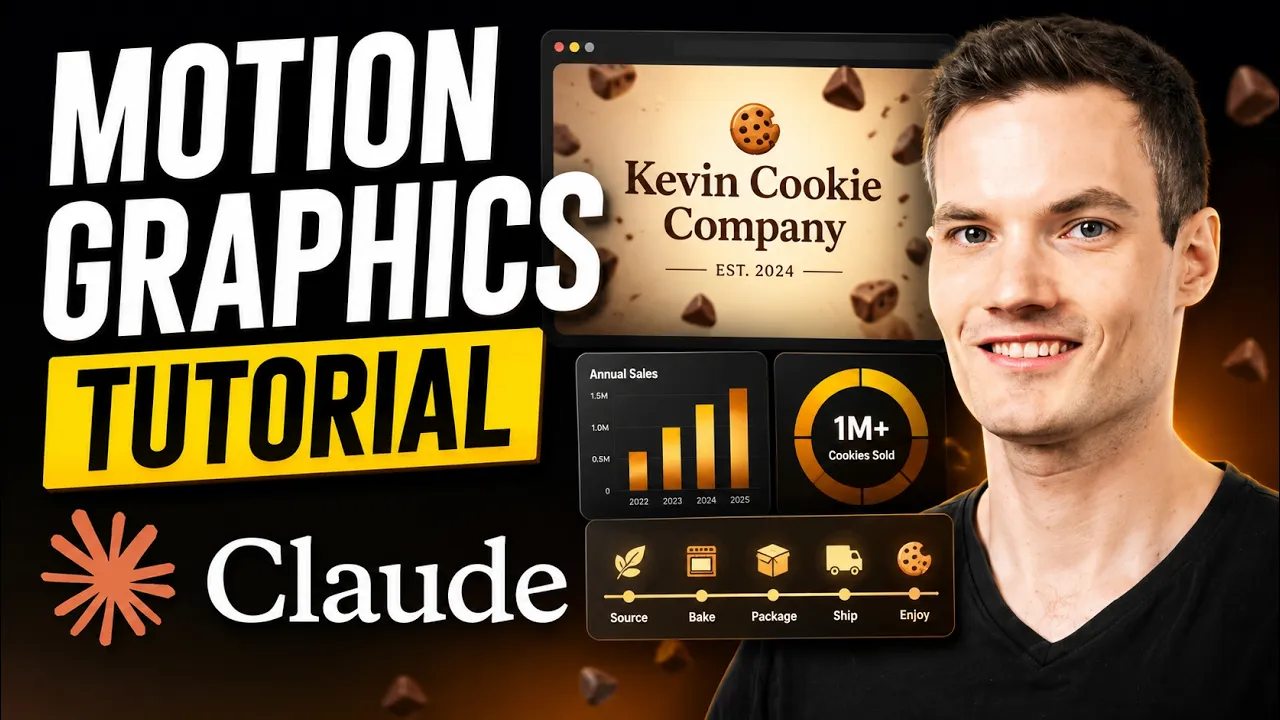
Once you sign in, this is the Claude Design home screen. At the top, you'll find the prompt box where you describe the motion graphic you want to create. Below that are templates for different types of projects. Since we're creating motion graphics, we'll use the animation template throughout this tutorial. Now, let's create our first animation. I'd like to create a title animation for my small business, the Kevin Cookie Company, to use in our videos.
Right here, I'll enter in my prompt. If you'd like to use this prompt yourself, you can pause the video, or you'll also find a copy in the description down below. Keep in mind, you can use Claude to help you write the prompt. In general, the more specific your prompt is, the better the results tend to be. Over here, let's try it out. Here, we see the result. Now, this is a nice starting point. The animation feels clean, and the colors really do fit the brand.
If I wanted to make any changes, I don't need to start over. I can simply tell Claude here in the bottom left-hand corner what I'd like to improve. Now, looking at this, as it fades in, I'd like to add a slight upward movement. So over here, I'll type in my feedback, and then I'll send that. After a few prompts, I got the animation looking exactly how I wanted, all using natural language. Now, let's make one more edit and give it a premium feel by adding a few falling chocolate chips, and maybe we'll also throw in a subtle shadow.
So right over here, I'll type in my prompt. Again, you'll find it in the description, and over here, let's send that. All right, let's check it out. That is beautiful, and it also feels a lot more polished. Now, this is my typical workflow. I usually start with just a simple prompt, get the V1, and then I refine it over several iterations until I get exactly the result that I'm looking for. And overall, I think this is really nice.
So far, we've been creating animations from scratch, but what if you've already filmed your video and you want visuals to match your narration? Here, I have an existing talking head clip, and I'd like Claude Design to generate motion graphics that's synchronized with what I'm saying. To do that, I'll upload an SRT file. So over here, I'll simply drag and drop it into Claude Design. An SRT contains both the transcript and the timestamps for the narration, which helps Claude Design synchronize the visuals with the timing of the video.
As a quick aside, if you need to generate an SRT file for your own videos, check out my video on Vibe linked in the pinned comment right down below. This is Vibe. You simply drag and drop your video file in and down at the bottom, click on Transcribe. After a few moments, you get your transcript. You can then export as an SRT file, and over here, simply click on Export. The thing I love about Vibe is it's completely free and it's also open source.
Along with the SRT file, I'll also upload a few of our brand assets. Here, I'll expand it and I have our logo, and also a photo of one of our most delicious cookies, or as the McDonald's CEO would say, our product. This gives Claude Design more context so it can create motion graphics that match the brand. Now, right up here, I'll prompt Claude, and you'll notice this one's quite a bit longer. Now, this'll create motion graphics that match the narration, synchronize with the timestamps, and also use a mix of charts, timelines, icons, process diagrams, and product visuals to help tell the story.
You'll find this prompt in the description. Now that I've entered all this in, right over here, let's create. Overall, this looks great. Now, of course, just like before, I could continue refining this project using Claude over here in the bottom left-hand corner to get it to look exactly how I want. One example, it did not use the logo that I provided, so I'd probably give that feedback until it's included. But I think for now, this is more than good enough.
Now, let's bring it into DaVinci Resolve, my video editing software, but you could bring it into any video editing software that you want, and then I'll use it alongside the talking head. To export the animation, in the top right-hand corner, click on the share button, and here you'll see the option to export an MP4. Now, you could choose the quality, I'll go with the best quality, and then click on export. Here I am now in DaVinci Resolve.
I've added the motion graphic to the timeline, and I placed my talking head video on the track above it. Now, let's preview how it turned out. Kevin Cookie Company is getting ready to launch our new Double Chocolate Chip Cookie. Before launch, we source premium ingredients from trusted suppliers. Next, our bakers mix the dough and bake each batch fresh throughout the day. Once the cookies have cooled, they're carefully packaged and shipped directly to customers.
Last year, we sold over one million cookies, and this year, we're expecting even more growth as we expand into new markets. That is phenomenal. The motion graphics are perfectly synchronized with my narration. Now, this is a fast and easy way to transform a simple talking head video into something that's a lot more engaging. And that's how easy it is to create professional motion graphics with Claude Design. The only thing missing now is a real Kevin Cookie Company.
Maybe someday. Thanks for watching, and I'll see you in the next video.
The words are the caption track's own and nothing is reworded or re-transcribed. Paragraph breaks are placed between sentences so the text reads as prose.
Free tools for your own script: paste a draft and see where it stands before you record it.
Paste your draft and see where viewers are likely to drop off, with a rewrite for each weak line.
Paste the first 30 seconds of your own draft for a hook score and rewrites.
Check your draft against YouTube's advertiser-friendly guidelines before you record it.
Read this channel's public videos and transcripts, and download a writing brief for it.