Getting the transcript
Reading the captions from YouTube. A video nobody has opened here before takes 10 to 30 seconds; this page fills in on its own.
Getting the transcript
Reading the captions from YouTube. A video nobody has opened here before takes 10 to 30 seconds; this page fills in on its own.
The AI Advantage · @aiadvantage
Words
2,616
Runtime
12:35
Speaking pace
208wpm
Reading time
11min
208 words per minute, above the 201 75th percentile of 349 measured videos. That distribution comes from the 349-video hook study.
Opening (first 30 seconds)
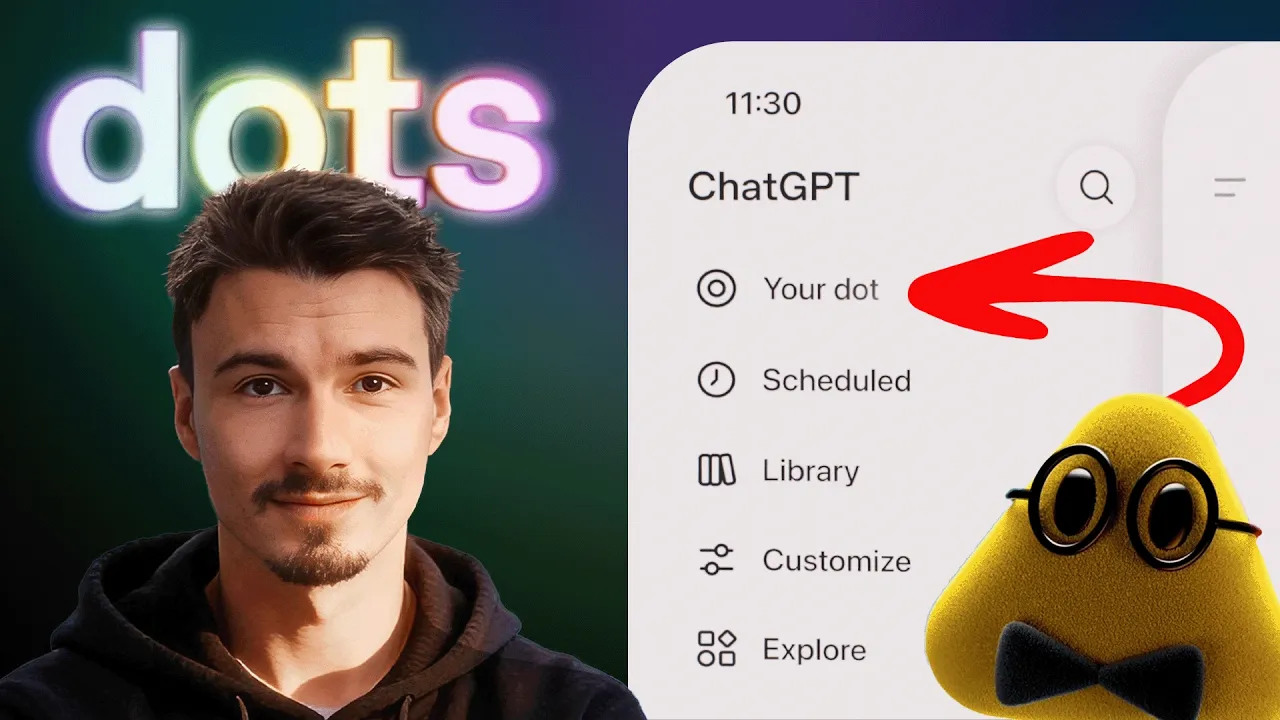
So, OpenAI entered the market in a brand new product category. This category of always-on 24/7 agents that have their own computer and their own browser. Talk to them by voice and they're called dots. I got access cuz I'm on the $200 plan. This will come down soon. Obviously, they haven't announced it, but right now it's available on the business premium, which is $100 a seat. And it's not accessible in Europe, so I had to VPN to the US and I want to share my first look at these dots here in ChatGPT in the web version and then also I
104 words, the words spoken in the first 30 seconds at 208 words per minute.
Free, no signup. See how the first 30 seconds hold attention, with rewrites.
Sentence shape
| Measure | This transcript |
|---|---|
| Sentences | 209 |
| Average words per sentence | 12.5 |
| Longest sentence | 62 words |
| Questions asked | 14 |
| Sentences containing a number | 15 |
Most used terms
Filler phrases
39 in total: like 15 · kind of 6 · right? 5 · actually 4 · basically 4 · you know 3 · I mean 1 · um 1.
A literal whole-word count of the same phrase list the Prepublish browser extension uses, so a phrase inside another word is not counted and a phrase used in its ordinary sense still is. It is a count and not a judgement.
Free, no account. See where attention is likely to drop, with a rewrite for each weak line. The free check shows the scores and the one issue costing the most. Or run it on the words above first.
Free · No login · See a sample audit first if you prefer.
What this transcript is
Every word below is the caption track YouTube publishes for this video, pulled from the video itself and reproduced unchanged. It is not Prepublish's writing, not a summary, and not a re-transcription: it is the video's own published captions. English captions, generated automatically by YouTube, in the video’s original language. Source: the video on YouTube. A channel that would rather this page did not exist can ask for its removal through the contact page, and it is removed.
No Script X-ray for this video: YouTube shows a Most replayed graph only once a video has enough views.
So, OpenAI entered the market in a brand new product category. This category of always-on 24/7 agents that have their own computer and their own browser. Talk to them by voice and they're called dots. I got access cuz I'm on the $200 plan. This will come down soon. Obviously, they haven't announced it, but right now it's available on the business premium, which is $100 a seat. And it's not accessible in Europe, so I had to VPN to the US and I want to share my first look at these dots here in ChatGPT in the web version and then also I want to look at the brand new tab here under spaces cuz they changed a bunch.
They basically built Google Docs and a Notion clone into here. But let's start off with the dot cuz this is really the exciting part. I've been using Grok Bot and Muse a bunch over the past few weeks. That's the product category. They do the same thing. It's an always-on 24/7 agent that can do things. So, let's have a look. Create your dot. Uses Astra and proactively suggests what it could do. So, they were doing a version of this in chat already, right?
Where you get these recommendations. But this should be at a whole new level because it can even recommend plugins saying like, "Hey, you should maybe connect to this data source." So, let's get into it together. So, as of right now, I'll keep this dot in the cloud not on my local computer. I could also use this. I guess the second version would be through the local app. And I'll start by customizing it a little bit.
I'll call this Mini Alfredo and give it a character. Oh, yeah. That's this one. I'll start by asking what context do you exactly have cuz I would expect this thing to have access to memories, but then does it also pull in context files from the files tab? I wonder. Does this conversation summary of previous ChatGPT conversation except some 40 recent chats? Okay, and all the available skills. So, what I want to know right away is how I can customize this dot.
So, yes, this visual stuff is cute, but do I have custom instructions? Do I have a knowledge base? First of all, I could pause him. That's interesting. I could put Mini Alfredo to sleep. All right, let's unpause him again. And let's just try this phone call feature that bugged out twice in their demo, right? Let's see how it goes for us. Hey Mini Alfredo. So, could you open um some marketplace on the internet? Oh, and it bugged out.
Seems to not be working right now. One more question about context here. How large is your context window? Yeah, it can usually not answer that. I figured doesn't even have all the memories. Okay, let's try something. Just voice input. I want you to open up page with used cars in Lisbon. And I want you to find my camper van between 20 and 50,000 euros. Select the top three that would be a good fit for me. And ask the follow-up questions.
And then it should engage this Mini Alfredo's computer over here. As I'm looking at this, I have to say I did expect them to do a standalone interface like Grok Bot has. It just works so well with Grok Bot. Just the models are not where you want them to be. It's really interesting. It's I don't know how I feel about this decision of adding it here right underneath a new chat. Especially if they already announced that they're going to be adding multiple dots.
Maybe that's the point where they're going to give it a separate tab and you're going to be managing them in there. Anyway, it's doing work now, so let's open up the computer. And look, it found one of these used car sites here. I'm familiar with this one. And it's doing stuff. This is basically a virtual machine in the cloud that's not going to be logged in anywhere. But we'll do that next, logging into an account, right?
But you can see I'm not doing anything. It found the first van for me already. This doesn't look super different from how you would have ChatGPT pilot a computer up until now, right? Especially if Astra became so good. I think where this becomes interesting, because this thing is always on and has that computer, I could say something like, "Refresh for new listings." All right, I want you to be refreshing for new listings every 30 minutes.
And notify me if a new camper van comes up. So, here we're going to explore how this relates to schedule tasks. We expect these dots to be able to set those up. That's one of the best things about Crock-Pot. Okay, it just verifies that. Great. So, establishing the current listings and then checking for new ones every hour. This is where we get into interesting use cases, right? Because all of a sudden you can treat this as a always-on assistant that is at the computer for 24 hours.
So, you know, now Mini Alfredo is working and thinking, as you can see. At this point, I would love to start a second dot, but we don't have that ability just yet. But, you can see here under scheduled, interesting, Mini Alfredo has his own kind of tab of scheduled tasks. And yeah, here. Lisbon camper van alerts. It's definitely set up in here. Let's go and click edit. It wrote the prompt itself. It runs every hour. And it runs in the same chat for every run.
And I guess that chat would then be just this infinite chat inside of the dot. Okay, that's an interesting first look at dots. Obviously, they're going to work with all sorts of skills. Let's see. Oh, actually, no. Skills do not work in here. They only work in ChatGPT work. That is interesting. Plugins work here, though. Okay. So, how about this brand new spaces feature? This is interesting because they basically built in a Google Docs or a Notion into here.
And it's a markdown editor right inside of ChatGPT. So, look, you could at the top just say new page, and then you're going to see something like a document. And then if you go in here by typing {slash}, you can get all of these different functions. There's not that many in here. Interestingly, you can obviously use some AI functions in here and generate images like cat with hats right here. And then some of these other functions also use AI but in different ways.
And I kind of like this. You can visualize things like the food chain amongst felines. {slash}h1 get a big heading. And then here, you could just type. I mean, this is Notion if you've ever used it. You could create pages within here, {slash} page, and then I have a page inside of a page. So, this would be page number two in here, and I could kind of nest them in inside of each other. Resize things. And what I always liked about Notion is you type a thing, another thing, and then you can move them around with these six dots.
And then, interestingly, you could schedule tasks inside of this page. So, you could say, "Hey, every 24 hours, add another cat with a hat." And it will just do it in here. Okay, it's not the best example ever. Another thing is that you can comment here to collaborate with people. And then, this was surprising to me. You could even use AI. So, if I say, "Insert an essay on cats," you can kind of use ChatGPT over here as a chatbot on top of this page.
And obviously, you can also share these pages around. Here, we need to invite people concretely. Let's wait for this result. And meanwhile, I go into the main document, where I should now have this image of the cat. My cat essay is ready to go inside of here. Or it didn't. Said it added the essay, but I don't see it. Oh, there it is. Okay. So, you can see AI working in here. Now, what I'm curious about is how Mini Alfredo is going to interact with this.
So, meanwhile, it came up with a conclusion and finished working. So, I'm going to dictate, "Hey, so whenever you monitor for camper vans, I want you to track all the results inside of a brand new page that we can call camper vans. Add what you have up until now in there, and then every time you monitor, append new info in there." I guess you need a lot of patience if you want to get a lot done with these dots. So, you'll be sitting here just waiting.
Whereas in like Rock Bot, I could work with two free other bots in parallel, just like I do with my open claw setup. They are going to add more dots and functionality soon, though. They already talked about it. So, interesting. As you dig into this, you can open up these tasks that it's running. And apparently, within the tasks, it can not just use plugins, but also access the skill library. Why is it accessing my Google calendar here though?
That I don't know. But I'm going to look into the second task, creating camper van tracker. It's running for 4 minutes. It's running in a bit of a loop, I guess. It's trying to create a page, listing pages, checking access. Did it. Took 5 minutes to create a doc, but all right, we have a camper van stock which can now open next it. That's nice. Top three to investigate, all the links in here. This is great. And now the schedule task I would guess has also been updated.
I'm getting slowly accustomed to this interface. This is good. And yeah, it linked the space as if it was a Google Doc that it works in. Me likey. And then lastly, you could also log into all of these service. You can think of this as your brand new computer. So if I go in here and I try to log into Claude, sneaky sneaky. Well, Claude clearly doesn't want me. Well, in that case, let's go to Amazon, which by the way is probably one of the best early use cases.
You can pick products on Amazon and have it research alternatives across the internet. Do with that information what you will. Oh, they blocked agents by now, too. So yeah, I guess that's going to be a large part of the experience, sites blocking these agents and then new competitors showing up that allow them. So, at this point I went to bed and now that I woke up the next day and I checked back in. Well, first of all, I had some notifications from my dot, which I thought was curious because I'm not on a VPN on the phone.
I couldn't actually open it up. But back here at the desktop, it turns out a few unexpected things happened. First of all, it created this yours personal scratchpad image, which, you know, honestly it's gorgeous, you know, nice touch, whatever. But then more interestingly, it started using all the plugins or connectors that I have in my account to actually get some work done. So look at that. Overnight it was scanning as I would expect, but then at 8:00 a.m. it went ahead and saw that I have a US trip coming up and that we have a O-1 visa application that we're working on, and that there hasn't been a status update in 8 days, and it suggested a follow-up action to talk to my assistant about this.
Super proactive. So, what that inspired me to do is immediately reapply this pattern that I've seen work across all of these other AI assistants like Rock Bot or Open Claw, and I just connected a bunch of tools. So, I went into the plugins, and I gave it access to Slack, Cronola, and a few more, and then immediately I started transferring my calendar management system into this thing. So, I'm just kind of getting started on here.
I just want you to know that at this point I'm a bit less than 24 hours into using this product, and I'm already at 1 2 3 4 5 6 7 different scheduled tasks in Mini Alfredo, and I'm just getting started. So, I'm going to be building my Life OS out in here, and I'll be documenting the steps here on the YouTube. So, that's just a day two update. Now, let's get to the ending where I talk about what this really means for you, and how you can apply some of this to your life.
And this is the basic flow that you can expect out of this product. I already came in with an idea from all of my usage of these other products, but basically the name of the game here is this. You need to have enough context on yourself so this knows what you want, and then you create a little operating system for yourself where the bot does some work, but then eventually you want to get to a level where it does scheduled work that is useful to you that either lands in a document or goes into some other source.
So, for example, if you were to set this up as a calendar manager, okay? You would have to give it various contexts on how you like your calendar managed. You need to connect your calendar and set up different scheduled tasks that make sure your calendar is attended to, like adding recharge blocks regularly, or checking for double bookings, things like this. You could probably combine multiple things that you want to get done into like a daily calendar health check.
And then if anything is not right, you could also add the Gmail plugin, and then set it up to email that person. It's all about kind of creating these systems, this operating system for your life within these actually more accurate it would be say an operating system for your digital life. But the cool thing is for many people watching you can make more of your life digital. Your to-do list, your communications, your calendar.
If you have them digitally and you connect them up to this thing then well, mini Alfredo here can do some of the work and keep track in the separate documents and then reference those to do new tasks. I think the important thing is not to get overwhelmed by the options here because you see this and you're like, "Oh my god, I could do so many things." And yeah, that's true. But just pick one thing that is already a pain point in your life or your business and try to talk to mini Alfredo about how you could turn that into something that he takes off of you for this combination of documents and schedule tasks and its own browser.
All right, in the next video you can expect a list of various use cases that you can try within this tool now that you have an initial idea for what is available with this new product. Meanwhile, go out there and explore for yourself and we'll talk soon.
The words are the caption track's own and nothing is reworded or re-transcribed. Paragraph breaks are placed between sentences so the text reads as prose.
Free tools for your own script: paste a draft and see where it stands before you record it.
Paste your draft and see where viewers are likely to drop off, with a rewrite for each weak line.
Paste the first 30 seconds of your own draft for a hook score and rewrites.
Check your draft against YouTube's advertiser-friendly guidelines before you record it.
Read this channel's public videos and transcripts, and download a writing brief for it.