Getting the transcript
Reading the captions from YouTube. A video nobody has opened here before takes 10 to 30 seconds; this page fills in on its own.
Getting the transcript
Reading the captions from YouTube. A video nobody has opened here before takes 10 to 30 seconds; this page fills in on its own.
Zubair Trabzada | AI Workshop · @AI-GPTWorkshop
This video has no Most replayed graph yet: YouTube shows one only once a video has enough views. These are the moments viewers replayed most in Zubair Trabzada | AI Workshop's most watched videos.
Most replayed moment at 9:02
4.9x that video's typical replay level
July 7th on your plans on your cloud plans. So, go ahead and take advantage of that because after that it's going to get pretty expensive and move to usage. I've been building non-stop. So, I recently built my personal assistant and my second brain I updated with cloud Fable 5 and it's absolutely incredible.
Said at 8:55
Most replayed moment at 21:31
5.4x that video's typical replay level
you if you scroll down to the bottom, you'll see that I have built Jarvis AI assistant prompt. So I've given you this prompt back before this was back when I built Jarvis. So you can have access to that so that way you can build a version of Jarvis for yourself. And then afterwards at the bottom, you're also going to
Said at 21:23
Most replayed moment at 9:59
8.1x that video's typical replay level
so you're not being charged here. You can go to the classroom section, click on YouTube resources, and then right here it says Jarvis AI assistant prompts inside Claude code. So, this is the prompt pack that I'm giving you guys for free, like I said, where now you can go ahead and read the instructions. You can
Said at 9:52
The graph counts replays. It does not show where viewers stopped watching.
Words
2,824
Runtime
12:50
Speaking pace
220wpm
Reading time
12min
220 words per minute, above the 201 75th percentile of 349 measured videos. That distribution comes from the 349-video hook study.
Opening (first 30 seconds)
Jarvis, switch your brain to the GPT6 Astra. >> GPT6 Astra online. Sir, if I start solving physics between your sentences, do try to keep up. [snorts and laughter] >> Jarvis, I'm planning to get the new foldable iPhone. What do you think? >> $2,000 for a phone whose defining feature is a crease that will haunt you by spring. But sir, you make YouTube videos about new tech, so this isn't a purchase. It's a thumbnail with a screen protector. Buy it, film the unboxing, expense it, and let the algorithm cover the crease. No, but I'm not I'm just saying I'm planning to buy it for my personal
110 words, the words spoken in the first 30 seconds at 220 words per minute.
Free, no signup. See how the first 30 seconds hold attention, with rewrites.
Sentence shape
| Measure | This transcript |
|---|---|
| Sentences | 183 |
| Average words per sentence | 15.4 |
| Longest sentence | 121 words |
| Questions asked | 19 |
| Sentences containing a number | 18 |
Most used terms
Filler phrases
107 in total: uh 45 · like 25 · right? 11 · actually 10 · um 6 · kind of 5 · basically 4 · you know 1.
A literal whole-word count of the same phrase list the Prepublish browser extension uses, so a phrase inside another word is not counted and a phrase used in its ordinary sense still is. It is a count and not a judgement.
Run the check on the words above: where attention is likely to drop, with a rewrite for each weak line. The free check shows the scores and the one issue costing the most.
What this transcript is
Every word below is the caption track YouTube publishes for this video, pulled from the video itself and reproduced unchanged. It is not Prepublish's writing, not a summary, and not a re-transcription: it is the video's own published captions. English captions, generated automatically by YouTube, in the video’s original language. Source: the video on YouTube. A channel that would rather this page did not exist can ask for its removal through the contact page, and it is removed.
Jarvis, switch your brain to the GPT6 Astra. >> GPT6 Astra online. Sir, if I start solving physics between your sentences, do try to keep up. [snorts and laughter] >> Jarvis, I'm planning to get the new foldable iPhone. What do you think? >> $2,000 for a phone whose defining feature is a crease that will haunt you by spring. But sir, you make YouTube videos about new tech, so this isn't a purchase. It's a thumbnail with a screen protector.
Buy it, film the unboxing, expense it, and let the algorithm cover the crease. No, but I'm not I'm just saying I'm planning to buy it for my personal use. What do you think >> then? No, sir. First generation foldables are a hardware beta you pay two grand to participate in and largest iPhone display ever is Apple's way of saying we made an iPad that fits in your pocket badly. Wait for the second generation when the crease is a rumor instead of a feature.
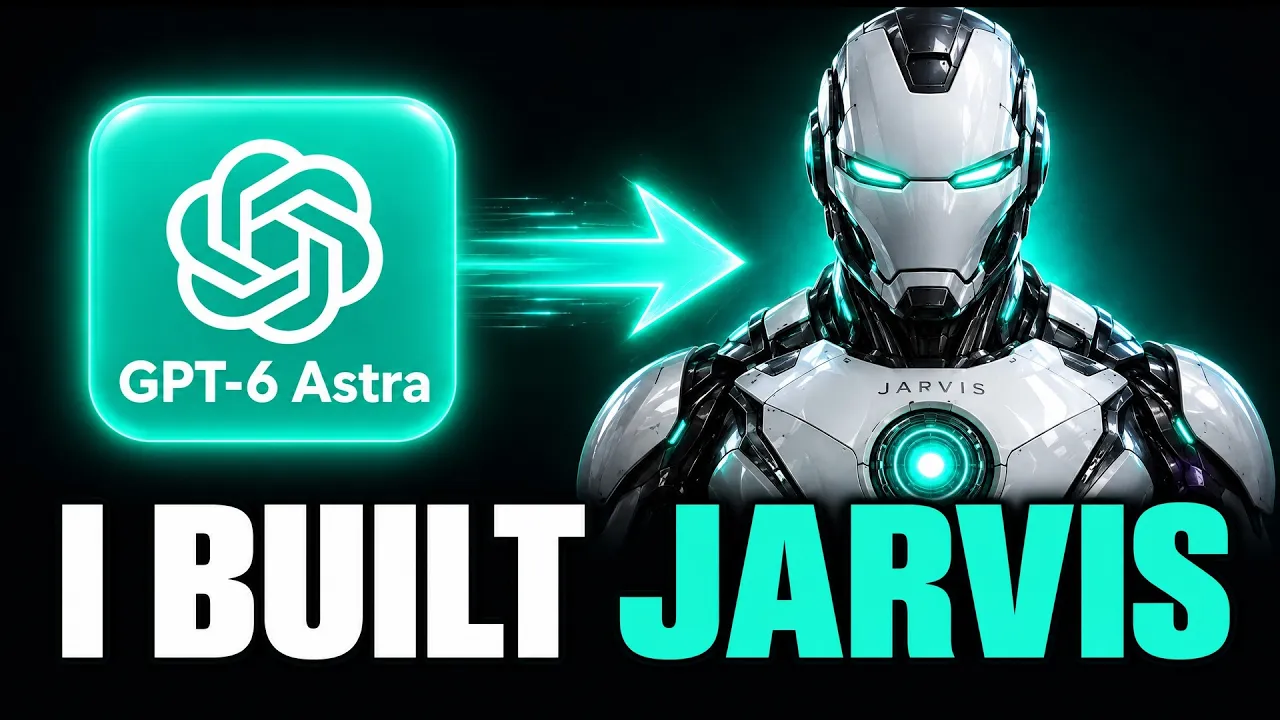
So, GP6 Astra just got released and I used it to recreate Jarvis and give it brand new functionality. So, in this video, I'm going to give you a full demo of these new features and what Jarvis is capable of. And I'm also going to give you this brand new prompt pack that you can build your own AI assistant Jarvis with GPT6 Astra. Again, this prompt pack would include everything, including all of the direction instructions and all of the prompts you need to create something like this of your own right away.
All right, so I'm going to go ahead and start with the full demo first. If you haven't seen my previous video, don't worry. I'm going to show you everything. If you have, you're already familiar with Jarvis at this point. But essentially, for those of you who are new, this is my AI second brain. All of these nodes that you're seeing, these different color-coded nodes. They're essentially a representation of my business and my computer files, folders, everything in a 3D representation, right?
And then on the right hand side, you see it's Jarvis, my EI assistant. And you can see right now it is functioning on or it's right now using the GPT6 Astra as its main brain for all of its functionalities. And it has a lot of functionalities. I've been actually testing the GPT6 versus other models and honestly it's absolutely remarkable of how good this model is and I also obviously gave it a bunch of new functionalities that I'm going to show you in a little bit but just quickly on the bottom right here so you can see it all has also has access to all of the tools right and again the tool usage is also very efficient when it comes to GPT6 versus the other models there and again I have the ability to share my screen and if I click on this here. >> Hands free engage sir.
Say Jarvis and I shall answer. >> So now as soon as the word uh Jarvis is mentioned, Jarvis is going to be activated and it's going to go ahead and respond to me of whatever task I'm giving it to. Or if I'm asking it to do something. >> Do you mean saying Jarvis should activate me? Then I respond to your question or handle the task you give me, sir. Essentially a butler's bell without having to own a manner. [laughter] >> There you go.
Yeah. So like I said, as soon as I click on that, Jarvis gets activated. So it's going to respond as soon as I say the word. But anyway, so one of the things I could do obviously is um ask Jarvis to pull up any kind of files or folders that's inside my computer. So for instance, Jarvis, can you go ahead and pull up the social media automation for me, please? So now it's going to says thinking. So now it's going to operate and find all those folders and files that are related to social media and pull it up. >> I've pulled up all the information, sir.
You can read it yourself or if you'd like say read it out loud and I shall. >> There you go. So now it pulls up all of the files and folders that are related to my social media automation. I can right click on this, right? It gives me all of the details of what this folder is about. You can see I have different tools here like blow t or hickfield and stuff like that. Um and uh everything else that's connected to my social media automation.
So things like so for instance I can ask it to do research and find let's say some alternative to or Higsfield or whatever it may be and it's going to go ahead and use that. So let's go ahead and give that give that a shot. Um hey Jarvis. So, can you go ahead and do some uh research online and find out any alternative tools to Hicksfield because Hicksfield is a little expensive? So, there you go. So, it's now thinking now it's going to go ahead and do research online and come up with an alternative to Hicksfield hopefully, right?
Uh, but like I said, the tool usage and the in the search, the internet search and all of the functionalities with GPT6 Astra is absolutely amazing how efficient it is because with some of the other models, it kind of is a little uh slow or sometimes I have to repeat things multiple time. But with this model, honestly, I it's been uh it's my mind. >> Yes, sir. And the honest news is that Higsfield's own floor is lower than your outrage suggests.
Its basic plan is $9 a month for 120 credits. And the $15 starter gives you cling 3.0, Veo 3.1, and Sea Dance from one shared B. So, let me just stop him. So, as you can see now, it did the research for me, right? And and came up with all of these different different details as far as an alternative. So, it says that uh right now an alternative, the cheaper alternative is Kai uh Kie Kie. charges a few dollars a month with no subscription at all.
Right? So, it gives you actually a researchbased information or it gives you all of the details based on the research that it did. Right? So, it's not just making things up. When I give it a task, it actually goes and does the research for me. So, that's kind of like a simple um uh way to use your second brain. Obviously, let me get rid of some of the stuff cuz it's getting crowded. Okay. Now, beyond like the internet search and uh the ability to pull up like files and folders, it also has and these are the new functionalities that I added and retested here with GPT6 Astra.
So, this eyes, what this means is that now Jarvis can see me through the camera. So, let's go ahead and turn this on cuz this is a really cool feature, right? So, I'm going to go ahead and turn it on. Jarvis, what do you think about this t-shirt that I'm wearing? Taking a look, sir. The bright blue suits you, sir, and the thin multicolored stripes add interest without looking busy. It works well under the black jacket.
Pleasingly, your shirt coordinates with the studio lighting. Most people stop at matching their socks. [laughter] Yeah. So, there you go. So, now Jarvis can actually see me through these eyes or the eyes functionality or feature that it has, which basically means that through the camera I can interact with them, right? So, and I can add multiple. So this eyes feature has a lot more functionalities like for instance if he sees that I'm slouching or if I'm holding my phone sometimes right he calls me out that hey like uh especially if there's like a feature that I've turned on where I've told him to keep me focused on a particular uh task right so and another thing is watch also if I turn this on this basically I can share my screen with him as far as uh what whatever I'm doing so uh that way if I ask him a particular question he uh uh already has access to the screen that I'm looking at so that way he can make my work more efficient.
And then on hollow, this is another one that I'm working on which basically gives me the ability to interact with my EI second brain with my hand. Again, that's a really cool feature. I'm finishing that up. I'm going to make that another video about that. Focus. This is another really good feature. So, I can share my entire screen with them. >> Locked on your entire screen, sir. 30 minutes on the clock, sir. Go to what you're working on and I'll lock on there.
And what are we focusing on? My ears are off, sir. Tap the ear button to answer. >> So, I'm going to now lock this tab. Right. >> Locked on, sir. >> So, which means that now Jarvis is watching this particular screen and as soon as I go to another tab, it's going to actually call me out. So, this is a really good feature for uh kind of keeping you focused on the task that you're working on because obviously we're all very distracted.
So, this is something that really helps you out. And this blue face, right, by the way, like this is just like an option. Uh, you know, I just thought this was a very cool uh user interface or UI, but you can change this if you want um at all. And by the way, I can also click on >> standing down 0 30 minutes on target before we stood down one drift. >> There you go. So, it actually keeps track of the drift. So, if you drift to another tab, it will actually show you exactly how many times you were distracted.
And like I said, it will call you out when you share your screen and uh lock on a particular tab. And if you switch, it will tell you to go back or make a funny joke about uh the fact that you're distracted. Now, on top of that, obviously, Jarvis has access to a bunch of different tools. And I can also add more tools to it. And with the GPT6, the tool usage is also remarkable. So, I can add any tool here that I'm using.
And you can see right now I have uh given it access to Gmail, notion, Google Docs, Google Sheets. So, it already has a bunch of tools it has access to. And like I said, I can keep adding more tools to it. So that way it becomes even more versatile depending on what we're using here or what your day-to-day um app usage is. Right? So if you're a designer or in finance or whatever it may be, this is where you can now give your personal assistant AI or personal AI assistant Jarvis those particular tools.
So that way uh it can interact with it and make your life a lot easier. So by the way obviously as you saw I can interact with it just with my voice. I can type everything here as well. Right. So I can type something and he will respond to me. And on top of that, I also have uh he has also has access to uh Telegram. So I can actually chat with him back and forth. So let me go ahead and show you here quickly. So I can just say, "Hey, Jarvis." Right?
So now he'll be able to interact with me via Telegram, whether through voice or via uh text itself. So there you go. So now it sends me a voice note and a text here. So let's go ahead and listen. >> At your service, sir, what are we building today? and how soon before it becomes another product. [laughter] >> There you go. Right. So, uh these are the cool functionalities that you can uh utilize your personal assistant Javas.
And by the way, using I already did this video before uh but last time I had it actually generate a invoice for me. And because it has access to Google Drive and Google Docs, it sends me a direct link to my invoice or whatever I asked him to generate. So, as you can see, it's a really well formatted uh invoice for this particular client that I made. Again, this was just a demo of how it can use your existing documents that are inside your EI second brain.
So therefore, it has access to the formatting or your brand uh the way you do things like create invoices or whatever it may be. So that way you don't have to tell just like a true AI assistant, you don't have to give them all of the instructions and details every time, right? Once this has access to the files that you've already created, you'll be able to basically utilize Jarvis's ability to have interaction with your existing files and knows your brand or knows all of the uh details of how you operate your business and therefore you can just interact with them just like a normal uh assistant.
So again, this is starting to become really cool and I'm actually going to do more research and add more functionalities to Jarvis because like I said, this is a uh really great model that you can build a lot of things with it. All right, so again there's lots of features here that I could go but show you guys, but that will take a long time. Uh but I will kind of divide this in multiple videos and share more details.
This hollow hands is another ones that I recently created. I'm going to give you guys uh a demo on that on the next video. Uh but anyways, so to access this uh prompt pack that I showed you guys in the beginning to build your own Jarvis using GPT6 Astro. Again, this prompt pack includes everything, all of the details you need, including the uh different prompts that you can add these different functionalities. Again, I put a lot of prompts here for you guys.
So that way you can essentially just follow the directions here and create your own version of Jarvis. Uh, so in order to access that free prompt pack, all you have to do is click on the link in the description. So if there's multiple links, but the one that says free community or free prompt pack, click on that. It's going to bring you to this community. Again, this is completely for free. You can click on join and go to the classroom section, click on YouTube resources.
And then on the bottom you of this claude code uh folder, you'll have access to that prompt pack and a bunch of other free things that I give here all the time. Now, of course, if you want the finished version of Jarvis completed with all of these functionalities because this took me several months to build, that's going to be inside the paid community. So, if you just want like a 5minute install, uh again, this link is also going to be in the description.
Just click on that, go, it'll bring you to the paid community, go to the AI assistant uh section, and then all you have to do is scroll to the bottom and download the latest version of Jarvis, which is a zip file and then an installation guide there that you can uh just put on your computer. It's like I said, 5 minute install. And of course at any point if you get stuck you can post your questions. My team and I will be there to help you out with any tech support.
U and we also have uh calendar events if you want to jump in and ask us questions directly. So again hopefully I'll see you guys inside the paid community. If not free community has a ton of stuff that I give away all the time. So you can join there and build your own Jarvis. Anyways hopefully you guys found this helpful. Make sure you like and subscribe because like I said I got a bunch of other videos that are coming up that you don't want to miss.
Thanks for watching and I'll see you on the next one.
The words are the caption track's own and nothing is reworded or re-transcribed. Paragraph breaks are placed between sentences so the text reads as prose.
Free tools for your own script: paste a draft and see where it stands before you record it.
Paste your draft and see where viewers are likely to drop off, with a rewrite for each weak line.
Paste the first 30 seconds of your own draft for a hook score and rewrites.
Check your draft against YouTube's advertiser-friendly guidelines before you record it.
Read this channel's public videos and transcripts, and download a writing brief for it.