Getting the transcript
Reading the captions from YouTube. A video nobody has opened here before takes 10 to 30 seconds; this page fills in on its own.
Getting the transcript
Reading the captions from YouTube. A video nobody has opened here before takes 10 to 30 seconds; this page fills in on its own.
Leila Gharani · @LeilaGharani
Where viewers went back to watch this video again, from YouTube's public Most replayed graph, lined up with what was said at that moment.
Most replayed moment #1
12:133.7x the video's typical replay level
this prompt is from Microsoft's prompt library, which I really encourage you to check out. So, if I go and create a new chat, here under See More, when I scroll down, you can get to the prompt library. And you have tons of prompts here. You can use these filters to quickly find the type
Said at 12:10
Most replayed moment #2
13:033.2x the video's typical replay level
a prompt. You could at the end of your chat tell it to generate the complete optimized prompt based on everything we discussed to get the last result and then the prompt that you get is the one
Said at 12:59
Most replayed moment #3
12:383.0x the video's typical replay level
you can find your saved prompts. You can find them right here under Your Prompts. The last one is the prompt that makes your prompts better. So let's say you use one of these prompts, but then you optimize it for your own needs. So you have a lot of back and forth getting it to do exactly
Said at 12:34
The graph counts replays. It does not show where viewers stopped watching.
Words
2,300
Runtime
13:43
Speaking pace
168wpm
Reading time
10min
168 words per minute, between the 160 25th percentile and the 181 median of 349 measured videos. That distribution comes from the 349-video hook study.
Opening (first 30 seconds)
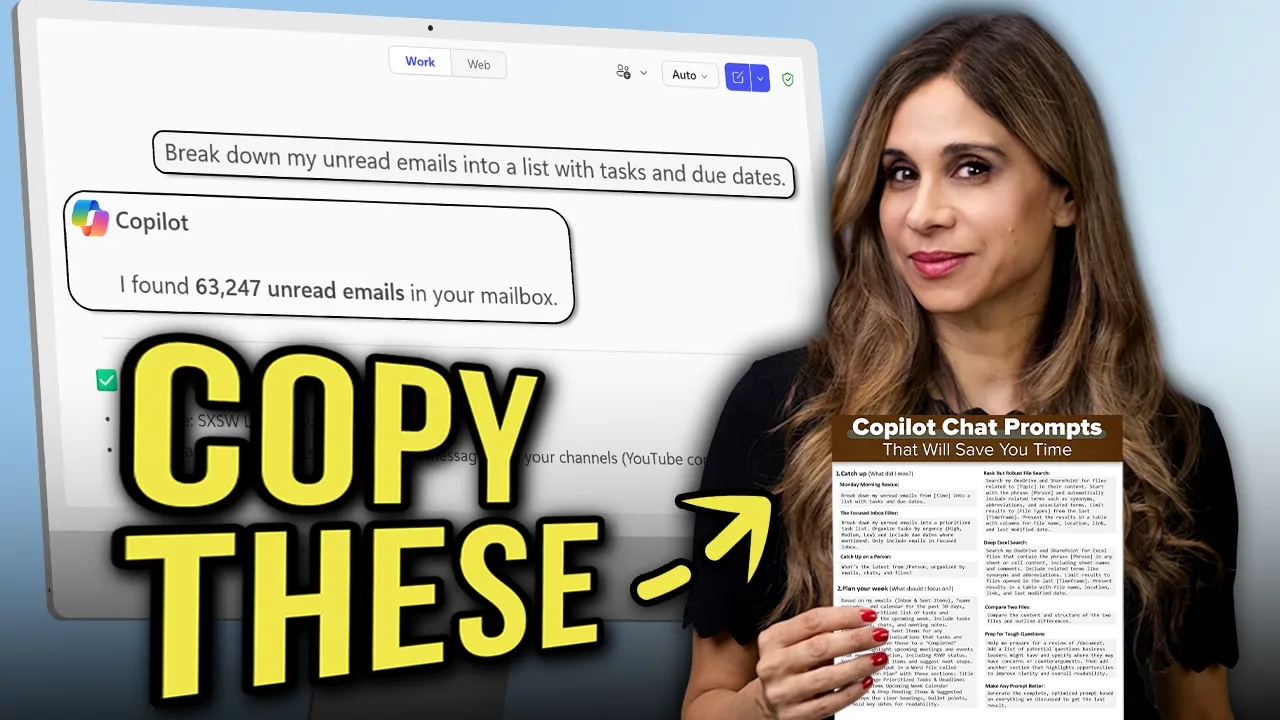
Today I'm going to share 10 Microsoft 365 Copilot chat prompts that actually save me time. You can copy all of them. Now M365 Copilot Chat is free if you have Microsoft 365. You can get to it by clicking the icon on your desktop if you have the app or open your browser. Go to microsoft365.com or like me if you still type office.com out of habit. It's going to take you to the same place. And I kept getting annoyed every time
84 words, the words spoken in the first 30 seconds at 168 words per minute.
Free, no signup. See how the first 30 seconds hold attention, with rewrites.
Sentence shape
| Measure | This transcript |
|---|---|
| Sentences | 169 |
| Average words per sentence | 13.6 |
| Longest sentence | 57 words |
| Questions asked | 5 |
| Sentences containing a number | 11 |
Most used terms
Filler phrases
13 in total: actually 5 · like 4 · right? 2 · basically 1 · you know 1.
A literal whole-word count of the same phrase list the Prepublish browser extension uses, so a phrase inside another word is not counted and a phrase used in its ordinary sense still is. It is a count and not a judgement.
Free, no account. See where attention is likely to drop, with a rewrite for each weak line. The free check shows the scores and the one issue costing the most. Or run it on the words above first.
Free · No login · See a sample audit first if you prefer.
What this transcript is
Every word below is the caption track YouTube publishes for this video, pulled from the video itself and reproduced unchanged. It is not Prepublish's writing, not a summary, and not a re-transcription: it is the video's own published captions. English captions, published by the channel, in the video’s original language. Source: the video on YouTube. A channel that would rather this page did not exist can ask for its removal through the contact page, and it is removed.
Today I'm going to share 10 Microsoft 365 Copilot chat prompts that actually save me time. You can copy all of them. Now M365 Copilot Chat is free if you have Microsoft 365. You can get to it by clicking the icon on your desktop if you have the app or open your browser. Go to microsoft365.com or like me if you still type office.com out of habit. It's going to take you to the same place. And I kept getting annoyed every time I landed on this chat because I wasn't used to this interface.
I just wanted to get to my apps. Until I gave in and I decided to actually figure out what prompts could actually be useful here and you might find these helpful, too. I've added a cheat sheet for you as well to download if you like. But here's the catch. Microsoft says this is free. So, I wanted to understand what's in free versus what requires additional paid Copilot license. This is the slide Microsoft uses to explain what's in the paid version.
And this is what you get for free. Yeah, it looks pretty limited. So, most of the prompts that I'm sharing with you today are going to require a paid Copilot license. We're going to be grounding our chat in Work mode. If you were looking for stuff on the web, you'd ground it in Web mode. Work mode uses all your work data, files, chat, email, everything you have access to. And notice here it says that we have Enterprise data protection.
Basically, Copilot can't access files that you don't have access to. Okay. So, the first set of prompts is for catching up. And we're going to start with the Monday morning rescue. This one is great for catching up on any unread emails. Perfect for Monday mornings or also when you get back from holidays. So, what you want to do is type in your prompt in the box here. But also notice that Copilot gives you some suggestions based on context based what it thinks that you might need.
I am just going to type in the prompt break down my unread emails from. If you have a ton of unread emails from way before, you could say from the last 5 days, for example, into a list with tasks and due dates. If you want to look at everything, just get rid of this bit and send this off and Copilot is going to look through all of your unread emails and categorize them for you. Okay, so these are some of mine. It found this many unread emails.
Now, I don't have this many unread emails directly in my inbox, but I do have a ton of subfolders and rules that automatically allocate emails to those folders. And those might be unread because they're just automatically system generated. So, if you have that set up like me, you might want to go with this prompt instead, the filtered inbox prompt. So, here you can add an additional filter to restrict your results. You could actually build on this and say only look at the items in my focused inbox and prioritize them.
Or you could start a new chat by clicking on this icon and typing in "break down my unread emails into a prioritized task list. Organize task by urgency. Include due dates where mentioned. Only include emails in the focused inbox." And this is going to restrict your results to only the emails in your focused inbox and return a more condensed and organized result. Now, I have to say when I ran this prompt, I sometimes run into issues like this.
I don't know why it did that. Sometimes it would return the right results and sometimes not, but I guess that's just Copilot for you right now. Next one is to catch up on a person. Just type in what's the latest from and here you're going to have the person organized by emails, chats, and files. The best way to add a person is to use the backslash. The moment you do that, you get some options. You can click on people and search for people in your organization.
Let's say I want to see the latest from Chris. I'm going to select him from this list and send this off. And I get the latest organized by emails, chat, and files. Now, by the way, if you want to save any of these prompts, you just go to your prompt and click on this save prompt icon. I'm going to show you towards the end of the video how you can find your saved prompt. You can also schedule your prompt to run at a specific time.
This way, when you get to the office, the results are already prepared for you. Now, if you're liking this video, don't forget to subscribe to this channel. There are a lot of people who watch our videos, but unfortunately don't subscribe. So, I hope you're not one of them and that you do decide to subscribe. Next one is to plan your week. Now, this is a bit of a longer prompt, but it really helps in terms of getting organized.
"Based on my emails (inbox and sent items), Teams messages, and calendar in the past." Change this to whatever days you want. "Create a prioritized list of tasks and deadlines for the upcoming week." Now, important here is that it reviews the sent items for any confirmations or indications that tasks are completed. Right? So, it doesn't just look at one side of the conversation, but also sees if you replied and if you completed something.
"And move those to a 'Completed' section. Highlight upcoming meetings and events that need preparation." Then it's going to output everything in a Word file called the Weekly Action Plan. And it should add these sections here. And you can modify this as you see fit. So let's send this off and see what we get. Now this is going to take a little while to run because it's going through a lot of items, but you could also schedule this prompt.
Okay, so this is our Weekly Action Plan built from the last 30 days. It found 24 relevant emails, 15 meetings, and it explicitly reviewed the sent items for completions. Now, we also get an overview here, but I wanted a Word document, the Weekly Action Plan. So, let's take a look at what we get there. And here we have it, our organized Weekly Action Plan. By the way, speaking of planning, if one of your priorities this week is finally getting better at Excel or Power BI so that you can confidently and quickly get your reports done and out of the way, our courses on XelPlus can help.
We've helped over 400,000 people upscale. Now, the next prompt I want to take you through is finding stuff. This is something I struggle with all the time. I'm looking for things. I don't remember where I saved them. I don't know what I called them. I just know they're somewhere here. You can use the basic but robust file search prompt. You could type in search my OneDrive and SharePoint for files related to the topic.
So let's say I'm looking for files related to Black Friday in their content. And this is important because we also want to look inside the files. "Start with the phrase." It helps if you give it a phrase. If not, you can skip this part. I'm just going to say "Start with the phrase Black Friday and automatically include related terms and synonyms, abbreviations. Limit results to," here you can specify the file types that you want.
So I'm going to do Word and Excel files. "From the last," it would be good to give it a time frame. So I'm going to go from the last 90 days. "Present the results in a table with columns for file name, location, link, and last modified date." Now, this is going to go through my SharePoint, drives, everything I have access to, and it's going to come up with a list of files, right? Some of them include the word Black Friday, but some of them don't.
Some of them have an abbreviation here, and some don't have the word Black Friday in the name, but Black Friday is in the content. I can also just click on these links to open the file. Now, this generally works except if you're looking for a specific Excel file that's not showing up here. So, the way Microsoft indexes everything is that it does look at the file's metadata and it does look at the content, but if your spreadsheet has multiple sheets and this topic that you're looking for is in some sheet, it might not find it unless you specifically tell it to do a deep search for Excel.
Now, I found this to be especially helpful when I was looking for Excel files that just wouldn't show up here. So I would tell it to search my OneDrive and SharePoint for Excel files that contain the phrase, in this case, "Black Friday," in any sheet or cell content including sheet names and comments include related terms for files that were opened in the last 90 days. Now when I send this off I got a more complete list of Excel files.
Here I can see some files that didn't exist in our previous list. Next is to get a quick summary of the file. So let's say we quickly want to summarize the information in one paragraph for a specific file. Here you're going to use the backslash and find your file. You can go to files. You might see it here. Or you can search for it by starting to type here, or just click on this OneDrive icon and browse for your file.
In this case, I'm going to go with this file. Let's send this off. And we're quickly going to get a one paragraph summary of this PowerPoint presentation. Next is to quickly compare two files. So, this prompt allows us to compare the content and structure of two files and outline the differences. Now again you can quickly find your files by putting in the backslash going to files. Maybe you see it on this list. You can search for it or click on this icon.
You can also just click on this plus and attach your files. So the files that I want is this membership gym contract and this one. Let's click on Select and send this off. Copilot is going to go and review the content of the file and outline the differences. So here we can see that the overall structure is almost identical. They both include this information. The content is different. So one of the files has the information about me and the other file has information about Gus.
Then the membership dues is different as well. So I'm paying less than Gus for my gym membership. But everything else is the same. Next is to prep for tough questions. So let's say you're preparing for an upcoming meeting and you know they're going to quiz you on a document. So you can say, "Help me prepare for a review of," and give it the document. So let's just find the file from our files here. I'm going to look for the BMW report.
Let's go with this. "Add a list of potential questions business leaders might have and specify where they might have concerns or counterarguments. Then add another section that highlights opportunities to improve clarity and overall readability of the file." Copilot has reviewed the document and gives us a executive snapshot for the opening remarks questions business leaders are likely to ask. Why did profit collapse in Q3?
How exposed are we to China? And what are we doing about it? And so on. Okay, so this is one way that you can prep for your meetings. Now, by the way, this prompt is from Microsoft's prompt library, which I really encourage you to check out. So, if I go and create a new chat, here under See More, when I scroll down, you can get to the prompt library. And you have tons of prompts here. You can use these filters to quickly find the type of prompt that you want.
And remember I told you at the beginning that I'm going to show you where you can find your saved prompts. You can find them right here under Your Prompts. The last one is the prompt that makes your prompts better. So let's say you use one of these prompts, but then you optimize it for your own needs. So you have a lot of back and forth getting it to do exactly what you want. And then you want to remember that prompt.
So you want to turn that last result into a prompt. You could at the end of your chat tell it to generate the complete optimized prompt based on everything we discussed to get the last result and then the prompt that you get is the one that you can save. Okay, so those are 10 Copilot chat prompts that actually save me time. Grab the cheat sheet with all of them in the description so you can copy and paste. And if you found this useful, let me know in the comments which prompt you're trying first.
If you have any good ones, please also share. Thank you for dropping by and I'm going to catch you in the next video.
The words are the caption track's own and nothing is reworded or re-transcribed. Paragraph breaks are placed between sentences so the text reads as prose.
Free tools for your own script: paste a draft and see where it stands before you record it.
Paste your draft and see where viewers are likely to drop off, with a rewrite for each weak line.
Paste the first 30 seconds of your own draft for a hook score and rewrites.
Check your draft against YouTube's advertiser-friendly guidelines before you record it.
Read this channel's public videos and transcripts, and download a writing brief for it.