Getting the transcript
Reading the captions from YouTube. A video nobody has opened here before takes 10 to 30 seconds; this page fills in on its own.
Getting the transcript
Reading the captions from YouTube. A video nobody has opened here before takes 10 to 30 seconds; this page fills in on its own.
Kevin Stratvert · @KevinStratvert
This video has no Most replayed graph yet: YouTube shows one only once a video has enough views. These are the moments viewers replayed most in Kevin Stratvert's most watched videos.
Most replayed moment at 2:52
2.8x that video's typical replay level
So, it's worth taking a few extra moments to refine your storyboard before moving on. Now, I think everything here looks good, so let's move on to generating a visual storyboard. Right over here, I'll click on send. There we have the visual storyboard. This gives us a quick preview of how each scene will fit together
Said at 2:45
Most replayed moment at 1:37
3.4x that video's typical replay level
Continue. Next, let's give this installation a name. I'll set mine to ComfyUI. For most people, you can leave the remaining settings as is, and then down below, let's click on Continue. After it opens, you'll land here on the home screen. Over on the left-hand side, you'll see all the different types of AI content
Said at 1:29
Most replayed moment at 0:32
3.6x that video's typical replay level
Max, Team, and Enterprise plans, but it's not available on the free plan. Once you sign in, this is the Claude Design home screen. At the top, you'll find the prompt box where you describe the
Said at 0:28
The graph counts replays. It does not show where viewers stopped watching.
Words
1,671
Runtime
7:55
Speaking pace
211wpm
Reading time
7min
211 words per minute, above the 201 75th percentile of 349 measured videos. That distribution comes from the 349-video hook study.
Opening (first 30 seconds)
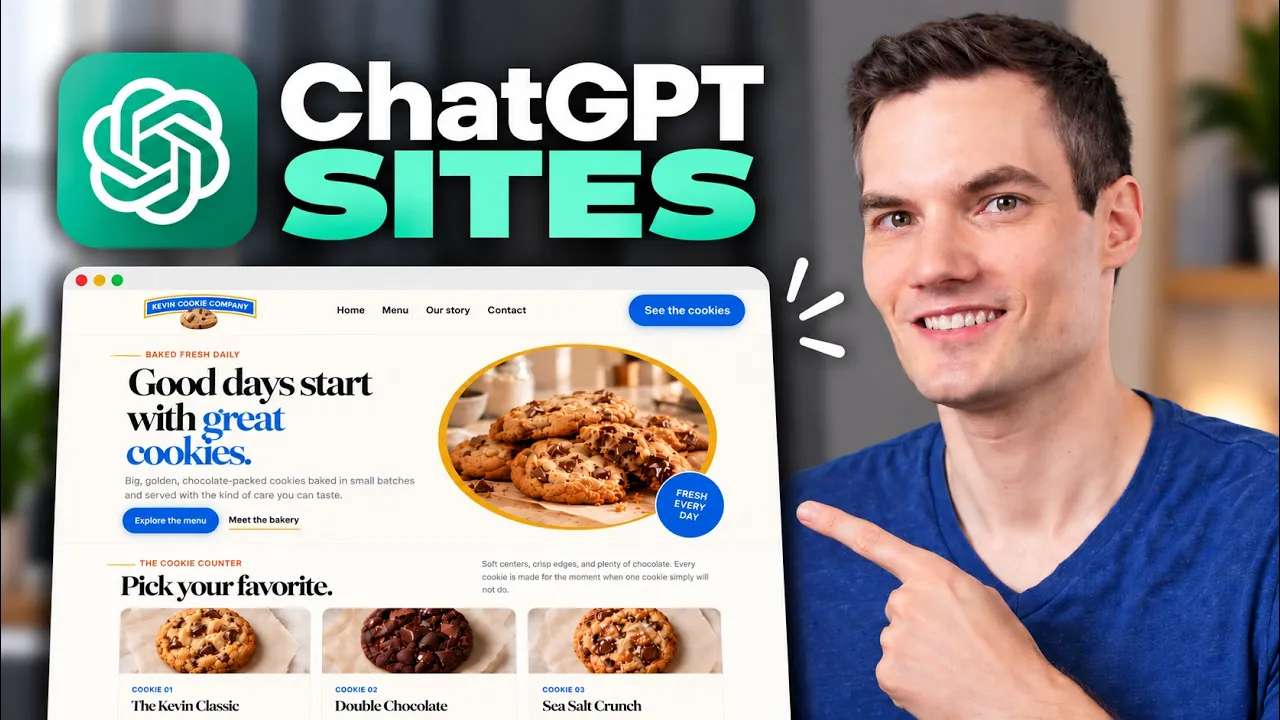
Today, I'll show you how to build a website with ChatGPT Sites. Years ago, I built this website for my small business, the Kevin Cookie Company, using Google Sites. It still works, but it's definitely starting to show its age. So today, we're going to rebuild it from scratch using ChatGPT Sites. We'll create the site just by describing what we want, customize the design, add interactive features, and then publish it to the web. And I’ll show you how you can even use your own domain name with the site. I'm Kevin, and let's dive in. To get started, first head to chatgpt.com. Then over
106 words, the words spoken in the first 30 seconds at 211 words per minute.
Free, no signup. See how the first 30 seconds hold attention, with rewrites.
Sentence shape
| Measure | This transcript |
|---|---|
| Sentences | 129 |
| Average words per sentence | 13.0 |
| Longest sentence | 33 words |
| Questions asked | 1 |
| Sentences containing a number | 1 |
Most used terms
Filler phrases
7 in total: like 6 · actually 1.
A literal whole-word count of the same phrase list the Prepublish browser extension uses, so a phrase inside another word is not counted and a phrase used in its ordinary sense still is. It is a count and not a judgement.
Free, no account. See where attention is likely to drop, with a rewrite for each weak line. The free check shows the scores and the one issue costing the most. Or run it on the words above first.
Free · No login · See a sample audit first if you prefer.
What this transcript is
Every word below is the caption track YouTube publishes for this video, pulled from the video itself and reproduced unchanged. It is not Prepublish's writing, not a summary, and not a re-transcription: it is the video's own published captions. English captions, published by the channel, in the video’s original language. Source: the video on YouTube. A channel that would rather this page did not exist can ask for its removal through the contact page, and it is removed.
Today, I'll show you how to build a website with ChatGPT Sites. Years ago, I built this website for my small business, the Kevin Cookie Company, using Google Sites. It still works, but it's definitely starting to show its age. So today, we're going to rebuild it from scratch using ChatGPT Sites. We'll create the site just by describing what we want, customize the design, add interactive features, and then publish it to the web.
And I’ll show you how you can even use your own domain name with the site. I'm Kevin, and let's dive in. To get started, first head to chatgpt.com. Then over on the left-hand side, let's open up the sidebar and then go down to More, and here, you'll see a new option for Sites. Let's click on that. And over here, I'll minimize the sidebar. Now this takes us to the Sites page, and here you can see any of the sites you've already created.
If this is your first time, though, you won't see anything here yet. To build a new site, right over here, let's click on Create Site. And this takes us into Work mode. You can see that at the top of the page. You'll notice right here that it references @Sites, or the command. This tells ChatGPT that we want it to build a website. Now over here, I'll remove this. You could also get to it simply by typing @ and then Sites, and there I'll select that.
So, let's build a brand-new website for the Kevin Cookie Company. Now right over here, I'll type in my prompt, and here I'll describe the type of website I want to create. I'll give it some details about the business, the pages I want, and the overall look and feel. Feel free to pause if you'd like to read the full prompt. I also have a logo for the Kevin Cookie Company that I'd like to attach. So right down here, I'll click on the plus icon, and over here, I'll select Add photos and files.
And there's my logo. I'll select this. And you don't need to figure out every detail before you begin. Start with just a simple description and see what Sites creates, and then you can refine it as you go. Right down below, let's send it off. I'll click here. Now ChatGPT Sites will get to work building the website. After just a few minutes, the first version of the website is ready. Let's click on the site logo right here, and that'll open up another pane over here on the right-hand side where we can see the website right here in ChatGPT.
Now, as a quick tip, you can hover over this center divider, and that way you can give either the website or the chat more room. Let's go to full-screen mode so we can see the site better. In the top right-hand corner, I'll click on this icon. Let's have a look at the page. Now here at the top, we have that logo that I provided, and over here we have the top-level navigation. Here's the hero section, and it uses that logo again.
I think I'd prefer to swap that out for a photo of a cookie. Now as I scroll down, here, we have the menu and a little bit more. We have our story, and here at the very bottom, we also have a contact form. I don't think it's working yet, so we still have some work to do. And look at the colors on this page. So interesting. They all match the logo. Overall, I think this is beautiful, and we could definitely work with it.
Now I really like the overall design, but I think we use the logo just a little bit too much, and I think we could also include some photos of the actual products. That is, after all, how we sell it: delicious-looking cookie photos. So let me give a simple instruction to see if we can clean up the site. So, let's open the sidebar again. Right up here, I'll exit out of full-screen mode. In the bottom left-hand corner, this opens up the chat, and I can now give feedback on this V1 of my website design.
So over here, I'll type in my prompt. I'd like to remove all of these repeated logos throughout the website, and I really just want to keep the logo that's right up here in the header. Then I'd also like to add some realistic photos of freshly baked cookies throughout the site. That's really what sells the cookies. Otherwise, I'm happy with everything else. Now that I've typed all of that in, let's go ahead and send that off.
It finished making all of the changes, so let's jump back into full-screen mode. All right, let's check this out. Right up on top, we have a hero image of our chocolate chip cookies. That looks amazing. I'll scroll down a little bit more. Here we have all the different cookies that we offer on the menu, and notice how the photo matches the cookie name. So here we have the chocolate chip, the double chocolate, and the sea salt crunch, and all the photos match.
And if I scroll down a little bit more, look at those cookies with the steam rising. This looks amazing. And notice how simple this was. I didn't have to select each image or tell it exactly where everything should go. I just described the change that I wanted. Now Sites added a contact form at the bottom of the page, and I want to make sure that when someone fills it out, it actually saves their information somewhere.
Back here in ChatGPT, let's exit out of full-screen mode, and in the bottom left-hand corner, let's ask Sites to make the form fully functional. Also, when someone submits the form, I want it to save their information so I can view the submissions later. And right over here, let's send that off and see how Sites handles the data behind the website. And check this out. Sites has made the form fully functional and also set up storage for all of the submissions.
Let's open up the website to test it out. Right up on top, let's jump down to the contact form, and here I'll type in some sample information. I'll type my name and email, and then what I'm craving: a lifetime supply of chocolate chip cookies. That would be amazing. Right down below, let's send that. Now, as the admin, over on the left-hand side, I can view all the saved submissions. Let's take a look. And there I see the latest entry.
Very nice. Now that the website is looking good and everything is working, let's publish it. To share the website, right here in the chat, we can click on Share. Or alternatively, over on the left-hand side, let's open up the sidebar again and go back to More and then Sites. Here now we see all the different websites that we've created, and there's the website that I just made. Right over here, I'll click on the three dots, and at the top of this menu, you'll see the option to Share.
Let's click on that. At the top of the Share dialog, right over here, I can see the website URL. So, if someone types this in, that'll bring them to this website. But you might want to change that address. Over here, I'll click on the settings gear, and this brings me into the main settings view. Up at the top, I can enter in a name for this website. Kevin Cookie Company works. And right down below, you'll see the web address.
Now currently, this one's a little long, so I can click on Change, and I can modify what this URL is. For now, I'll leave that as it is. Now right down below, you can also add a custom domain. That's really exciting. So not only can I build a professional-looking website, but I can also use my own domain name. You just enter the domain that you want to use here, and then Sites will walk you through the steps to connect it.
Now, the exact setup will depend on where you manage your domain, so I won't go through all the DNS changes here, but Sites gives you the records you'll need. Let's go back to sharing. Right up on top, let's go back. Right down below, let's click on the three dots again and go back to Share. Here, I can share the site with specific people. I simply enter in their email address. Or alternatively, I can also share to anyone who has this link.
So essentially, it makes the website publicly accessible. And down below, I can then copy the link, and if I paste that into my browser, we can now see the website. That's a stunning website. Once you publish your website, Sites also gives you built-in analytics so you can see how your site's performing. Back here in the main Sites view, let's once again go to the website that we just created and then hover over the three dots.
Within this menu, you'll see the option for Analytics. Let's click on that. And here we can see information like unique visitors. Over here, we have page views, and right down below, we can see traffic over time. It's fairly basic, but it gives you a quick way to see how your website's performing. There you go. Wasn't that amazing? You simply describe what you want, you see what it creates, and then you can just keep refining it by having a conversation.
If you ever learned HTML, CSS, or JavaScript in the past, I think you'd agree with me that this is a whole lot easier. Hey, thanks for watching, and I'll see you in the next one.
The words are the caption track's own and nothing is reworded or re-transcribed. Paragraph breaks are placed between sentences so the text reads as prose.
Free tools for your own script: paste a draft and see where it stands before you record it.
Paste your draft and see where viewers are likely to drop off, with a rewrite for each weak line.
Paste the first 30 seconds of your own draft for a hook score and rewrites.
Check your draft against YouTube's advertiser-friendly guidelines before you record it.
Read this channel's public videos and transcripts, and download a writing brief for it.