Getting the transcript
Reading the captions from YouTube. A video nobody has opened here before takes 10 to 30 seconds; this page fills in on its own.
Getting the transcript
Reading the captions from YouTube. A video nobody has opened here before takes 10 to 30 seconds; this page fills in on its own.
Nate Herk | AI Automation · @nateherk
This video has no Most replayed graph yet: YouTube shows one only once a video has enough views. These are the moments viewers replayed most in Nate Herk | AI Automation's most watched videos.
Most replayed moment at 5:28
3.3x that video's typical replay level
and then I want the lid to be put back on, no shadows, no hands, no reflections." It spits out this prompt, I put that into Kling, and here's the result. I haven't watched this yet, so hopefully it's good. Okay, interesting. I mean, obviously we
Said at 5:22
Most replayed moment at 11:53
5.0x that video's typical replay level
made by which AI? Well, let's just start taking a look at the results here. Okay. So, we've got Claude Code, we've got Codex. There's a few things that we're going to go over. First of all, let's do the reveal. Which one did Claude Code make? Claude Code made Formora and Codex made
Said at 11:46
Most replayed moment at 1:46
4.8x that video's typical replay level
says MCP and CLI. And we're going to first of all connect this to Claude in the web. This is just your typical Claude chat that you've probably been using for months now. You're going to go to the settings and you're going to click on connectors and you're going to have to add a custom connector. So, down here you can
Said at 1:39
The graph counts replays. It does not show where viewers stopped watching.
Words
3,100
Runtime
11:19
Speaking pace
274wpm
Reading time
13min
274 words per minute, above the 201 75th percentile of 349 measured videos. That distribution comes from the 349-video hook study.
Opening (first 30 seconds)
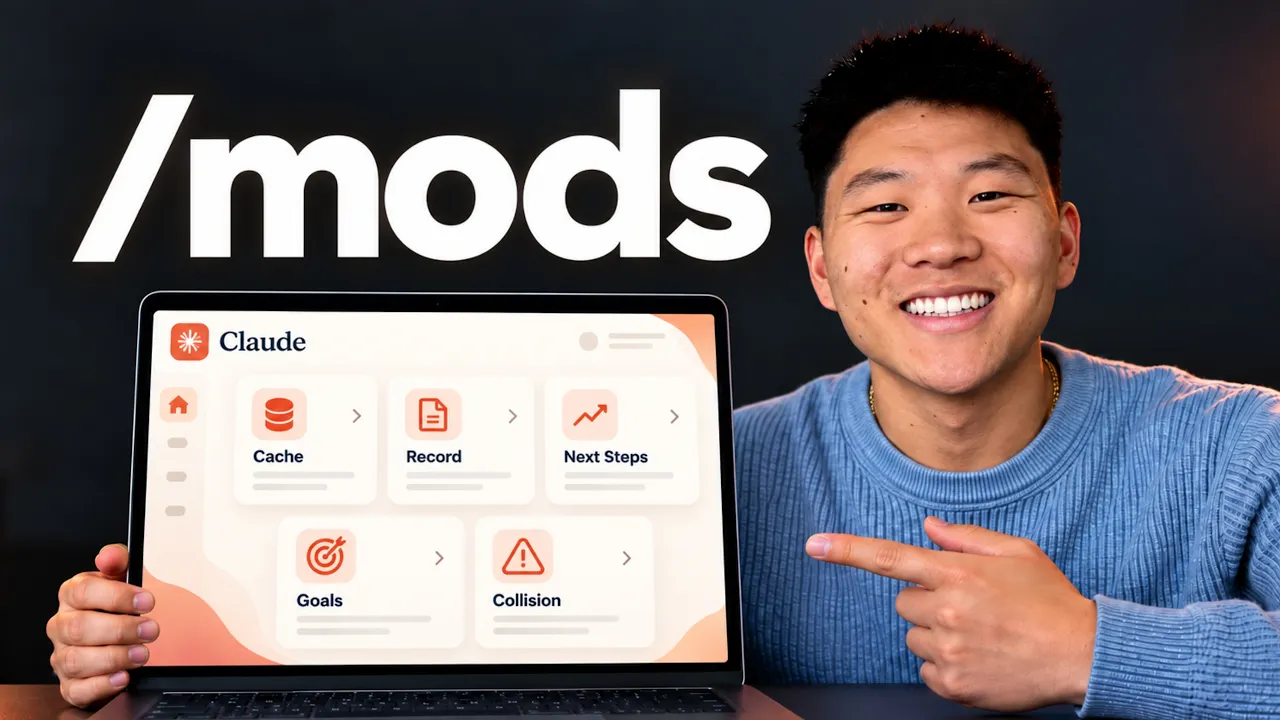
So, Cloud Code just dropped mods, which basically means if there's something that you wish the Cloud Desktop app did, you can just ask it to do it, and it will change. You can customize the UI. You can swap in your own features. There are so many possibilities here. So, here's the official release tweet from the Cloud Devs account, and you can see that it's showing off a few examples. This one's called token weather, and it's showing how full the context is, and it appears in the actual Cloud Desktop UI. This one is called blast radius, and it basically will show you what it would delete before it actually does it, so you can proceed or you can tell it to not. This one's called replay theater. So you can basically step by
137 words, the words spoken in the first 30 seconds at 274 words per minute.
Free, no signup. See how the first 30 seconds hold attention, with rewrites.
Sentence shape
| Measure | This transcript |
|---|---|
| Sentences | 176 |
| Average words per sentence | 17.6 |
| Longest sentence | 96 words |
| Questions asked | 10 |
| Sentences containing a number | 16 |
Most used terms
Filler phrases
103 in total: like 43 · basically 21 · actually 19 · kind of 7 · you know 6 · literally 3 · sort of 2 · uh 1 · um 1.
A literal whole-word count of the same phrase list the Prepublish browser extension uses, so a phrase inside another word is not counted and a phrase used in its ordinary sense still is. It is a count and not a judgement.
Free, no account. See where attention is likely to drop, with a rewrite for each weak line. The free check shows the scores and the one issue costing the most. Or run it on the words above first.
Free · No login · See a sample audit first if you prefer.
What this transcript is
Every word below is the caption track YouTube publishes for this video, pulled from the video itself and reproduced unchanged. It is not Prepublish's writing, not a summary, and not a re-transcription: it is the video's own published captions. English captions, generated automatically by YouTube, in the video’s original language. Source: the video on YouTube. A channel that would rather this page did not exist can ask for its removal through the contact page, and it is removed.
So, Cloud Code just dropped mods, which basically means if there's something that you wish the Cloud Desktop app did, you can just ask it to do it, and it will change. You can customize the UI. You can swap in your own features. There are so many possibilities here. So, here's the official release tweet from the Cloud Devs account, and you can see that it's showing off a few examples. This one's called token weather, and it's showing how full the context is, and it appears in the actual Cloud Desktop UI.
This one is called blast radius, and it basically will show you what it would delete before it actually does it, so you can proceed or you can tell it to not. This one's called replay theater. So you can basically step by step replay the edits that just happened and you can see all those diffs. And what's cool is these are basically all plugins. So Thoric, one of the engineers at Cloud Code, put out this one that he uses a lot called next steps, which basically at the end of every turn, Cloud Code pops up a little, you know, element in the UI and it says, "Hey, here are like three recommendations of what you could do next or you can just dismiss this." So here you can see I asked what action items do I have for ClickUp today?
And then what we get in this UI is basically next steps. I can either close the demo and old hackathon tasks. I can push certification due dates to next week. I can run the morning coffee briefing or I can just dismiss this if I want to take my own next step. Now, I don't know if this is super super useful when I'm actually just like kind of driving my own day and doing knowledge work. But if I was building an app and it was recommending like, oh, we should fix this bug first or we should merge these changes or like all of these different things.
Having something that's kind of guiding you as to what you should keep doing in order to keep making progress on your app or software or automation or whatever it is. Pretty cool. Now, I'm sure you guys are noticing a bunch of other elements here in my UI, and different things are popping up, and it might be a little bit overwhelming. So, let's just kind of zoom out a little bit. I'm just going to show you a few of the actual mods that I'm using right now that I think are helpful, explain what they are, how they work, and how you can get them set up super easily.
And I'm going to give you guys all of these mods for free as well. So, let's just jump right in. So, first of all, this next step one you can download super simply. All you have to do is literally just copy this and give it to Claude and say, "Hey, set up this mod." And then in 30 seconds you will have the next steps thing popping up right there in that same chat as you. Now what actually are mods? They are essentially plugins.
So you can see mods ship inside plugins. You install them with /plugin in the CLI or desktop app and it's basically just a little bit of code and you can create one with completely natural language. So you could literally just open up claude right now, update it and then say, "Hey, I want to make a mod for this. Let's do it." And so when I actually got in here and started playing around with the mods, the first thing I did is I said, "Hey, I want you to look through tons of session logs, understand what I do in Claude Code, how I use you, what are things that I constantly say or repeat, what are tasks that I do a lot, and help me find the top five best mods that I could build right now that are going to help my workflow, save me money, help me move faster, stay organized, things like that." And it made a bunch of suggestions.
Now, I didn't take all those suggestions, but it got my brain flowing a little bit on how mods work and what I should actually introduce. I've made a ton of mods here. I've made like a little pet that's pretty useless. There's a bunch of these different like visual workflows that people are building on X and they're kind of going viral, but it's like I don't even know if that would really help me. So, anyways, here are some that I think are actually helpful.
But anyways, here's this first one I want to call out is a cache. And you can see my command center one just popped up, but that's just like a notification. But anyways, this one basically shows me some stuff about my usage and the cache. So, what the cache is is basically everything that's in this chat is cached. Meaning every single new message you shoot off to the agent, like if I say hello, that doesn't get reread at full cost.
And you can see that the cash was at like 57 minutes and now it's back up to 60. So after 60 minutes, if you don't send a message to a session, you would have to pay again, like repay for all of that text. So as the window fills up, obviously that's going to become more expensive. And this is how much it would cost if this expired. So this basically shows you, okay, you know, you have 60 minutes to shoot off another prompt.
Otherwise, you're probably going to want to do some sort of like session handoff or, you know, compact the context or something like that. What else this is showing me, it's kind of like the status line if you did that back in the terminal. I can see the context, which is 109,000 tokens, which I can also just see right here. I can also see the session limit, the 5 hour, and the weekly right here as well, but I just get to display it here too cuz then I can just see it at a glance.
And then it also shows me how much the session would have costed me via API billing. So, that's pretty cool. And then what else I worked into this is this button right here. So I can literally just press this button which runs the session handoff which is my skill that I use whenever I'm like trying to essentially hand off the session to a fresh one so that I'm resetting the context window. I'm not getting into context rot.
And then after it runs that handoff I can basically just click clear and continue. And that runs the /clear. It pastes in the handoff message and then it basically I'm I'm right there already. So normally I would run that skill myself, copy it, clear, paste, enter, go. And I'm not really saving a ton of time here, but that was just like it's cool to see that the mods can actually just do that. So now it's just two clicks of a button for me.
And I could probably just actually make that one click of a button now that I think about it. And then what else is cool about this cashkeeper mod, which is I guess the formal name that it created, is that when something is about to go cold, so if the cash is going to reset in 5 minutes, it shoots you a notification and says, "Hey, do you want to reprompt this real quick or just like run a compact or a handoff or something?" That way you save on the cash.
By the way, guys, I've got this completely free SOP for you about getting your first Amation client. It's going to go over the exact steps that has been proven for hundreds of our AIS Plus members to get their first paid gigs. It goes over the one sentence service pitch that can get you started today, why your first client should cost you money, the 5-minute video that answers, can this person actually deliver before you've actually received any money, what to do when you have zero case studies.
There's so many good things in here that are going to help you out. Even if you already do have clients, I would recommend grabbing this because, like I said, it's yours completely free. So, if you want to grab this, there's a link for it down in the description. Let's get back to the video. But anyways, I think you guys get the point of that one. This next one that I've got going, you probably noticed it shows that I'm recording here.
That's not Claude actually recording my screen. That's just me on recording mode, which basically means, you know, I record a lot of YouTube videos and when I am, I might be showing off like email addresses or internal information, financial information, things like that. And what's cool about that is now in record mode, it basically just blurs that stuff out. So, I came in here and said, "What is the email address associated with my GitHub repo or my GitHub account?" And maybe that's not something that I want you guys to see.
Well, what happens is it says, "Okay, recording mode is on, so I'll keep the actual addresses off the screen. Here's the setup with placeholders, blah blah blah." And it would just show me all that with placeholders. But also, if I didn't explicitly say, "What is my email address?" and it was just coming through in natural text or it was reading me an email that I got from someone else and it had financial figures in there.
If I was recording, it would probably just blur that out or not blur it out, but it would like do some sort of placeholders like this. So, here's a quick example. I was running this demo earlier and I'll show you guys this in a sec. But basically, I have this HTML and I wanted to update the price from $29 to $39. And when I pasted this in and hit enter, it actually sent over the real numbers, but Claude blurred this stuff out because I'm in record mode.
And you can see it even blurs it out right here. So, if I go to that actual doc that I'm talking about, you can see that the pricing did get changed from 29 to 39. So, it actually still can read all that text you're putting in there, but it's just going to blur it out on record mode. And I could come in here and I could do record. You can see this is a little command. And then I could just say off, and that's going to turn off record mode.
And now all of that gets unblurred and we can see it. But once again, I can just go back in here, record, and then just hit enter. And now record mode's on, and all of this stuff should be blurred out once again. So, you basically like turn on all these mods by just running slash commands. They live in your local files and stuff like that. Like I said, it's a plugin you install. They're super super easy to manage. And like I said, all of these ones that I built and all the ones that I will build in the future, you just say, "Hey, build me a mod for this." And then when it's done, you say, "Hey, how do I turn that on?
How do I turn it off? What do I do?" Blah blah blah. Okay. So, this one I think is also pretty cool. So, I run a lot of /goal prompts in the desktop app. And when I do these, sometimes you lose track of like where they are in the process. You don't know how much longer they're going to run, and you don't always know how long they've been running so far. So, I made a mod that just gives me a little UI when I shoot off a /goal prompt.
So, let me just make a really simple prompt. So, I'm just shooting off the super simple /goal. And what happens is it starts up the session. It's going to spin up all my other uh mods. So, it's going to have the recording mode is already turned on because it's going to be turned on until I turn it off. It's going to hopefully spin up that cache, but it doesn't do that until like the first message gets sent. Um, and then you can see this UI right here, which is the goal.
Create me an AIS carousel about Cloud Code mods. There comes the cache thing. You can see that right now it's in the planning phase. You can see 0 minutes elapsed. It says waiting for Claude's task plan. And in here, if I click on all tasks, this will basically show me everything that it's doing. It's also showing me here like other chats and other things that are going on. But once this is able to actually figure out a plan and make like a task list, then I'll be able to see that and we'll be able to see like the percentage complete of this goal.
Okay, that's kind of funny. This one finished really quick because it already did this and then it already posted this carousel. So that was probably a bad prompt, but you can see that now it would have shown me all of these tasks. Okay, so I'm just going to shoot off a new/Gole prompts real quick to show you what this actually looks like when we see all the tasks. Okay, there you go. So you can see here it created four tasks.
We have find comment fetch tooling. Pull comments from the last 10 videos. Analyze comments for common themes. And then the last one is to report the one most important theme. And we can see visually as it's actually going through and checking off these tasks. And then of course if there were more than four, I could click on G and I would be able to see all of them right through here and other chats where I maybe am running different goals.
And this is pretty cool if you do have like 12 different sessions running goals and you just want to see all of them in one spot because I do that quite a bit. So anyways, that is what this one looks like. Okay, so this last one I wanted to show you guys real quick is called collision guard. So basically before every edit, write, or notebook edit, it checks if the file that it's about to edit has already been touched within the last 30 minutes.
And if it does, then it basically asks you, what do you want to do about it? So let me show you a video demo of what I did earlier here. So I basically created this new project which I had an HTML file and I was going to edit it and then try to update it in a different chat. So essentially in this first chat over here I changed the price from 29 to 39 and then I started up a new chat and said hey add a most popular badge to the pro plan.
Now what happened is it realized that that file had already been touched. So it says hey you know another open chat edited the file just now. So if this would have been 20 minutes ago it would have said 20 minutes ago but it happened just now. So then it said do you want to edit this here too? And I could say proceed. I could say move to a work tree. I could cancel that or I could type something else. So, this is kind of different than like a hook action because it's not like a pre-tool use and it doesn't just like block something or take an action automatically.
It basically recognizes something and then in the UI asks you this question. Now, this is probably something you could work in with like a skill or with, you know, in your cloudmd or something, but just building it as a mod was super super quick and easy. And now it pops up like this and I'm able to make sure that I'm not overwriting files if different agents are working on things. If I want to keep them more separate or if I do actually want them to collaborate and work on things together, then I would just be able to hit proceed.
And now we can see that it's actually going to take action and it updates the HTML file for us. But anyways guys, just wanted to show you a few of the use cases of mods that I've been using and that I think are actually pretty helpful. If you want to get all of those mods that I showed in today's video for completely free, then just join my free school community. The link for that is down in the description. All you have to do is join the free school community, go to classroom, click on all YouTube resources, and then you will find the zip file or the GitHub repo with all of those mods right in there, and you can just install them super quick.
But of course, you could also just like feed this transcript of this video to your agent or in natural language, explain what you want to see and what you want it to look like and what you want it to do and it will build it for you super quick. But that is going to do it for this one. So, I hope you guys enjoyed. I hope you learned something new and if you did, please give it a like. It helps me out a ton. And as always, I appreciate you guys making it to the end of the video and I will see you all in the next one.
Thanks everyone.
The words are the caption track's own and nothing is reworded or re-transcribed. Paragraph breaks are placed between sentences so the text reads as prose.
Free tools for your own script: paste a draft and see where it stands before you record it.
Paste your draft and see where viewers are likely to drop off, with a rewrite for each weak line.
Paste the first 30 seconds of your own draft for a hook score and rewrites.
Check your draft against YouTube's advertiser-friendly guidelines before you record it.
Read this channel's public videos and transcripts, and download a writing brief for it.